


Working an Incident in Service Operations Workspace
On this page
In this lesson, you will learn:
- The steps an agent follows on every incident
- Work notes vs additional comments
- How to test your incident setup end to end
- What to check at each step
🔁 Quick look back: Last time: Incident Notifications at SNWR. You learned how to review the baseline incident emails, keep the useful ones and turn off the noise.
1 “Does it all work together?”
You’ve built categories, priorities, groups, rules and properties. Each one works on its own.
- But nobody has worked a real incident from start to end yet.
- Daniel asks: “Will Abel’s day actually be easier?”
- You don’t know yet.
👉 The fix: test the whole journey, the way an agent works: from New to Resolved, in the workspace.
2 Abel’s steps
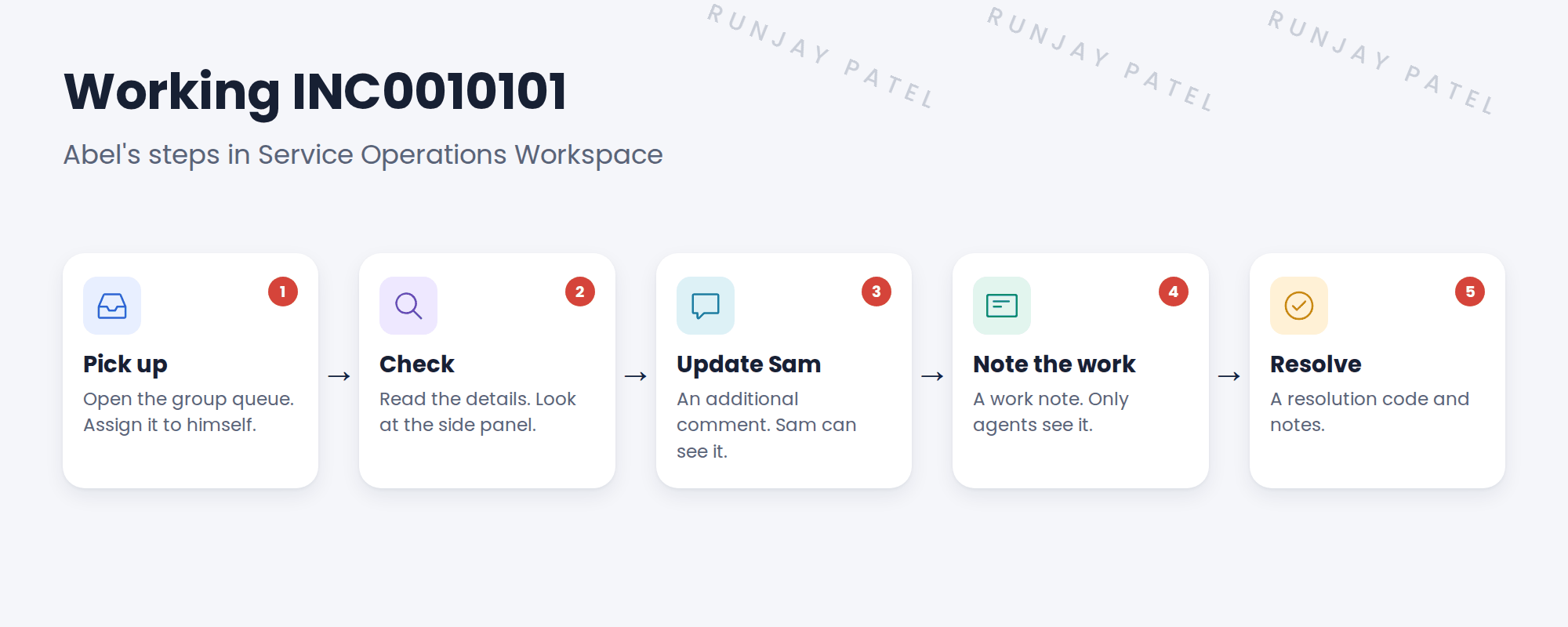
Key term: Work note
A note only agents can see. Use it for technical details.
Key term: Additional comment
A message the caller can see, and gets by email.
⚠️ Heads up: Never put passwords or private details in an additional comment. The caller, and anyone they forward it to, can read it.
3 What to check as you test
| Step | Check that |
|---|---|
| Logged by email | Contact type is Email and the default rule set SNWR Service Desk |
| Impact and urgency | Priority changes by the matrix |
| On Hold, Awaiting Caller | Sam’s reply moves it back to In Progress |
| Resolve | Code and notes are required |
| After resolve | Sam gets the Incident resolved email |
💡 Good to know: Write each check as a line in your test plan. You’ll reuse it in UAT and in the regression pack later.
4 Let’s try it: work an incident end to end
- Impersonate Sam Lee. Log an incident in Employee Center: “VPN keeps disconnecting”. End impersonation.
- Impersonate Abel Tuter. Open Service Operations Workspace and find the incident in his group’s queue.
- Assign it to Abel. Set category Network, subcategory VPN, impact 3 and urgency 2. Check the priority.
- Add an additional comment asking Sam to restart the VPN client. Set On Hold, Awaiting Caller.
- Impersonate Sam and reply. Then as Abel, check it’s In Progress, and resolve it with a code and notes.
5 Quick recap
- Abel’s steps: pick up, check, update the caller, note the work, resolve
- Work notes are for agents; additional comments go to the caller
- Test the whole journey, not just single settings
- Check routing, priority, hold, resolve and email
- Save the checks for UAT and regression testing
6 Check yourself
Think of your answer first. Then tap to check.
1 Which one can Sam see: a work note or an additional comment? Show answer
An additional comment.
2 Where does Abel find his group’s new incidents? Show answer
In the queue lists in Service Operations Workspace.
3 Why test the whole journey? Show answer
Settings that work alone can still fail together.
4 Should a password ever go in an additional comment? Show answer
No. The caller and others can read it.
Nice work! You tested a full incident journey. 🎉
Next up: Configuring Workspace Lists and the Record Page
Was this lesson helpful?
Please log in to share lesson feedback.
Have a question or doubt?
Ask here and get help from instructors and fellow learners.
Only logged-in learners can post.





