


Catalog Properties and Checkout
On this page
In this lesson, you will learn:
- Where catalog settings live
- How to hide quantity
- What two-step checkout is
- How to order on behalf of someone
🔁 Quick look back: Last time: Catalog Roles and Delegated Management. You learned how catalog roles let Lucas manage the catalog and a Desktop Support lead edit only Hardware items.
1 “Why did Sam order 10 monitors?”
Sam meant to type 1. He typed 10.
- There was no check before submitting.
- Beth approved it without looking closely.
- Sam also called Abel, who couldn’t order for him.
👉 The fix: hide quantity where it makes no sense, add a review step, and let agents order for others.
2 SNWR’s settings
| Setting | SNWR choice |
|---|---|
| Hide quantity | On for every Hardware item (Portal settings tab) |
| Two-step checkout | On: Sam reviews the order before submitting |
| Order on behalf | Service Desk agents can order for any SNWR employee |
Key term: Two-step checkout
Before an order is sent, the requester sees a review page and confirms it.
Key term: Order on behalf
One person places an order for someone else, like Abel ordering for Sam.
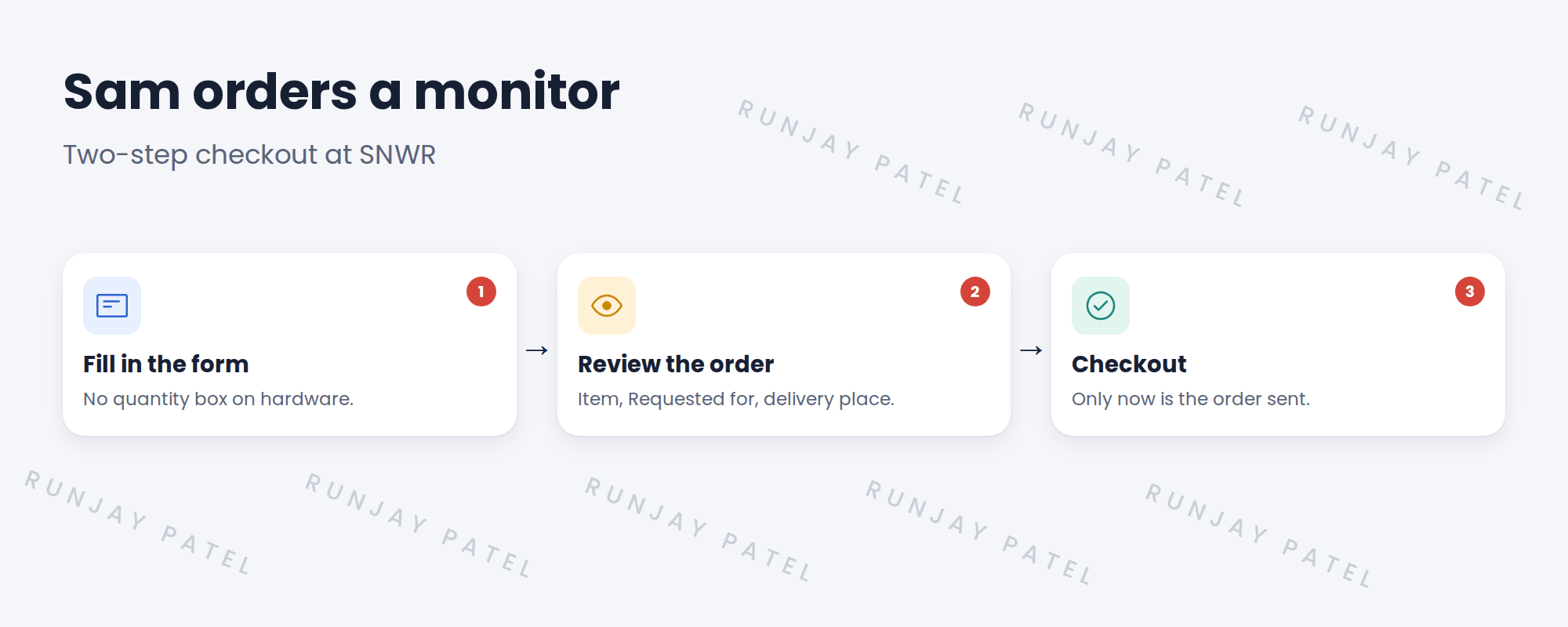
3 Where settings live
- Two-step checkout: the property glide.sc.sp.twostep for Employee Center and Service Portal.
- Hide quantity: a tick box on each item.
- Order on behalf: the Requested for variable, and who can change it.
📝 Note: Search Service Catalog › Catalog Administration › Properties for the rest. Read before you change.
💡 Good to know: Need a refresher? See Fundamentals › System Properties › Viewing & Editing Properties.
4 Let’s try it: set up checkout
- Open SNWR Request a monitor. On the Portal settings tab, tick Hide quantity.
- Find the property glide.sc.sp.twostep and set it to true.
- Impersonate Sam. Order a monitor, and check you see the review page before it’s sent.
- Impersonate Abel. Order a monitor and set Requested for to Sam Lee.
- Check the RITM shows Sam as Requested for, and Abel as the person who ordered.
5 Quick recap
- Hide quantity where more than one makes no sense
- Two-step checkout adds a review page
- Agents can order on behalf of employees
- Settings live on the item and in catalog properties
- Read a property before you change it
6 Check yourself
Think of your answer first. Then tap to check.
1 How do you stop Sam ordering 10 monitors by mistake? Show answer
Hide quantity on the item.
2 What does two-step checkout add? Show answer
A review page before the order is sent.
3 Abel orders for Sam. Who is Requested for? Show answer
Sam Lee.
4 Which property turns on two-step checkout in Employee Center? Show answer
glide.sc.sp.twostep.
Nice work! SNWR’s catalog is ready for orders. 🎉
Next up: Fulfillment Design
Was this lesson helpful?
Please log in to share lesson feedback.
Have a question or doubt?
Ask here and get help from instructors and fellow learners.
Only logged-in learners can post.





