


Designing Assignment Groups
On this page
In this lesson, you will learn:
- What makes a good assignment group
- How SNWR names its groups
- Why roles go on groups, not people
- How to build SNWR’s support groups
🔁 Quick look back: Last time: Locations, Departments and Companies. You learned how to build locations, departments and companies, and link users to them.
1 “There are 90 groups!”
In the old tool, SNWR had a group for almost every person and project.
- Abel has to pick from 90 groups when he escalates.
- Some groups have one member, who left last year.
- Tickets sit in empty groups for days.
👉 The fix: build a short list of groups, one for each team that does the work, with a manager and clear names.
2 What makes a good group
Key term: Assignment group
A team that tickets can be assigned to. Every member can see and work the group’s tickets.
Key term: Group manager
The person responsible for the group’s work, and often its approver.
- One group per real team, not per person or project
- At least two members, so work never waits for one person
- A clear name that starts with SNWR
- A manager for every group
💡 Good to know: Need a refresher? See Fundamentals › User Administration › Groups & Group Members.
3 SNWR’s support groups
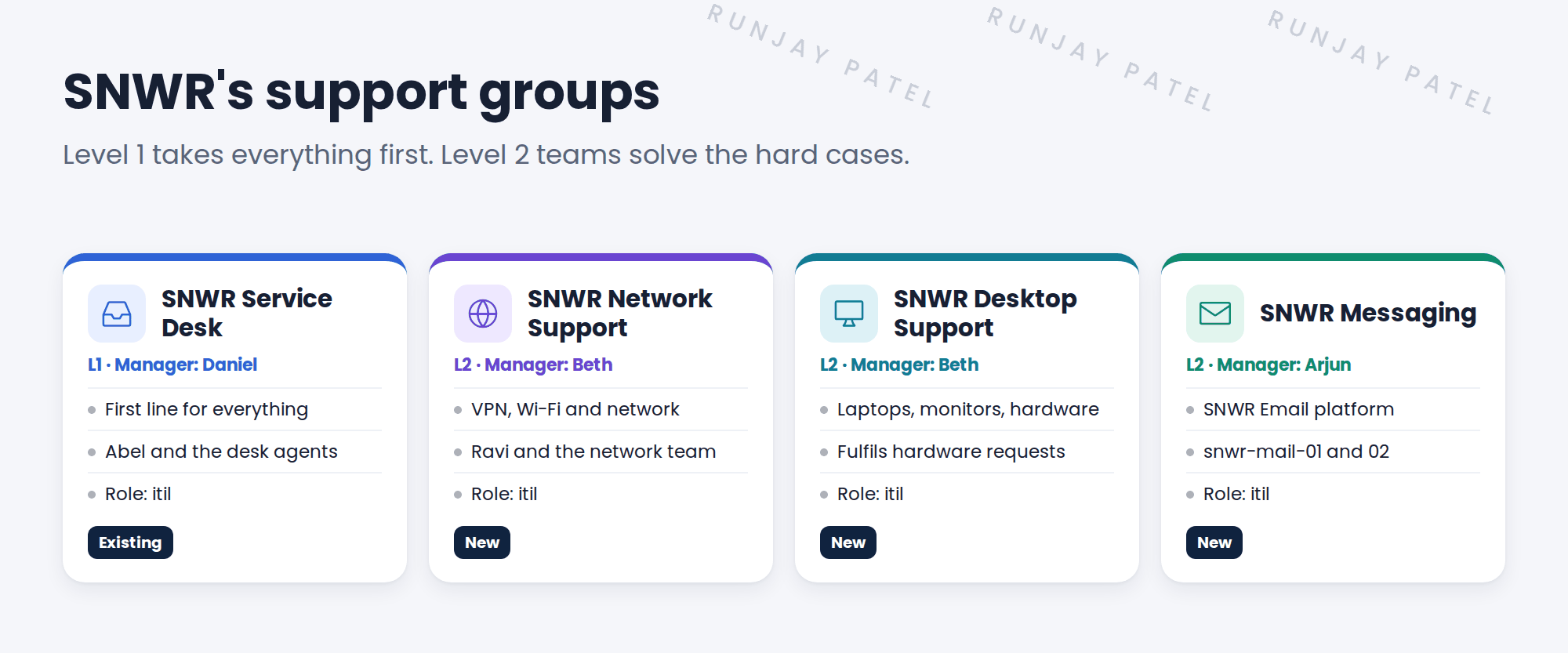
📝 Note: SNWR Service Desk already exists from Fundamentals. You add the three L2 groups.
4 Roles go on groups
Give the itil role to the group, not to each person. Everyone who joins the group gets the role. Everyone who leaves loses it.
⚠️ Heads up: Don’t give itil directly to users. It’s hard to track, and it can use up paid fulfiller seats. You learned this in the packages lesson.
⭐ Remember: Few groups, real teams, clear names, a manager each, and roles on the group.
5 Let’s try it: build the L2 groups
- Go to All › User Administration › Groups and click New.
- Create SNWR Network Support. Set Manager to Beth Anglin. Save.
- In the Roles related list, add itil. In Group Members, add Ravi Iyer and one more user.
- Repeat for SNWR Desktop Support (manager Beth) and SNWR Messaging (manager Arjun Mehta).
- Open Ravi’s user record. Check that he now has the itil role, inherited from the group.
6 Quick recap
- One assignment group per real team
- Each group has a manager and at least two members
- Names start with SNWR and say what the team does
- Give the itil role to the group, not to people
- SNWR has one L1 group and three L2 groups
7 Check yourself
Think of your answer first. Then tap to check.
1 Why should every group have at least two members? Show answer
So work never waits for one person who is away.
2 Where should the itil role go: on the user or on the group? Show answer
On the group. Members inherit it.
3 Which group takes every incident first at SNWR? Show answer
SNWR Service Desk (L1).
4 Who manages SNWR Messaging? Show answer
Arjun Mehta.
Nice work! SNWR’s assignment groups are ready. 🎉
Next up: Schedules, Time Zones and Holidays
Was this lesson helpful?
Please log in to share lesson feedback.
Have a question or doubt?
Ask here and get help from instructors and fellow learners.
Only logged-in learners can post.





