


Creating Knowledge from Incidents
On this page
In this lesson, you will learn:
- Why knowledge should come from real incidents
- How the Knowledge checkbox works
- What happens to the draft article
- SNWR’s simple knowledge habit
🔁 Quick look back: Last time: Contextual Search and Agent Assist. You learned how contextual search shows matching articles and similar incidents in the side panel as the agent types.
1 “We fixed it, then forgot how”
Ravi fixed VPN error 809 in ten minutes.
- His notes stayed on one incident.
- Two weeks later, another agent spent an hour on the same error.
- Contextual search had nothing to show.
👉 The fix: turn good fixes into knowledge articles, straight from the incident.
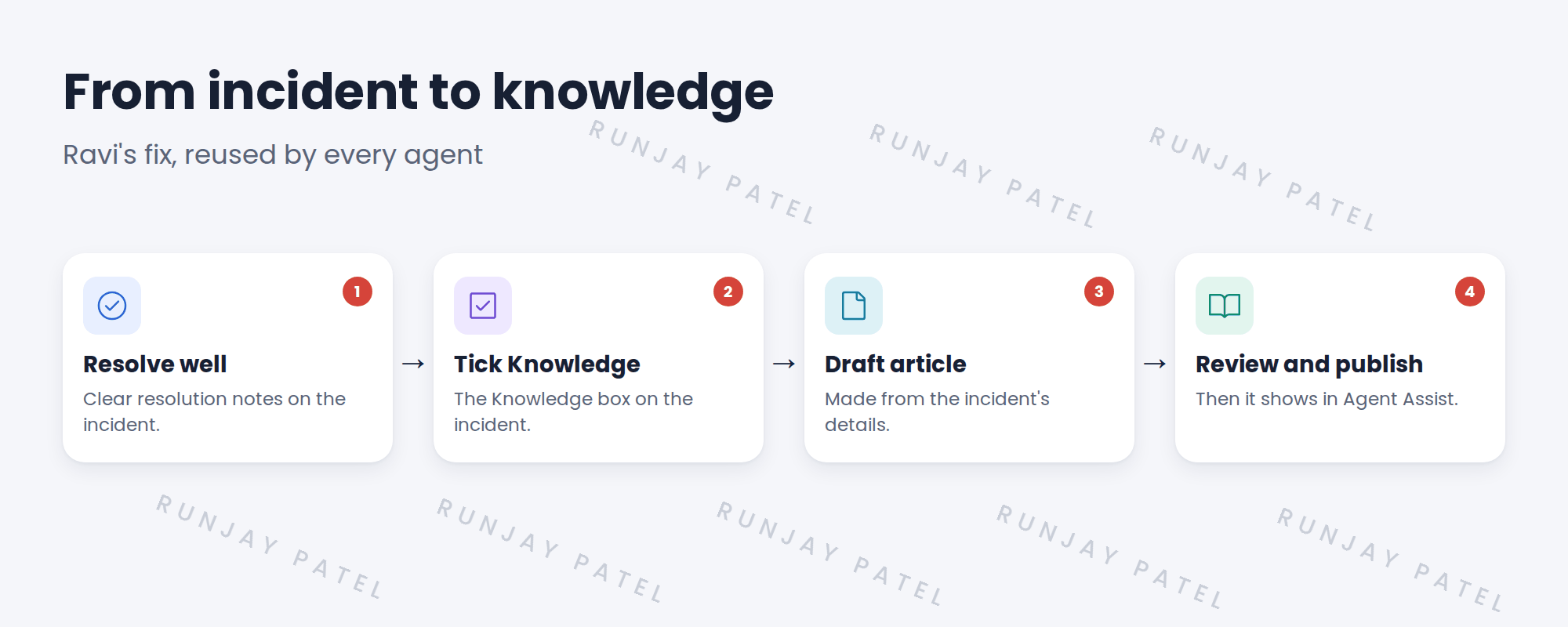
2 From incident to article
Key term: Knowledge checkbox
A box on the incident. Tick it, and a draft article is made from the incident when it closes.
Key term: Draft article
An article that isn’t published yet. Someone reviews it first.
💡 Good to know: Need a refresher? See Fundamentals › Knowledge Management.
3 SNWR’s knowledge habit
- Search first. If an article exists, attach it to the incident.
- If it’s missing or wrong, tick Knowledge and write clear resolution notes.
- A Service Desk lead reviews drafts every Friday.
💡 Good to know: This habit is often called Knowledge-Centered Service (KCS): capture knowledge while you work, not later.
⚠️ Heads up: Remove names, passwords and private details before an article is published.
4 Let’s try it: make a draft article from an incident
- Open a resolved incident with good resolution notes.
- Find the Knowledge checkbox (add it to the form with Form Layout if you don’t see it) and tick it.
- Close the incident.
- Go to All › Knowledge › Articles › All and look for the new draft.
- Open it and check what came across from the incident.
5 Quick recap
- Good fixes should become knowledge articles
- Tick the Knowledge box to make a draft from the incident
- A reviewer checks the draft before it’s published
- Search first, then create if it’s missing
- Remove private details before publishing
6 Check yourself
Think of your answer first. Then tap to check.
1 What does the Knowledge checkbox do? Show answer
It makes a draft article from the incident when it closes.
2 Who checks the draft before it’s published? Show answer
A reviewer, like a Service Desk lead.
3 What should Abel do before creating a new article? Show answer
Search first. Attach an existing article if there is one.
4 What must be removed before publishing? Show answer
Names, passwords and other private details.
Nice work! SNWR’s fixes now become shared knowledge. 🎉
Next up: Interactions: Logging a Call or Chat
Was this lesson helpful?
Please log in to share lesson feedback.
Have a question or doubt?
Ask here and get help from instructors and fellow learners.
Only logged-in learners can post.





