


ITSM Guided Setup
On this page
In this lesson, you will learn:
- What ITSM Guided Setup is
- How its sections and tasks work
- How to mark tasks complete or skip them
- How SNWR uses it to track progress
🔁 Quick look back: Last time: ITSM Roles and Personas. You learned which baseline ITSM roles fit each SNWR persona, and how to give them through groups.
1 “Did we forget anything?”
It’s week 4. You’ve set up a lot on snwrdev already.
- Daniel asks: “Did we set the incident properties yet?”
- You think so, but you’re not sure.
- Riya asks where the notification settings are. You have to search for them.
👉 The fix: use ITSM Guided Setup. It lists the steps in order, opens each one, and tracks your progress.
2 What is Guided Setup?
Key term: Guided Setup
A built-in checklist that walks you through setting up a product, step by step.
Key term: Task
One step in Guided Setup, like “Set incident properties”. Each task opens the right setting for you.
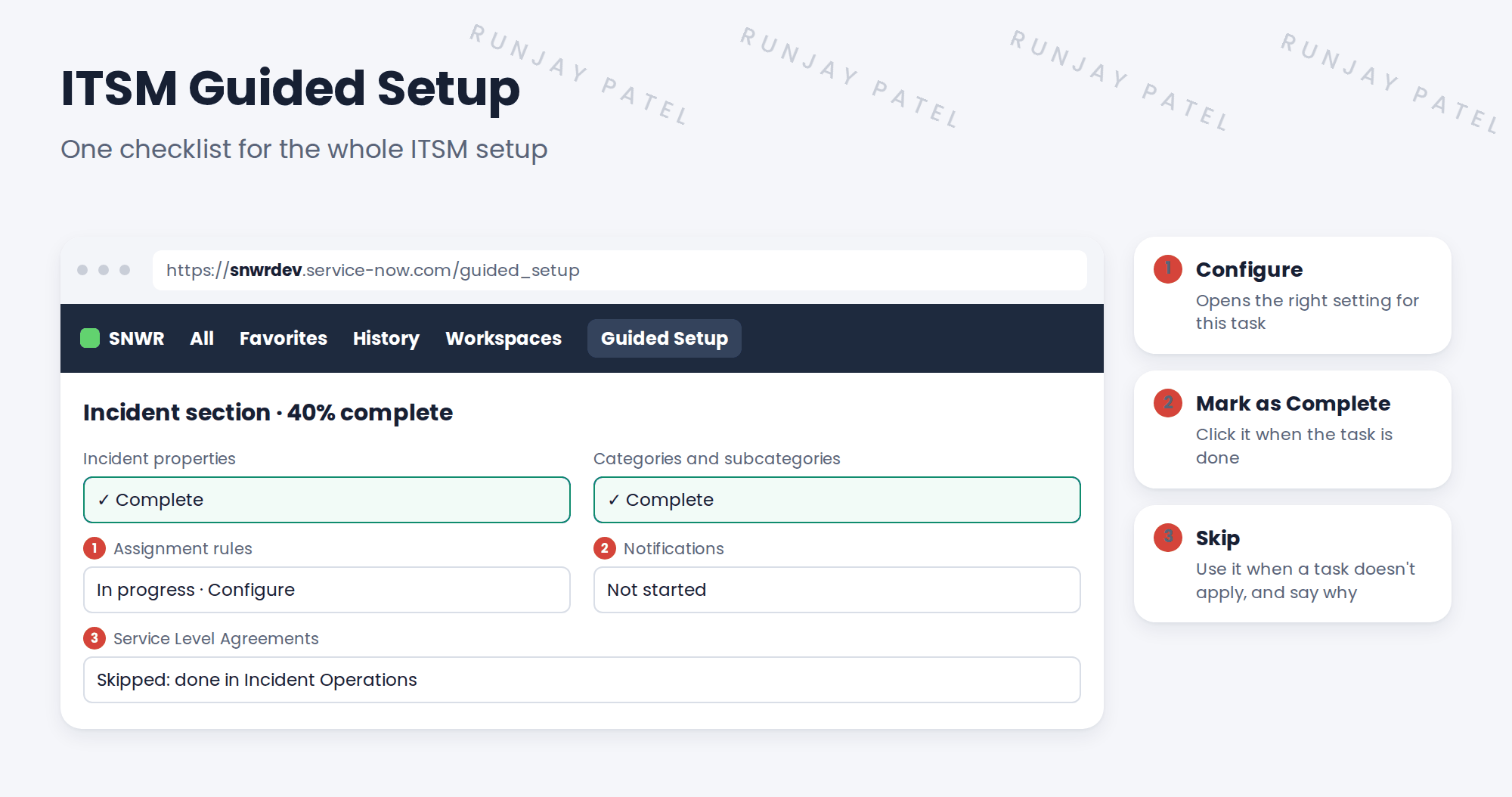
ITSM Guided Setup is split into sections, such as foundation data and each ITSM process. Each section has a list of tasks, in a sensible order.
3 How to use it well
- Open ITSM Guided Setup and pick a section.
- Read the task’s short help text.
- Click Configure to open the setting, and make your change.
- Come back and click Mark as Complete.
- If a task doesn’t apply, click Skip and write a short reason.
💡 Good to know: The progress bar is great for status meetings. Show Anita the percentage for each section.
📝 Note: Guided Setup doesn’t replace your design decisions log. It tracks settings. The log tracks why you chose them.
4 Let’s try it: walk through the Incident section
- In the All menu, search Guided Setup and open ITSM Guided Setup.
- Click Get Started if you see it, then open the Incident section.
- Pick the first task. Read the help text, then click Configure to see which setting it opens.
- Go back. Mark one task complete and skip one, with a reason.
- Check that the progress bar has moved.
5 Quick recap
- ITSM Guided Setup is a built-in setup checklist
- It has sections for foundation data and each process
- Configure opens the right setting
- Use Mark as Complete and Skip to track progress
- It tracks settings; the decisions log tracks why
6 Check yourself
Think of your answer first. Then tap to check.
1 What does the Configure button do? Show answer
It opens the right setting for that task.
2 A task doesn’t apply to SNWR. What do you do? Show answer
Click Skip and write a short reason.
3 How can Guided Setup help in a status meeting? Show answer
Its progress bar shows how much of each section is done.
4 Does Guided Setup replace the design decisions log? Show answer
No. It tracks settings. The log records why.
Nice work! You can track the ITSM setup with Guided Setup. 🎉
Next up: Service Operations Workspace Tour
Was this lesson helpful?
Please log in to share lesson feedback.
Have a question or doubt?
Ask here and get help from instructors and fellow learners.
Only logged-in learners can post.





