


Incident SLA Design for SNWR
On this page
In this lesson, you will learn:
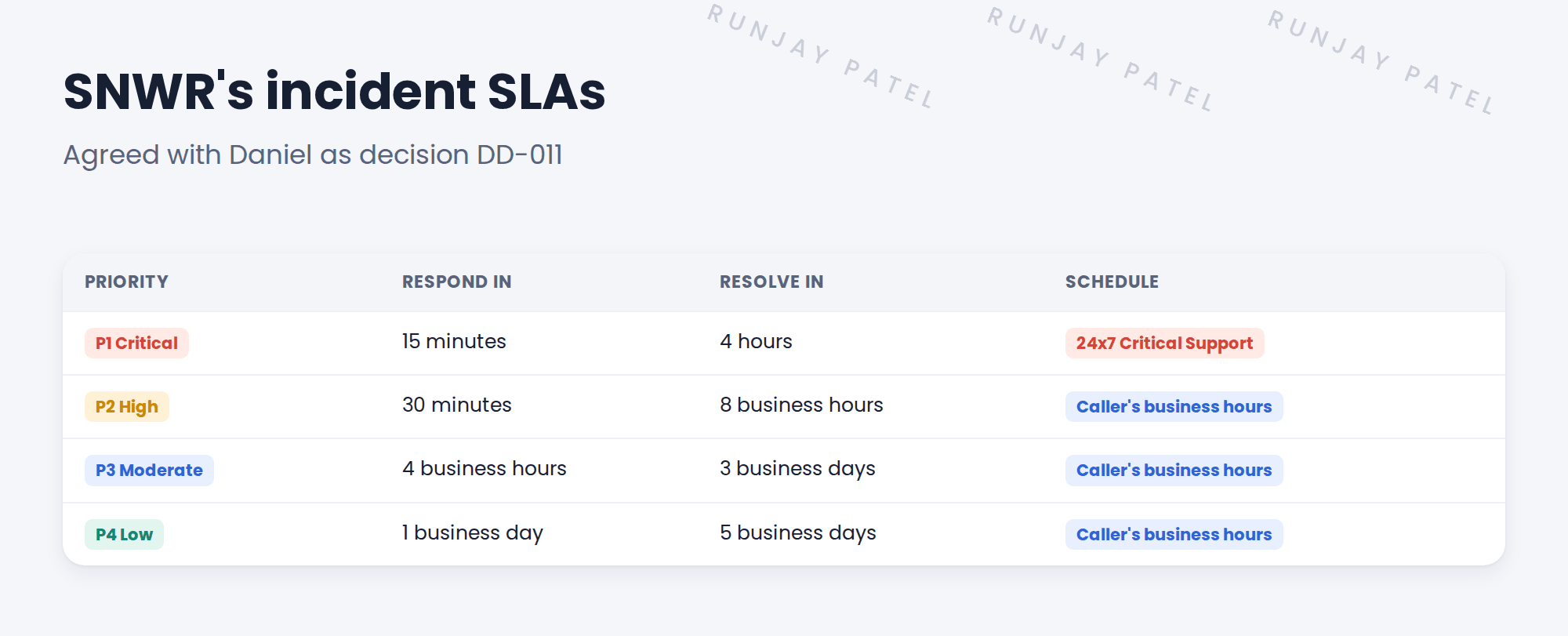
- SNWR’s SLA targets for each priority
- Why P1 uses a 24×7 schedule
- When the SLA clock pauses
- How to build one SLA definition
🔁 Quick look back: Last time: On-Call Scheduling. You learned how to build an on-call rotation with members, rosters and an escalation path.
1 “The SLA clock stopped at 6 PM!”
In testing, a P1 is logged at 10 PM.
- Ravi is paged by on-call at once.
- But the P1 SLA uses business hours, so its clock is stopped until 9 AM.
- The report says the P1 was fixed “in 2 hours”. It really took 11.
👉 The fix: put P1 SLAs on the 24×7 schedule, and the rest on business hours.
2 SNWR’s SLA matrix
💡 Good to know: Need a refresher? See Fundamentals › SLA Management.
3 The right clock
Key term: Response SLA
How fast someone starts working on it.
Key term: Resolution SLA
How fast it’s fixed.
Key term: Pause condition
When the clock stops, like On Hold waiting for the caller.
- P1: SNWR 24×7 Critical Support. The clock never stops for nights or weekends.
- P2 to P4: business hours, in the caller’s time zone. London callers use UK hours; Mumbai callers use India hours.
- Pause on hold, when waiting for the caller or a vendor.
⚠️ Heads up: Don’t pause for Awaiting Change or Awaiting Problem at SNWR. Those waits are still IT’s job, so the clock keeps running. Daniel agreed.
4 Let’s try it: build the P1 resolution SLA
- Go to All › Service Level Management › SLA Definitions and click New.
- Name: SNWR P1 Resolution (4h). Table: Incident. Type: SLA. Duration: 4 hours.
- Schedule: SNWR 24×7 Critical Support.
- Start condition: Priority is 1 – Critical. Stop condition: State is Resolved. Pause: State is On Hold and On hold reason is Awaiting Caller or Awaiting Vendor.
- Save. Create a P1 incident and check the SLA is attached with the right schedule.
5 Quick recap
- Each priority has a response and a resolution target
- P1 uses the 24×7 schedule, like on-call
- P2 to P4 use business hours in the caller’s time zone
- The clock pauses only when waiting for the caller or a vendor
- Record the SLA matrix as a design decision
6 Check yourself
Think of your answer first. Then tap to check.
1 Which schedule does SNWR’s P1 SLA use? Show answer
SNWR 24×7 Critical Support.
2 A London caller logs a P3. Which hours count? Show answer
UK business hours, in the caller’s time zone.
3 Does the SNWR clock pause for Awaiting Change? Show answer
No. Only for Awaiting Caller and Awaiting Vendor.
4 What’s the P1 resolution target at SNWR? Show answer
4 hours.
Nice work! SNWR’s SLAs now tell the true story. 🎉
Next up: Legacy Agent Experiences: UI16 and Agent Workspace
Was this lesson helpful?
Please log in to share lesson feedback.
Have a question or doubt?
Ask here and get help from instructors and fellow learners.
Only logged-in learners can post.





