


Risk Conditions and Change Success Score
On this page
In this lesson, you will learn:
- What a risk condition does
- SNWR’s key-service risk condition
- What Change Success Score is
- How entitlement affects it
🔁 Quick look back: Last time: Configuring Risk Assessments. You learned how to set up risk assessment questions and how their answers are scored.
1 “It’s only the email server…”
A change on snwr-mail-01 is marked Low by its owner.
- The owner answered the questions quickly.
- But the email server supports SNWR Email, a key service.
- It should never be Low risk.
👉 The fix: add a risk condition that raises risk automatically when a key service is touched.
2 Risk conditions
Key term: Risk condition
A rule that checks the change and raises its risk if the condition is true.
Key term: Change Success Score
A score for each team, based on how many of its past changes worked without problems.
| SNWR risk condition | If true |
|---|---|
| The CI supports SNWR Email or SNWR Network | Raise risk to at least High |
| The change is planned during the quarter-end freeze | Raise risk to High (and it will also show a conflict) |
💡 Good to know: Risk conditions use the CMDB. That’s another reason the CI and service data must be right.
3 Change Success Score
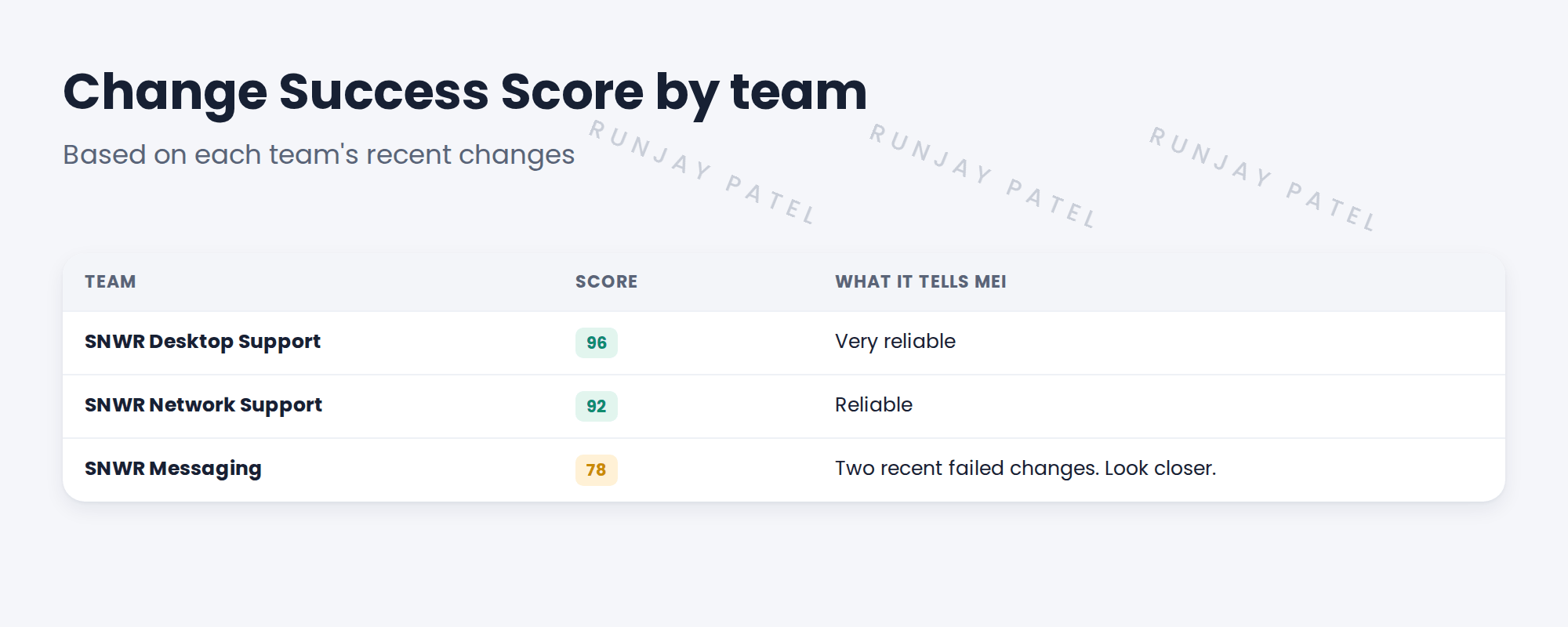
Mei can use the score in approval rules. For example, a team with a low score always needs her approval.
📦 Entitlement check: ServiceNow docs may say Change Success Score needs ITSM Professional. That’s an older package name. Check which of today’s packages includes it before you promise it.
4 Let’s try it: add a risk condition
- Search Risk Conditions in the All menu and open the list for change.
- Look at the baseline risk conditions. What do they check?
- Create a new condition: if the change’s configuration item supports SNWR Email, set risk to High.
- Make it active, and raise a test change on a CI that supports SNWR Email.
- Calculate the risk and check it’s High. If you can see Change Success Score on your instance, look at it too.
5 Quick recap
- Risk conditions raise risk automatically
- SNWR raises risk for changes to key services
- Risk conditions depend on good CMDB data
- Change Success Score shows a team’s track record
- Check the package before promising it
6 Check yourself
Think of your answer first. Then tap to check.
1 A change on snwr-mail-01 is marked Low. What fixes this automatically? Show answer
A risk condition for CIs that support SNWR Email.
2 What does Change Success Score show? Show answer
How many of a team’s past changes worked without problems.
3 Why do risk conditions need good CMDB data? Show answer
They check the CI and the services it supports.
4 Docs say “requires ITSM Professional”. What do you do? Show answer
Check which of today’s packages includes it before promising it.
Nice work! SNWR’s key services are always treated as risky. 🎉
Next up: Maintenance Windows and Blackout Schedules
Was this lesson helpful?
Please log in to share lesson feedback.
Have a question or doubt?
Ask here and get help from instructors and fellow learners.
Only logged-in learners can post.





