


Fulfillment Flows for Catalog Items
On this page
In this lesson, you will learn:
- How a flow is linked to an item
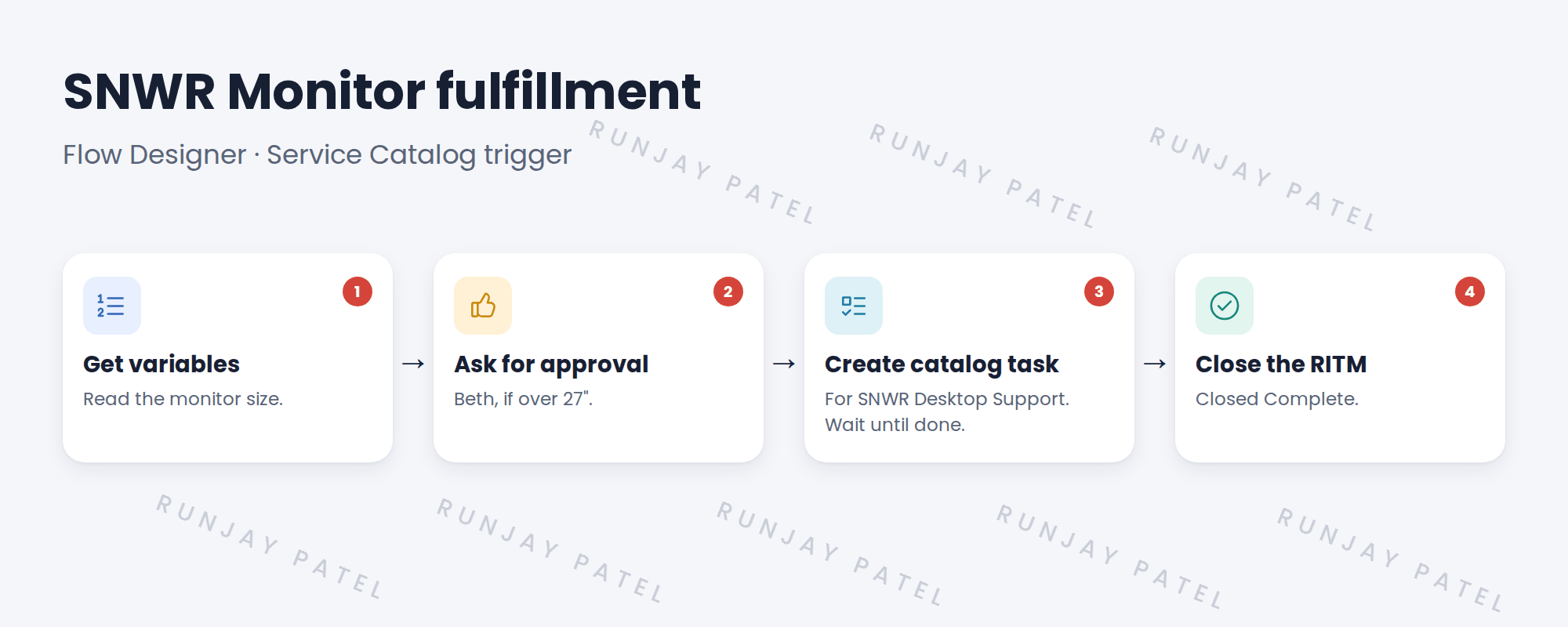
- The actions in SNWR’s monitor flow
- How the RITM closes
- How to test the flow
🔁 Quick look back: Last time: Fulfillment Design. You learned how to map a request from order to close before building anything.
1 “The design is signed. Now what?”
Lucas signed off the monitor design.
- It’s a drawing on a page.
- Nothing happens when Sam orders.
- Someone has to turn it into steps ServiceNow runs.
👉 The fix: build it as a flow in Flow Designer, and link the flow to the item.
2 The monitor flow
Key term: Flow
A set of steps ServiceNow runs by itself, built in Flow Designer.
Key term: Service Catalog trigger
A flow start that runs when someone orders the linked item.
3 Linking and testing
- Open the item and set its Flow field to SNWR Monitor fulfillment.
- Only one flow runs per item.
- Test by ordering, then watch the flow run in its execution details.
⚠️ Heads up: If the approval is rejected, close the RITM as Closed Incomplete, so Sam knows it won’t be delivered.
💡 Good to know: Need a refresher? See Fundamentals › Flow Designer.
💡 Good to know: Need a refresher? See AppDev › Workflow Studio for Developers › Build the review orchestration flow (parallel reviews).
4 Let’s try it: build the monitor flow
- Open Flow Designer and create SNWR Monitor fulfillment with a Service Catalog trigger.
- Add Get Catalog Variables for SNWR Request a monitor. Pick the size variable.
- Add an If: size over 27. Inside, add Ask For Approval from Beth Anglin on the RITM.
- Add Create Catalog Task for SNWR Desktop Support, with Wait ticked. Then Update Record: RITM state Closed Complete.
- Link the flow on the item. Order a 32″ monitor as Sam. Approve as Beth, close the task, and check the RITM closes.
5 Quick recap
- A flow runs the fulfillment steps for you
- The Service Catalog trigger starts it on order
- Steps: get variables, approve, create task, close RITM
- Link the flow in the item’s Flow field
- A rejected approval closes the RITM as Closed Incomplete
6 Check yourself
Think of your answer first. Then tap to check.
1 How does the monitor item know which flow to run? Show answer
The item’s Flow field is set to the flow.
2 What does the Wait option on Create Catalog Task do? Show answer
The flow waits until the task is closed.
3 Beth rejects. How should the RITM close? Show answer
Closed Incomplete.
4 Where do you watch a flow run? Show answer
In the flow’s execution details.
Nice work! SNWR’s monitor order now delivers itself. 🎉
Next up: Request Approvals
Was this lesson helpful?
Please log in to share lesson feedback.
Have a question or doubt?
Ask here and get help from instructors and fellow learners.
Only logged-in learners can post.





