


Viewing & Editing Properties
On this page
In this lesson, you will learn:
- Two ways to find and edit system properties
- How to change a property safely
- What to do before you change anything
1 Two ways in
There are two main ways to work with properties. Both change the same records in sys_properties.
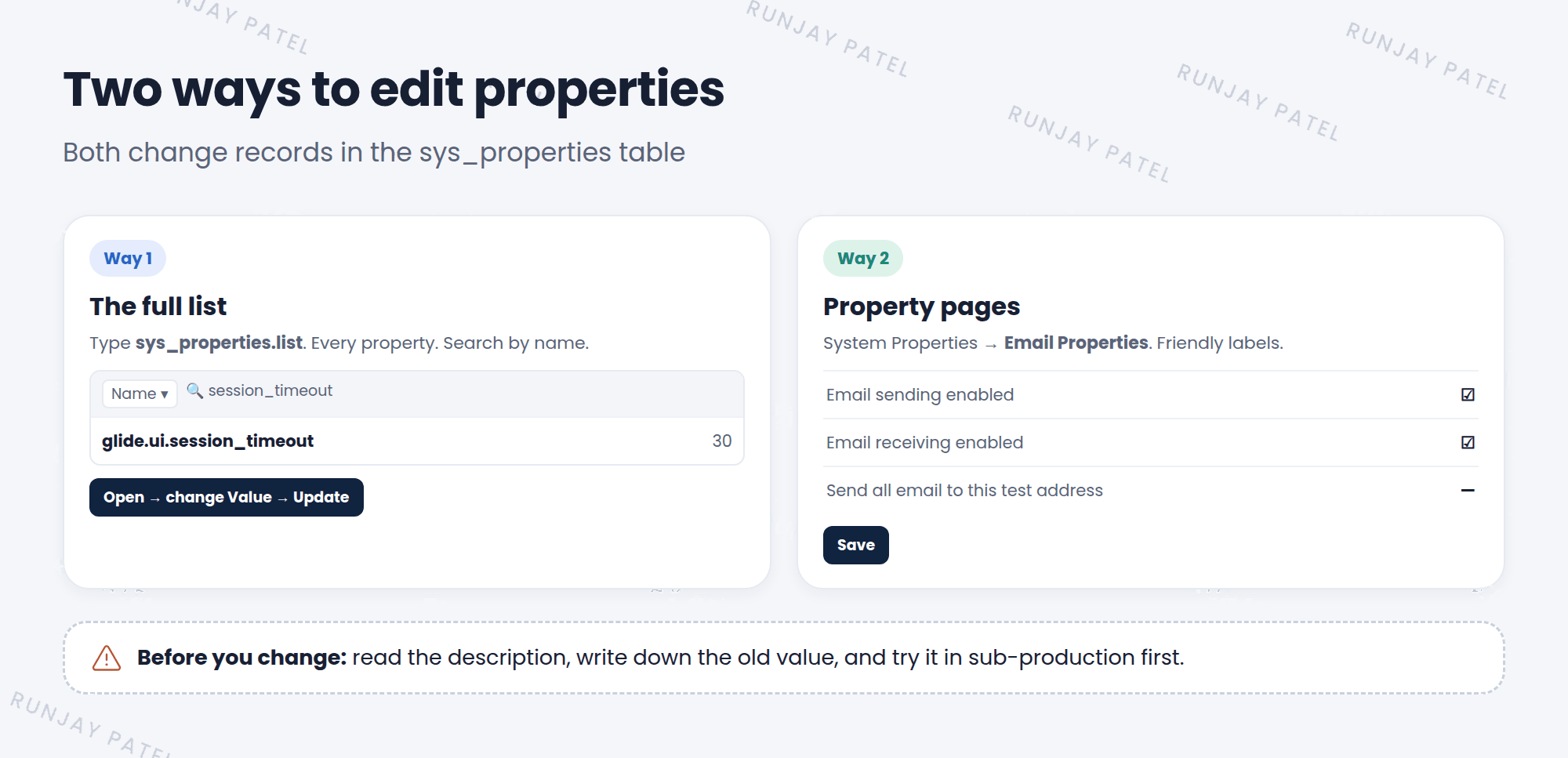
Way 1: The full list
Type sys_properties.list in the All menu. You see every property. Search by name, open one, and edit its Value.
Way 2: Property pages
Pages under System Properties in the All menu, like Email Properties. They group related settings with friendly labels.
💡 Good to know: Many apps have their own property page too. For example, look for Properties under an app’s Administration menu. Property pages are easier and safer, so start there when one exists.
2 Editing from the full list
- Type
sys_properties.listin the All menu filter and press Enter. - Search the Name column for the property you want.
- Open it and read the Description carefully.
- Write down the current value, so you can change it back. ✍️
- Change the Value and click Update.
- Test that it works the way you expected.
3 Editing from a property page
- Type
system propertiesin the All menu filter. - Pick a page, like Email Properties.
- Find the setting. Each one has a label and a short help text.
- Change it (tick a box, type a number, or pick a choice).
- Click Save at the bottom of the page.
4 Change properties safely
⚠️ Heads up: A property change works right away and affects everyone. One wrong value can stop emails, log people out, or break a feature.
- Read the description and the docs first.
- Write down the old value before changing it.
- Change it in sub-production first (Dev, then Test).
- Change one thing at a time, so you know what caused any problem.
- Don’t create or delete properties unless the docs tell you to.
📝 Note: Property changes can be captured in update sets and moved from Dev to Prod, like other changes. You’ll learn about update sets in the Advanced track.
5 Let’s try it: change a timeout
- Open
sys_properties.listand findglide.ui.session_timeout. - Write down its current Value.
- Change the Value to
60and click Update. Now users can be idle for 60 minutes before they’re logged out. - Open System Properties > Email Properties. Read the settings. Don’t change anything here.
- Change the timeout back to its old value. Good admins clean up after testing! 🧹
6 Quick recap
- Edit properties from
sys_properties.listor from property pages - Property pages group settings with friendly labels. Use them when you can
- Changes work right away and affect everyone
- Write down the old value, test in sub-production, change one thing at a time
7 Check yourself
Think of your answer first. Then tap to check.
1 What do you type in the All menu to see every system property? Show answer
sys_properties.list
2 What should you do before changing a property’s value? Show answer
Read the description and write down the current value, and test in sub-production first.
3 You change a property. When does it take effect? Show answer
Right away, for everyone.
Nice work! You finished this lesson. 🎉
Was this lesson helpful?
Please log in to share lesson feedback.
Have a question or doubt?
Ask here and get help from instructors and fellow learners.
Only logged-in learners can post.





