


Creating Modules & Link Types
On this page
In this lesson, you will learn:
- How to create a module inside an application menu
- What a link type is
- The most common link types and when to use each
1 Adding links to your menu
In Lesson 18.2, you built the SNWR Facilities menu. It’s empty. Now let’s add modules: the links people click. 🔗
Every module has a link type. The link type decides what opens when someone clicks it.
Key term: Link type
A module setting that says what the module opens: a list, a new form, a web page, and so on.
2 Common link types
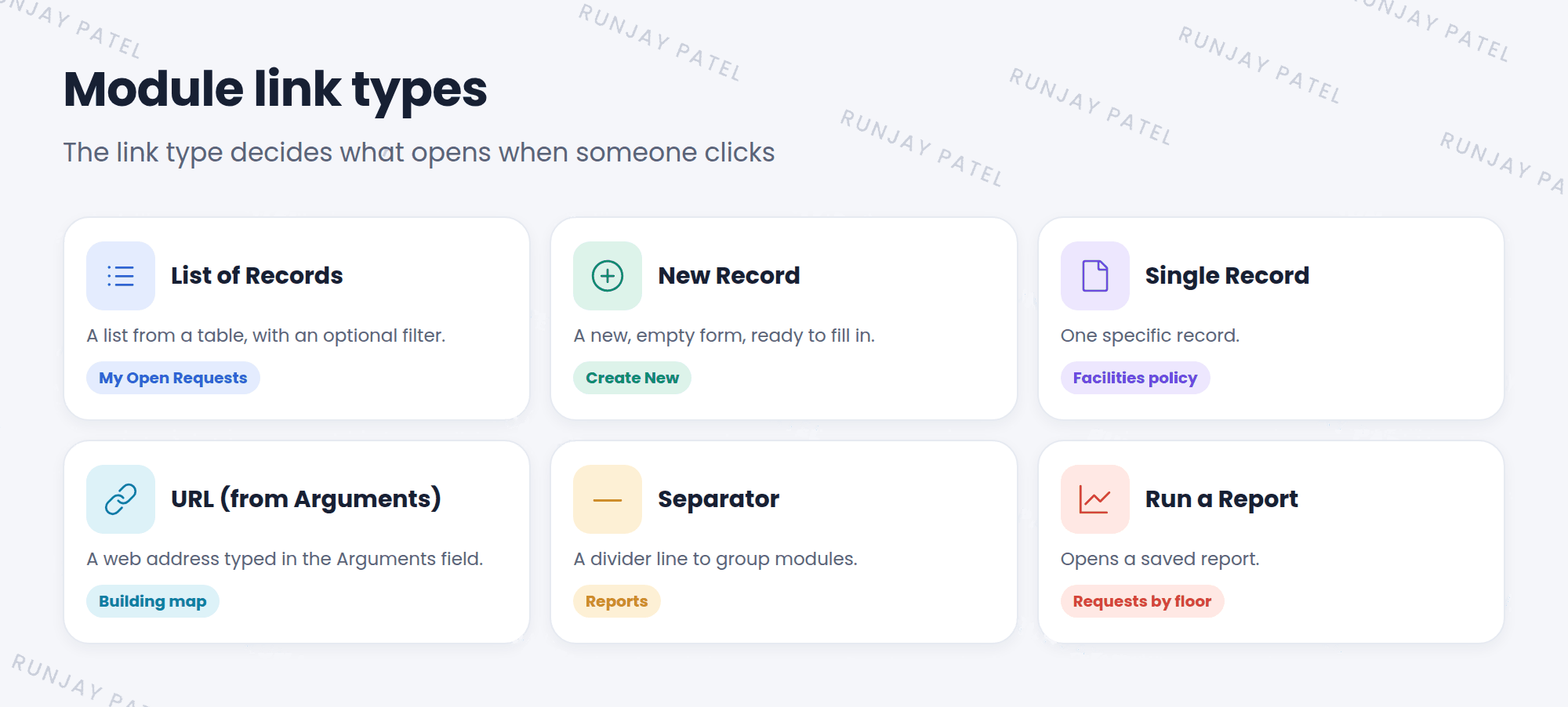
| Link type | Opens | Example |
|---|---|---|
| List of Records | A list from a table, with an optional filter | My Open Requests |
| New Record | A new, empty form | Create New |
| Single Record | One specific record | Facilities policy |
| URL (from Arguments) | A web address you type in Arguments | The building map |
| Separator | A divider line, to group modules | “Reports” heading |
| Run a Report | A saved report | Requests by floor |
📝 Note: There are more link types, like Homepage, Content Page, and Script. The ones in the table are the ones you’ll use most.
3 Create a module
- Open your application menu (System Definition > Application Menus > SNWR Facilities).
- In the Modules related list, click New. The menu is filled in for you.
- Type a Title, like “Open Incidents”.
- Set the Order, like 100.
- Open the Link Type tab. Choose a Link type, like List of Records.
- Pick the Table, and add a Filter if you want, like Active is true.
- Click Submit. Refresh the All menu to see it. ✅
💡 Good to know: For List of Records, a filter with is (dynamic) Me makes a “My …” module that shows each person their own records (Lesson 11.2).
⭐ Remember: List of Records = a list. New Record = an empty form. Separator = a divider.
4 Let’s try it: fill your menu
- Open the SNWR Facilities menu record.
- Add a module Create Incident: Link type New Record, Table Incident, Order 100.
- Add a module My Incidents: List of Records, Table Incident, Filter Caller is (dynamic) Me, Order 200.
- Add a Separator called “Help”, Order 300.
- Refresh the All menu, type
snwr, and try your new modules. 🎉
5 Quick recap
- Add modules from the Modules related list on your menu
- The link type decides what opens
- Common types: List of Records, New Record, Single Record, URL, Separator, Run a Report
- List of Records can include a filter
6 Check yourself
Think of your answer first. Then tap to check.
1 Which link type opens an empty form? Show answer
New Record.
2 You want a module that shows each user their own open incidents. Which link type and filter? Show answer
List of Records, with a filter like Caller is (dynamic) Me and Active is true.
3 Which link type adds a divider line? Show answer
Separator.
Nice work! You finished this lesson. 🎉
Was this lesson helpful?
Please log in to share lesson feedback.
Have a question or doubt?
Ask here and get help from instructors and fellow learners.
Only logged-in learners can post.





