


View Rules
On this page
In this lesson, you will learn:
- What a view rule is
- The main fields on a view rule
- How to create a view rule that picks a view automatically
1 Pick the view for me
In Lesson 15.2, users picked a view by hand. But what if you want ServiceNow to pick the right view automatically? For example: always show the “Hardware” view when an incident’s category is Hardware.
That’s a view rule. 🤖
Key term: View rule
A rule that tells ServiceNow which view to show on a form, based on conditions. Stored in the sys_ui_view_rule table.
2 The parts of a view rule
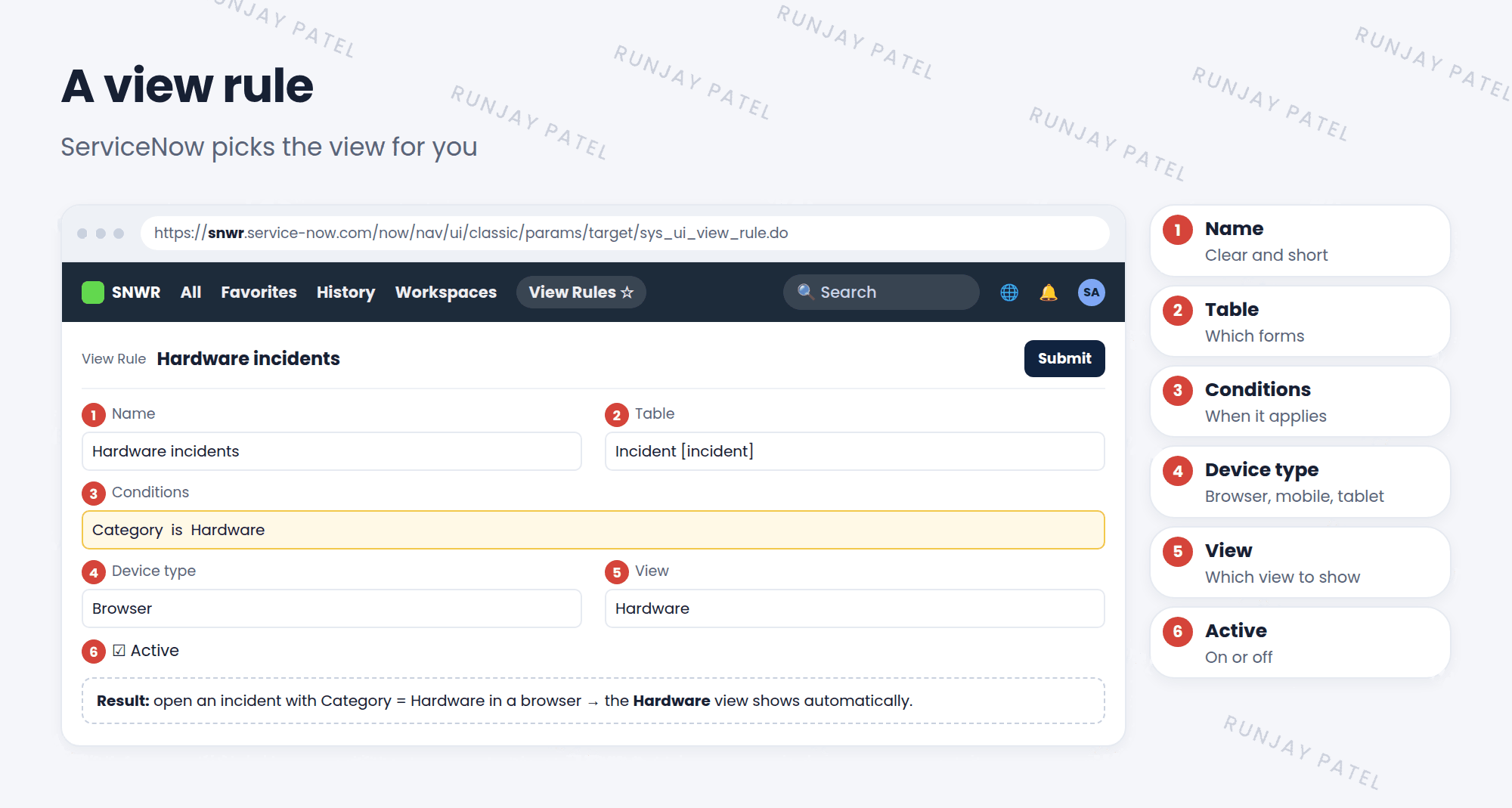
| Field | What it does |
|---|---|
| Name | A clear name for the rule |
| Table | Which table’s forms it applies to |
| Conditions | When the rule should apply, like Category is Hardware |
| Device type | Browser, mobile, or tablet |
| View | The view to show |
| Active | Turns the rule on or off |
📝 Note: There’s also an Advanced option for writing a script instead of conditions. That’s for developers, and ServiceNow suggests using conditions when you can.
3 Create a view rule
- Click All and go to System UI > View Rules.
- Click New.
- Fill in the Name, Table, Conditions, Device type, and View.
- Make sure Active is checked, then click Submit.
- Open a record that matches. The right view shows by itself. ✅
⚠️ Heads up: A view rule forces the view. Users may not be able to switch to another view for those records. Make sure that’s what you really want.
⭐ Remember: Users pick views by hand. View rules pick views automatically.
4 Let’s try it: a view for P1s
- Make sure you have the SNWR Manager view from Lesson 15.2.
- Go to System UI > View Rules and click New.
- Name: SNWR P1 manager view. Table: Incident. Conditions: Priority is 1 – Critical. View: SNWR Manager. Submit.
- Open a Priority 1 incident. Which view shows?
- Open a Priority 3 incident. Which view shows now?
- Set the rule to inactive when you’re done.
5 Quick recap
- A view rule picks a view automatically
- Key fields: Table, Conditions, Device type, View, Active
- Create them in System UI > View Rules
- View rules force the view, so use them carefully
6 Check yourself
Think of your answer first. Then tap to check.
1 What does a view rule do? Show answer
It picks which view to show on a form automatically, based on conditions.
2 Where do you create view rules? Show answer
System UI > View Rules.
3 Which field sets whether the rule applies to phones or browsers? Show answer
Device type.
Nice work! You finished this lesson. 🎉
Was this lesson helpful?
Please log in to share lesson feedback.
Have a question or doubt?
Ask here and get help from instructors and fellow learners.
Only logged-in learners can post.





