


Fields, Sections & Formatters
On this page
In this lesson, you will learn:
- The most common types of fields on a form
- How sections organize a form
- What formatters are
- Where related lists appear
1 What’s on a form?
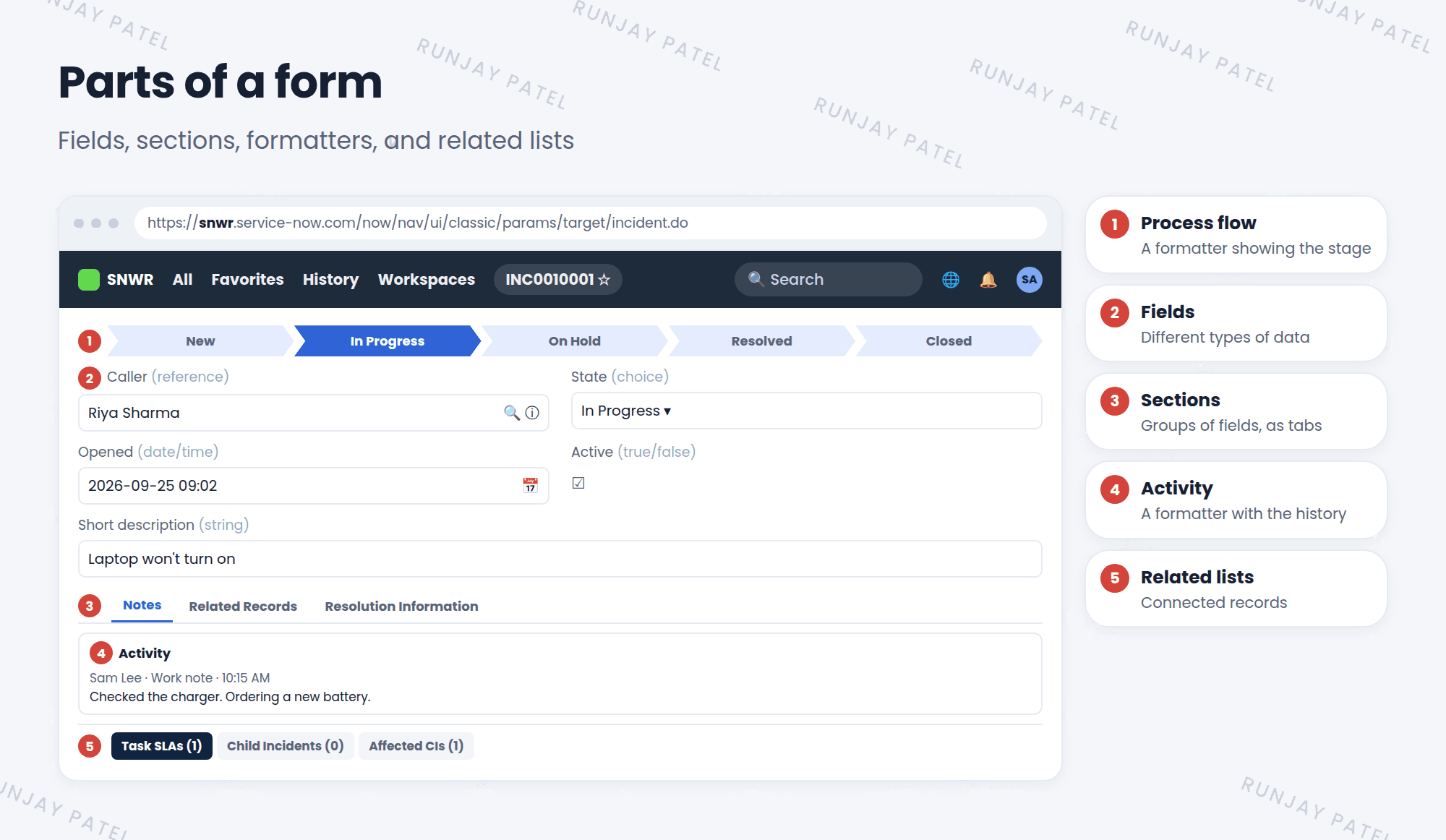
Below the header, a form has fields organized into sections. It may also have special blocks called formatters, and related lists at the bottom. Let’s look at each. 🧩
2 Common field types
| Type | Looks like | Example |
|---|---|---|
| String | A text box | Short description |
| Choice | A drop-down list | State, Category |
| Reference | A box with a 🔍, linked to another table | Caller (links to the User table) |
| Date/Time | A box with a calendar | Opened |
| True/False | A checkbox | Active |
| Journal | A box that adds entries over time | Work notes, Additional comments |
💡 Good to know: Hover over a reference field’s ⓘ icon to preview the record it points to. For example, see the caller’s phone number without leaving the incident.
3 Sections
Long forms are split into sections, so they’re easier to read. On many forms, sections show as tabs, like “Notes” or “Resolution Information”.
- The top part of the form is the main section.
- Other sections group related fields together.
- Admins decide which fields go into which section (Chapter 14).
📝 Note: Users can choose to show sections as tabs or as one long page, in their form preferences.
4 Formatters
Key term: Formatter
A special block on a form that isn’t a field. It shows extra information in a helpful way.
- Activity formatter: the stream of comments, work notes, and changes (Lesson 19.4).
- Process flow formatter: the bar at the top that shows which stage the record is in.
- Parent breadcrumbs: shows a record’s parent records.
5 Related lists
At the very bottom of many forms, you’ll see lists of other records connected to this one, like the SLAs or child incidents of an incident. These are related lists. You’ll learn all about them in Chapter 16.
⭐ Remember: Fields hold data. Sections organize it. Formatters display extra info. Related lists show connected records.
6 Let’s try it: take a form apart
- Open any incident.
- Find one field of each type: string, choice, reference, date, and journal.
- Hover over the ⓘ next to the Caller field. What details do you see?
- Find the section tabs. How many are there?
- Scroll down to the activity stream and the related lists.
7 Quick recap
- Field types include string, choice, reference, date/time, true/false, and journal
- A reference field links to a record in another table
- Sections group fields, often as tabs
- Formatters show extra info, like the activity stream
- Related lists sit at the bottom of the form
8 Check yourself
Think of your answer first. Then tap to check.
1 The Caller field has a 🔍 icon and links to a user. What type of field is it? Show answer
A reference field.
2 Is the activity stream a field? Show answer
No. It’s a formatter.
3 Where do related lists appear on a form? Show answer
At the bottom of the form.
Nice work! You finished this lesson. 🎉
Was this lesson helpful?
Please log in to share lesson feedback.
Have a question or doubt?
Ask here and get help from instructors and fellow learners.
Only logged-in learners can post.





