


Field Status Indicators
On this page
In this lesson, you will learn:
- How to tell if a field is mandatory
- How to spot a read-only field
- How ServiceNow shows fields you’ve changed but not saved
1 Fields that talk to you
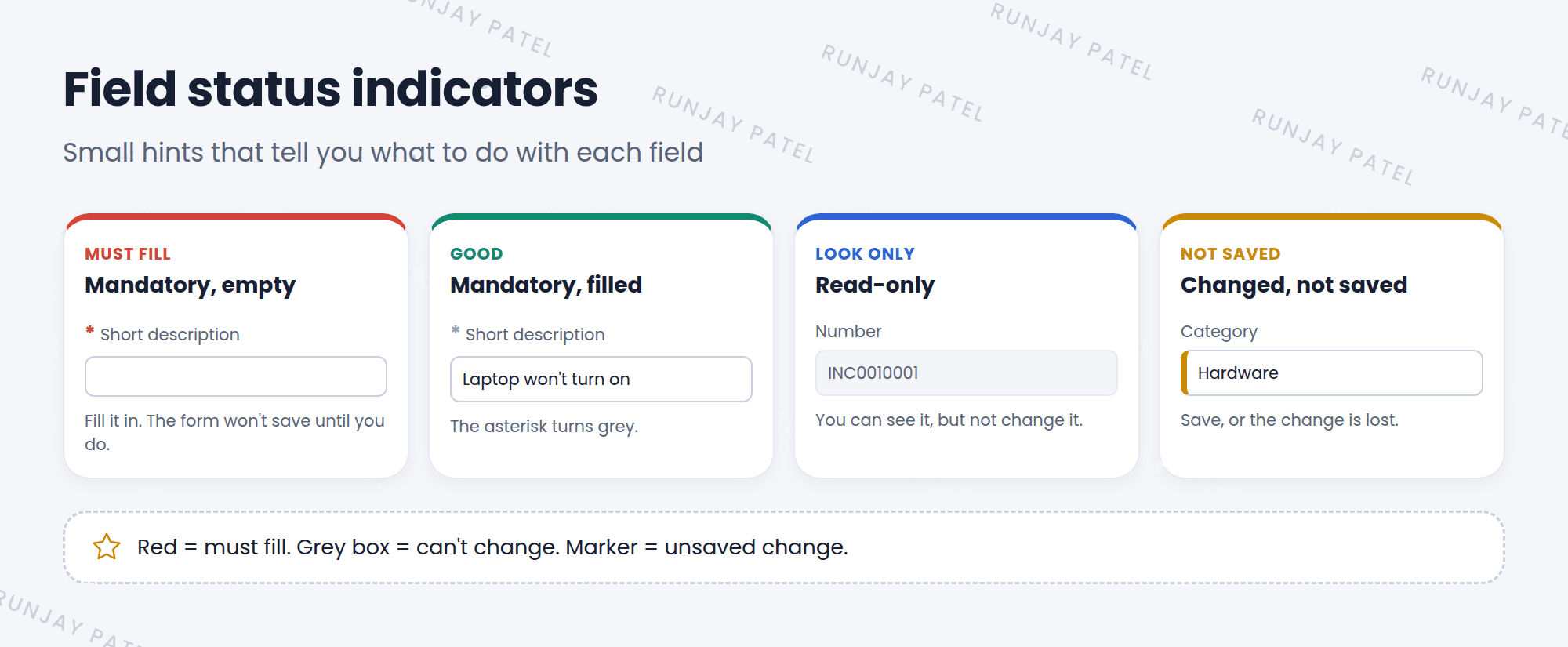
Fields on a form give you small visual hints. These hints are called field status indicators. They tell you what you must fill in, what you can’t change, and what you have changed. 🚦
2 The indicators
| You see | It means | What to do |
|---|---|---|
Red asterisk * |
Mandatory and still empty | Fill it in before you save |
| Grey asterisk | Mandatory, and it has a value | You’re good! |
| Greyed-out field | Read-only | You can look, but not change it |
| Changed marker | You changed it, but haven’t saved yet | Save, or your change is lost |
Key term: Mandatory field
A field that must have a value before the record can be saved. Also called a required field.
Key term: Read-only field
A field you can see but can’t change.
3 Trying to save with empty mandatory fields
If you click Submit or Update while a mandatory field is empty, ServiceNow stops you. It shows a message like “The following mandatory fields are not filled in”, and the record isn’t saved.
💡 Good to know: Look for red asterisks before you click Submit. It saves you a click!
4 Why do fields change status?
A field isn’t always mandatory or read-only. It can change as you fill in the form. For example:
- When State becomes Resolved, the Resolution notes field may become mandatory.
- When an incident is Closed, many fields may become read-only.
Admins set these rules with UI policies, data policies, and security rules. You’ll build them in the Advanced track.
⭐ Remember: Red = must fill. Grey box = can’t change. Marker = unsaved change.
5 Let’s try it: spot the signs
- Open Incident > Create New. Find the fields with a red asterisk.
- Click Submit without filling them in. What message do you see?
- Fill in one mandatory field. Does its asterisk turn grey?
- Find a greyed-out field, like Number. Can you type in it?
- Change a field and look for the changed marker. Then leave without saving to see what happens.
6 Quick recap
- Red asterisk = mandatory and empty
- Grey asterisk = mandatory and filled
- Greyed-out field = read-only
- A changed marker shows unsaved changes
- Rules like UI policies can change a field’s status as you work
7 Check yourself
Think of your answer first. Then tap to check.
1 A field has a red asterisk. What does that mean? Show answer
It’s mandatory and still empty. Fill it in before saving.
2 You can’t type in the Number field. Why? Show answer
It’s read-only.
3 Name one tool admins use to make a field mandatory only in some cases. Show answer
A UI policy (or a data policy).
Nice work! You finished this lesson. 🎉
Was this lesson helpful?
Please log in to share lesson feedback.
Have a question or doubt?
Ask here and get help from instructors and fellow learners.
Only logged-in learners can post.





