


Email Properties & Logs
On this page
In this lesson, you will learn:
- Which email properties control sending and receiving
- How to check whether an email was sent
- A simple checklist when someone says “I didn’t get the email”
1 Is email even turned on?
Before any notification can reach an inbox, the instance itself must be allowed to send email. That’s controlled by email properties, a kind of system property (Chapter 8). ⚙️
Find them in System Properties > Email Properties.
| Setting | What it does |
|---|---|
| Email sending enabled | Turns outgoing email on or off for the whole instance |
| Email receiving enabled | Lets the instance read incoming emails |
| Send all email to this test address | Sends every email to one test inbox instead of real people |
💡 Good to know: In Dev and Test instances, the test address is very useful. You can test notifications without emailing real users by accident.
2 Where emails are logged
Every email ServiceNow sends or receives is saved as a record in the Email table (sys_email). Open it from System Logs > Emails (or System Mailboxes).
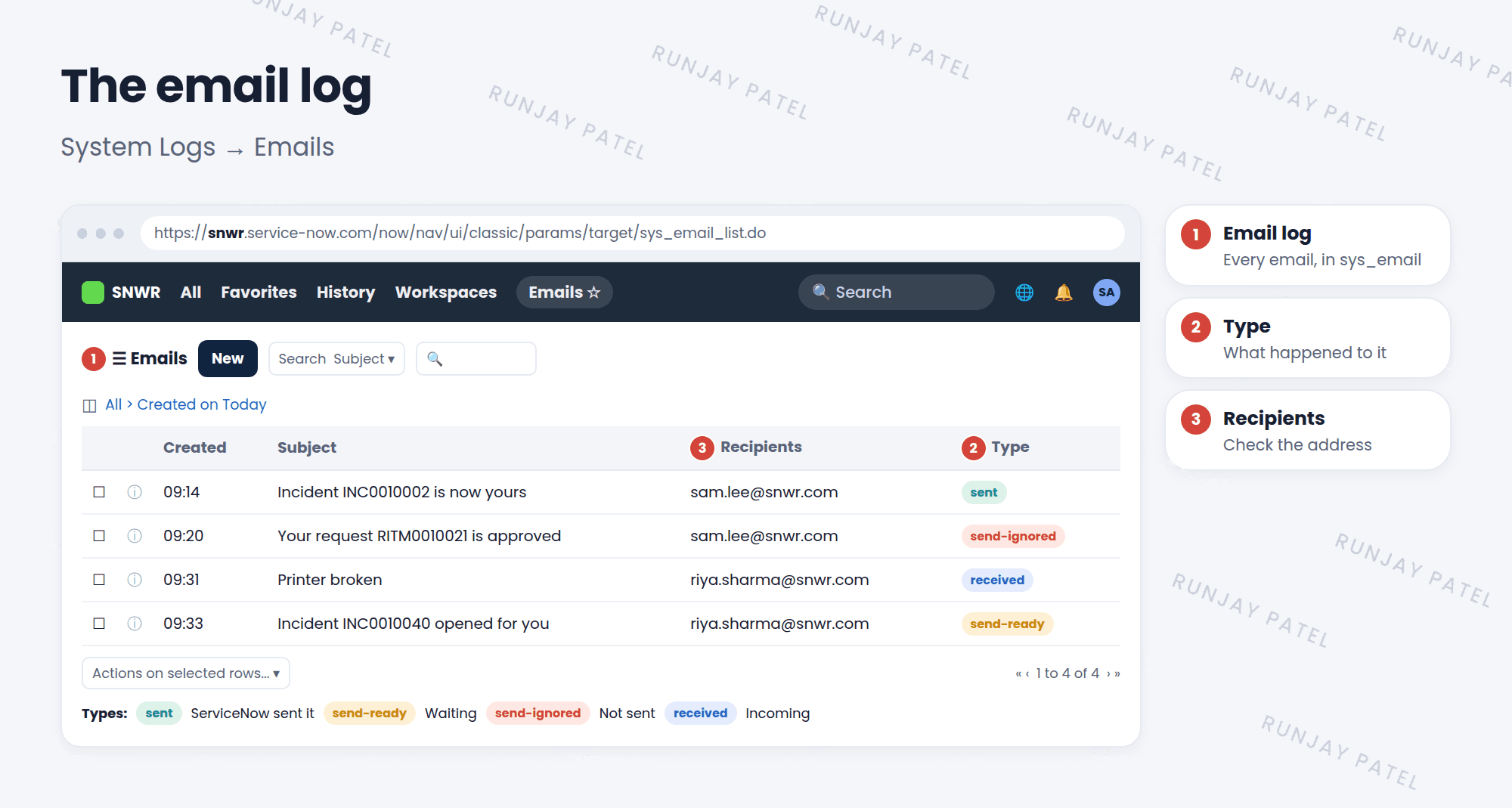
| Type | What it means |
|---|---|
| sent | ServiceNow sent it |
| send-ready | Waiting in line to be sent |
| send-ignored | Created, but not sent (for example, sending is off) |
| received | An incoming email |
3 “I didn’t get the email!”
- Check the email log. Is there an email for that record? If not, the notification didn’t fire.
- Check its type. send-ignored often means sending is turned off.
- Check the recipients. Is the user’s email address correct on their user record?
- Check the notification. Is it active? Does the condition match?
- Check the user’s preferences. Did they switch this notification off (Lesson 5.3)?
📝 Note: Open a notification and look at its related list or use Preview Notification to see who it would be sent to.
⭐ Remember: The email log (sys_email) is your first stop for any email problem.
4 Let’s try it: follow an email
- Open System Properties > Email Properties. Is sending enabled in your PDI?
- Assign an incident to someone, so your notification from Lesson 24.1 fires.
- Open System Logs > Emails. Find the email. What is its Type?
- Open it and look at the recipients and body.
5 Quick recap
- Email properties turn sending and receiving on or off
- A test address keeps test emails away from real people
- Every email is logged in
sys_email - Types: sent, send-ready, send-ignored, received
- Check the log, recipients, notification, and preferences when email goes missing
6 Check yourself
Think of your answer first. Then tap to check.
1 Which table logs every email? Show answer
sys_email.
2 An email’s type is send-ignored. What’s a likely reason? Show answer
Email sending is turned off for the instance.
3 How do you test notifications in Dev without emailing real people? Show answer
Set the “send all email to this test address” email property.
Nice work! You finished this lesson. 🎉
Was this lesson helpful?
Please log in to share lesson feedback.
Have a question or doubt?
Ask here and get help from instructors and fellow learners.
Only logged-in learners can post.





