


Condition Builder
On this page
In this lesson, you will learn:
- How to open the condition builder
- The three parts of every condition: field, operator, and value
- Common operators and when to use them
1 Filtering a list
The Incident list might have thousands of records. Usually you only want some of them, like “open incidents assigned to my team”. A filter hides everything else. 🔍
You build filters with the condition builder.
Key term: Condition builder
The tool at the top of a list where you build a filter by picking a field, an operator, and a value.
Key term: Condition
One rule in a filter, like “Priority is 1 – Critical”.
2 Field, operator, value
Every condition has three parts. Read them like a sentence:
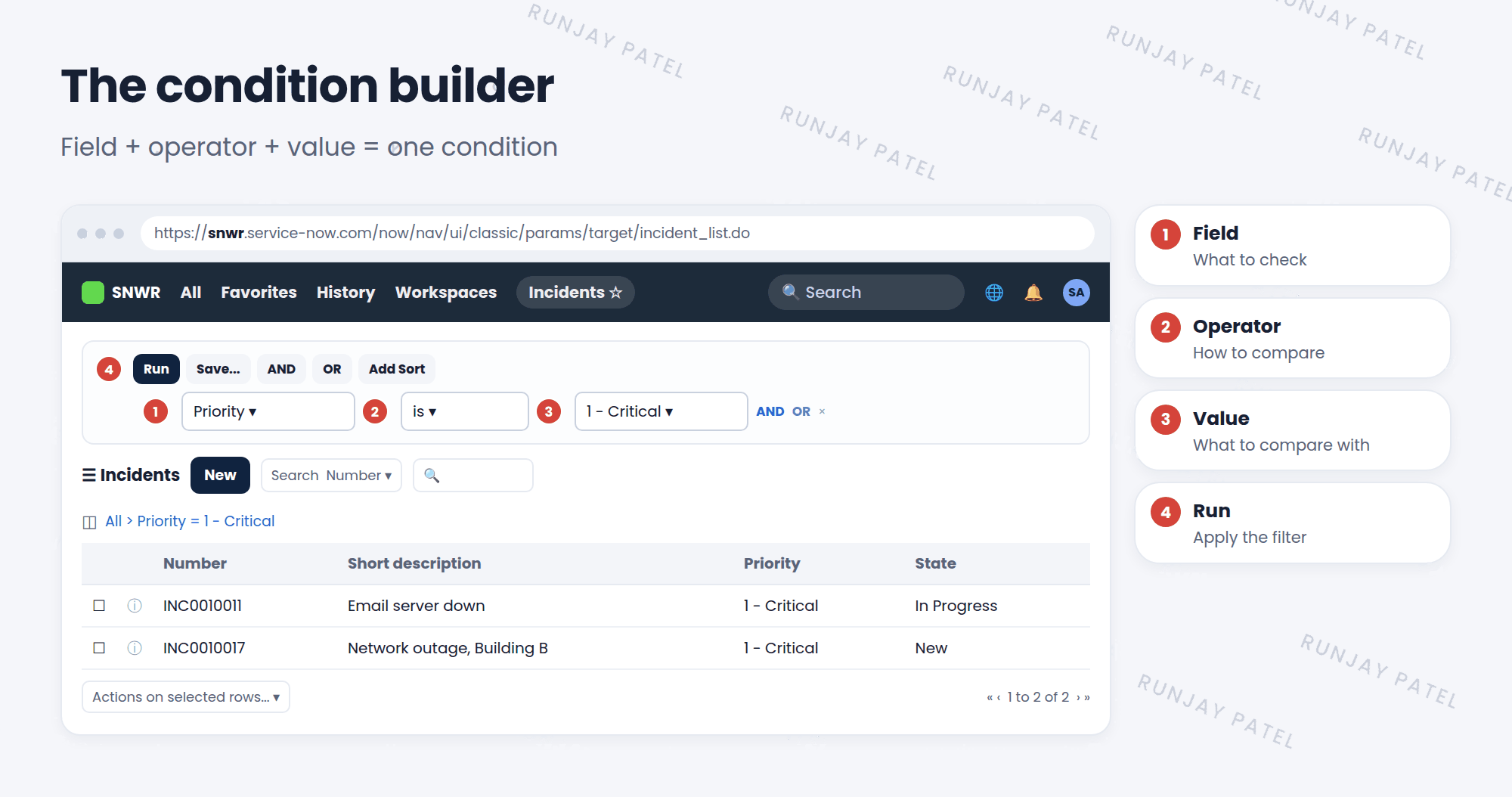
- 📌 Fieldwhat to check
- ⚖️ Operatorhow to compare
- 🎯 Valuewhat to compare with
Example: Priority (field) is (operator) 1 – Critical (value).
3 Build a filter
- Open a list, like Incident > All.
- Click the filter icon (the funnel) next to the breadcrumbs. The condition builder opens.
- Pick a field, like Priority.
- Pick an operator, like “is”.
- Pick or type a value, like “1 – Critical”.
- Click Run. The list now shows only matching records. ✅
4 Common operators
The operators you can pick depend on the type of field:
| Operator | Example | Good for |
|---|---|---|
| is / is not | State is New | Exact matches |
| contains | Short description contains email | Words inside text |
| starts with | Number starts with INC00100 | Beginnings of text |
| is empty / is not empty | Assigned to is empty | Finding missing values |
| greater than / less than | Reassignment count greater than 2 | Numbers |
| on / before / after | Opened on Today | Dates and times |
| is (dynamic) | Assigned to is (dynamic) Me | “Me” or “my groups”, for any user |
💡 Good to know: is (dynamic) is great for shared filters. “Assigned to is (dynamic) Me” shows each person their own records.
⚠️ Heads up: “contains” can be slow on very big tables, because ServiceNow has to look inside every text value. Use “is” or “starts with” when you can.
5 Let’s try it: find what matters
- Open Incident > All and click the filter icon.
- Build: Priority is 1 – Critical. Click Run. How many?
- Change it to Assigned to is empty. Run. These incidents need an owner!
- Try Opened on This week. Run.
- Try Short description contains email. Run.
6 Quick recap
- Open the condition builder with the filter icon on a list
- Each condition = field + operator + value
- Operators depend on the field type
- is (dynamic) Me shows each user their own records
- Click Run to apply the filter
7 Check yourself
Think of your answer first. Then tap to check.
1 In “State is New”, which part is the operator? Show answer
“is”.
2 Which condition finds incidents nobody owns? Show answer
Assigned to is empty.
3 You want one saved filter that shows each person their own incidents. Which operator helps? Show answer
is (dynamic), with the value Me.
Nice work! You finished this lesson. 🎉
Was this lesson helpful?
Please log in to share lesson feedback.
Have a question or doubt?
Ask here and get help from instructors and fellow learners.
Only logged-in learners can post.





