


Favorites, History & Workspaces
On this page
In this lesson, you will learn:
- How to save pages you use a lot as Favorites
- How to use History to go back to recent pages
- What a workspace is and when you’ll see one
1 Three helpful menus
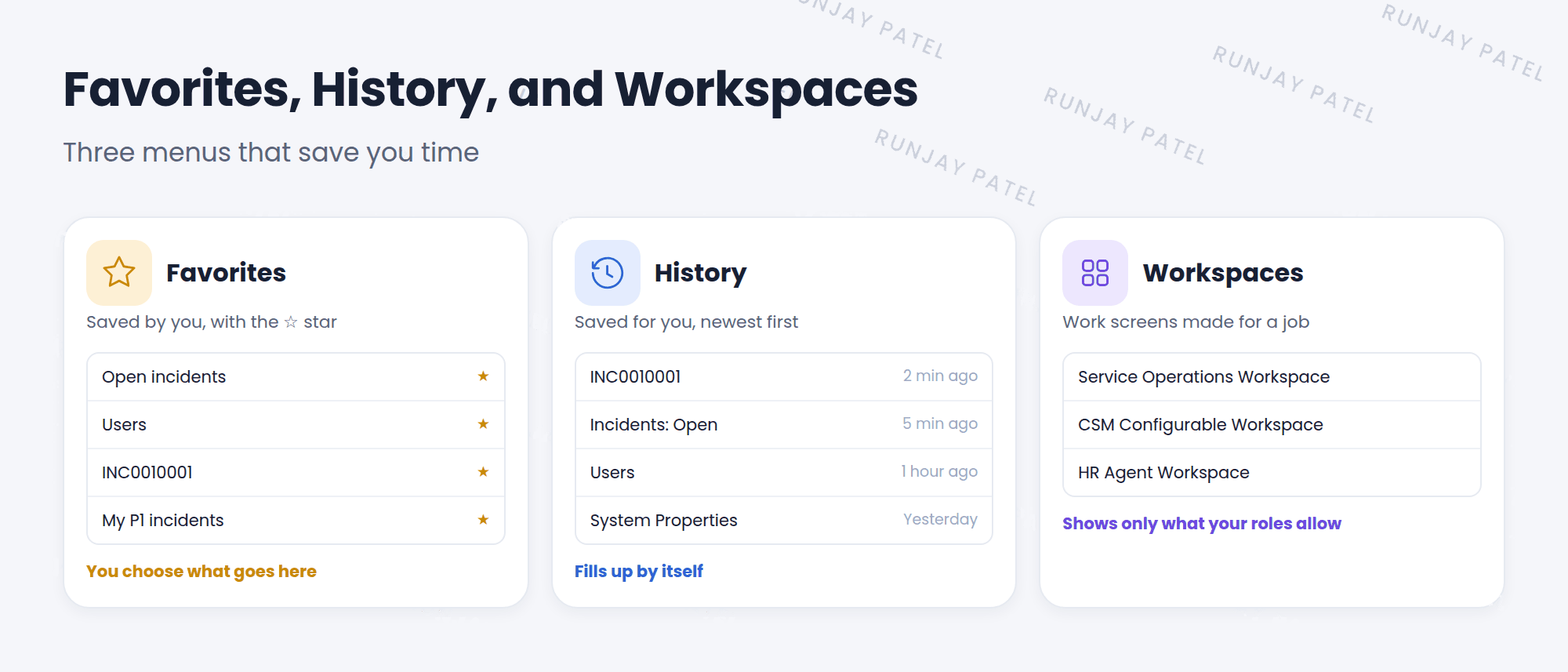
Next to All in the top bar, there are three more menus. Each one saves you time in a different way:
- ⭐ Favoritespages you saved
- 🕓 Historypages you visited
- 🧰 Workspaceswork screens for your job
2 Favorites: your bookmarks
Favorites work like bookmarks in your web browser. 🔖 Save a page once, and you can open it with one click any time.
Two ways to add a favorite:
- From the All menu: find a module and click the ☆ star next to it.
- From any page: click the ☆ star on the app pill in the top bar. This saves the exact page, even a single record.
To change your favorites, open Favorites and choose Edit. You can rename them, put them in order, or remove them.
💡 Good to know: Give favorites clear names, like “My open P1 incidents”. Future you will thank you!
3 History: where you’ve been
ServiceNow keeps a list of the pages and records you opened. You don’t need to do anything. It saves itself.
- The newest pages are at the top.
- It includes lists, forms, and single records.
- It’s great when you think, “Where was that incident I just looked at?” 🤔
📝 Note: History shows your visits only. Other people can’t see your history, and you can’t see theirs.
4 Workspaces: a screen built for the job
Key term: Workspace
A modern work screen made for one kind of job. It puts everything that person needs in one place, like lists, records, and helpful tips.
For example, an IT support agent might use the Service Operations Workspace. It shows their tickets, lets them open several at once in tabs, and suggests help articles.
- The Workspaces menu only appears if you can use at least one workspace.
- Which workspaces you see depends on your roles and which apps are installed.
- You’ll learn more about workspaces in Lesson 10.2.
⭐ Remember: Favorites = saved by you. History = saved for you. Workspaces = made for your job.
5 Let’s try it: save and find
- Click All, type
incident, and click the ☆ next to Open. - Click Favorites. Your new favorite is there! Click it to open the list.
- Open any incident. Then click the ☆ on the app pill to save this record too.
- Click History. Find the incident you just opened.
- Click Workspaces (if you see it). Which workspaces are listed in your PDI?
6 Quick recap
- Favorites are pages you save with the ☆ star
- Add them from the All menu or from the app pill
- History lists the pages you visited, newest first
- A workspace is a modern screen made for one job
- The Workspaces menu only appears if you have access to one
7 Check yourself
Think of your answer first. Then tap to check.
1 You opened an incident 5 minutes ago, but forgot its number. Where do you look? Show answer
In the History menu.
2 Name two ways to add a favorite. Show answer
Click the star next to a module in the All menu, or click the star on the app pill.
3 Your friend doesn’t see a Workspaces menu. Why might that be? Show answer
They don’t have access to any workspace, because of their roles or the apps installed.
Nice work! You finished this lesson. 🎉
Was this lesson helpful?
Please log in to share lesson feedback.
Have a question or doubt?
Ask here and get help from instructors and fellow learners.
Only logged-in learners can post.





