


Applying & Sharing Templates
On this page
In this lesson, you will learn:
- Two ways to apply a template to a form
- What happens to fields that already have values
- How to share a template with a person, a group, or everyone
1 Using a template
In Lesson 17.1, you made a “Password reset” template. Now let’s use it. There are two ways. ⚡
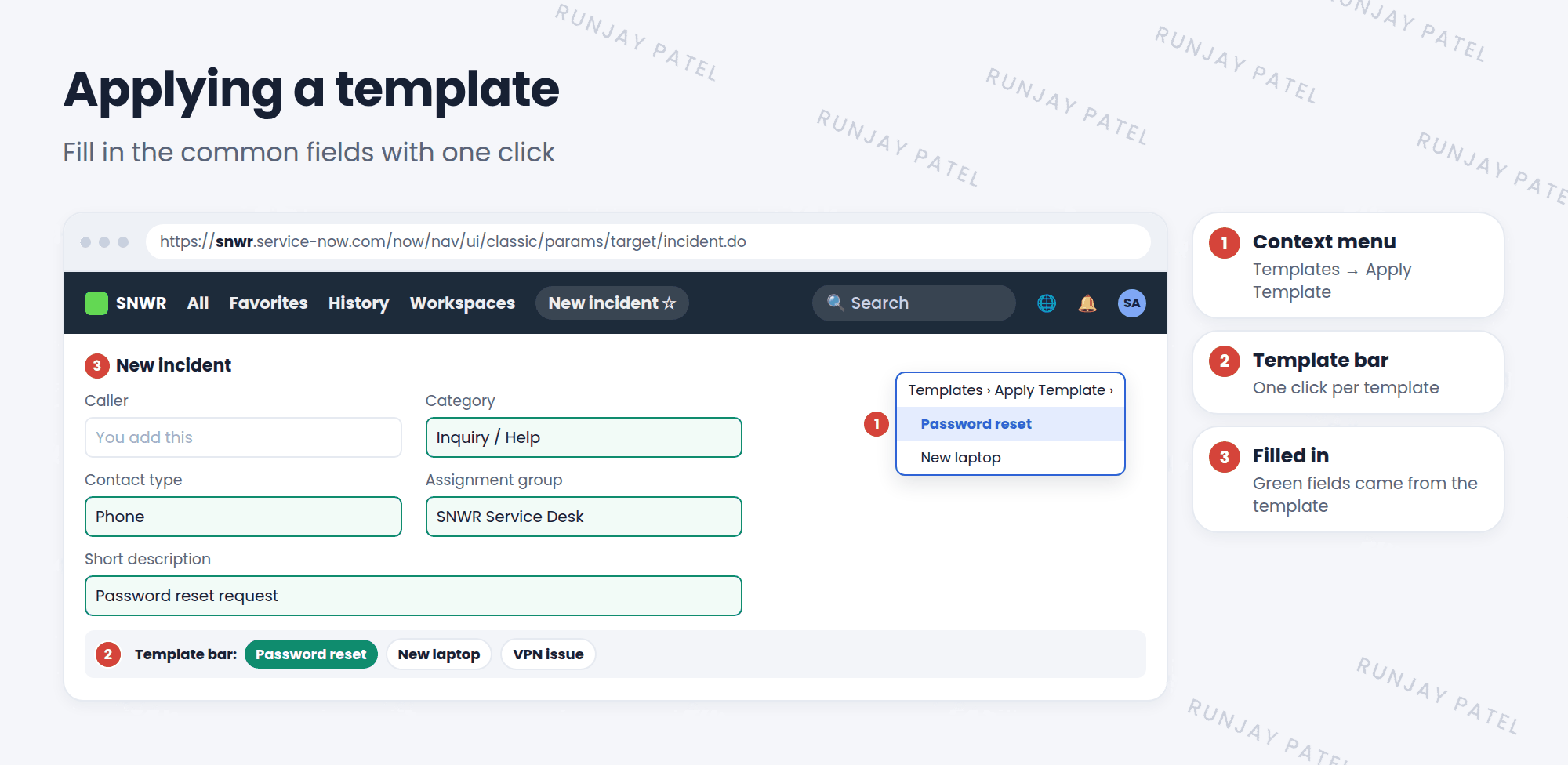
Way 1: the context menu
- Open a form, like a new incident.
- Open the context menu (☰) and choose Templates > Apply Template.
- Pick the template. The fields fill in.
Way 2: the template bar
- Open the context menu (☰) and choose Toggle Template Bar.
- A bar appears at the bottom of the form with your templates as buttons.
- Click a template. Done! 🎉
⚠️ Heads up: Applying a template replaces the values in the fields it sets. If you already typed a short description, the template’s short description will overwrite it. Apply the template first, then add the details.
2 Sharing a template
Who can use a template is set on the template record:
| Setting | Who can use it |
|---|---|
| User | Just that one person (often the person who made it) |
| Groups | Everyone in the chosen groups |
| Global | Everyone who can use that form |
- Open the template from the Templates list.
- To share with a team, add the team in Groups.
- To share with everyone, check Global.
- Click Update.
💡 Good to know: Share templates with the team that needs them, not with everyone. Just like filters, too many shared templates make menus long and confusing.
⭐ Remember: Apply the template first, then type the details. And share with groups, not with everyone.
3 Let’s try it: use your template
- Open Incident > Create New.
- Apply SNWR Password reset with Templates > Apply Template. Which fields filled in?
- Open a new incident again. Turn on the template bar and apply it with one click.
- Open your template record. Share it with the SNWR Service Desk group. Update.
- Impersonate Riya. Can she apply the template now?
4 Quick recap
- Apply templates with Templates > Apply Template or the template bar
- Templates replace the values of the fields they set
- Apply first, then type the details
- Share with a User, Groups, or Global
5 Check yourself
Think of your answer first. Then tap to check.
1 Name two ways to apply a template. Show answer
Templates > Apply Template in the context menu, or a button on the template bar.
2 You typed a short description, then applied a template that sets short description. What happens? Show answer
The template’s value replaces what you typed.
3 How do you let the whole service desk team use your template? Show answer
Add their group in the template’s Groups field.
Nice work! You finished this lesson. 🎉
Was this lesson helpful?
Please log in to share lesson feedback.
Have a question or doubt?
Ask here and get help from instructors and fellow learners.
Only logged-in learners can post.





