


Catalog Items & User Criteria
On this page
In this lesson, you will learn:
- How to create a catalog item
- The key fields on a catalog item
- How user criteria control who can see an item
1 Build something to order
SNWR wants a new item: Request a monitor. Let’s build it. 🖥️
Key term: Catalog item
One thing people can order from the Service Catalog. Stored in the sc_cat_item table.
2 Create a catalog item
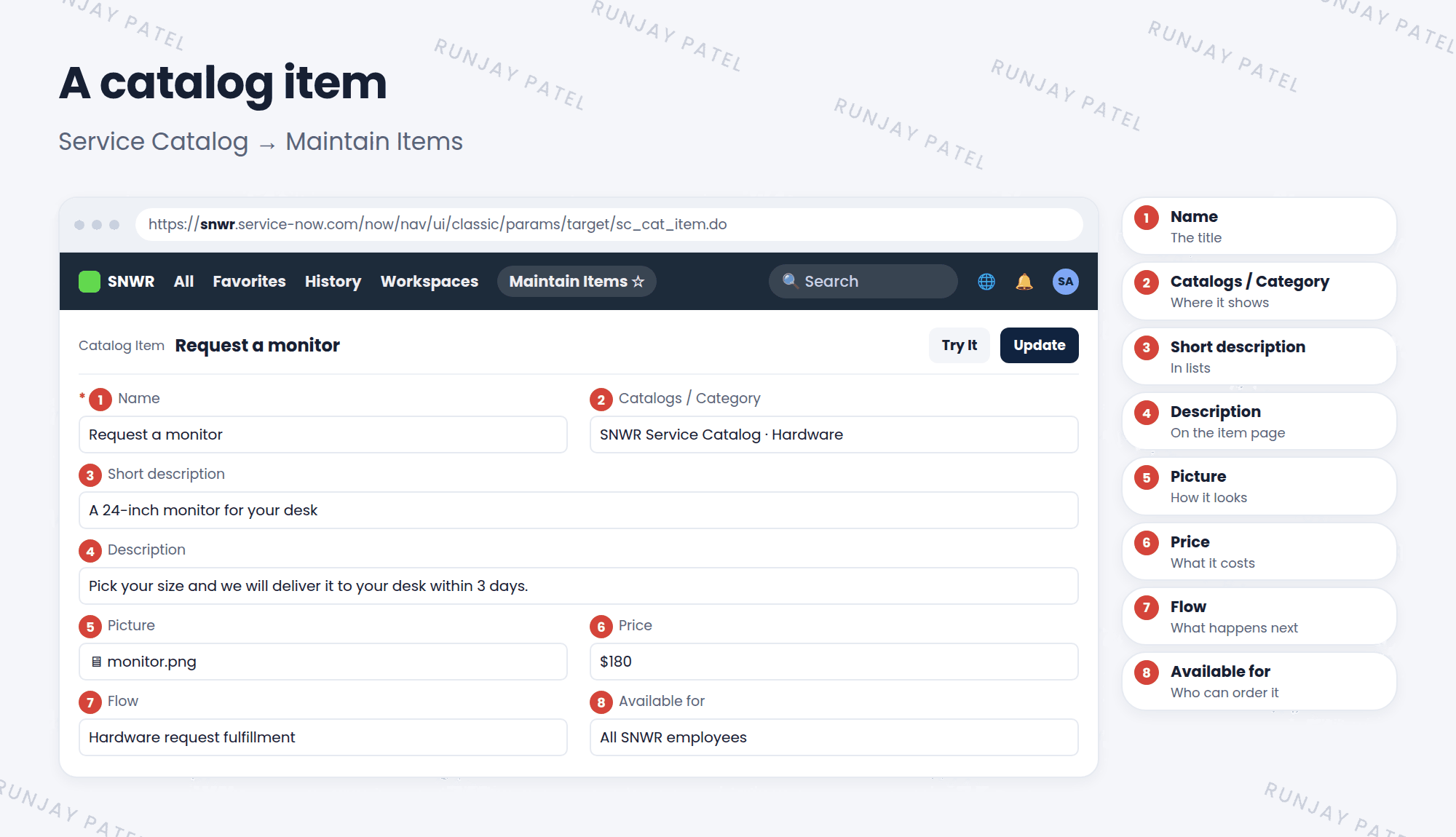
- Go to Service Catalog > Catalog Definitions > Maintain Items and click New.
- Fill in the Name, like “Request a monitor”.
- Pick the Catalogs and Category.
- Write a Short description (shown in lists) and a Description (shown on the item page).
- Add a Picture and a Price, if it has one.
- Pick the flow that fulfills it (Chapter 28).
- Save, then click Try It to see it like a user. ✅
| Field | What it does |
|---|---|
| Name | The item’s title |
| Catalogs / Category | Where the item shows up |
| Short description / Description | What the item is, in the list and on its page |
| Picture / Price | How it looks, and what it costs |
| Flow (Process Engine tab) | What happens after someone orders it |
3 Who can see the item?
Remember user criteria from Lesson 25.4? Catalog items use them too:
- Available for: who can see and order the item.
- Not available for: who can never see it. This always wins.
Example: “Company credit card” is available only for Managers.
💡 Good to know: Categories can have user criteria too. If a user can’t see the category, they can’t browse to its items.
⚠️ Heads up: An item with no category won’t show up when people browse. Always pick at least one category.
⭐ Remember: Name, category, description, flow, and who it’s available for. Then Try It.
4 Let’s try it: Request a monitor
- Create a catalog item SNWR Request a monitor in the Hardware category.
- Add a short description and a price of 180.
- Save, then click Try It. Does it look right?
- Find it in Self-Service > Service Catalog > Hardware.
5 Quick recap
- Create items in Maintain Items (
sc_cat_item) - Key fields: name, catalogs, category, descriptions, picture, price, flow
- Available for / Not available for use user criteria
- Use Try It to test the item
6 Check yourself
Think of your answer first. Then tap to check.
1 Which table stores catalog items? Show answer
sc_cat_item.
2 Only managers should see an item. What do you set? Show answer
Available for, with a user criteria record for managers.
3 How do you see your item as a user would? Show answer
Click Try It.
Nice work! You finished this lesson. 🎉
Was this lesson helpful?
Please log in to share lesson feedback.
Have a question or doubt?
Ask here and get help from instructors and fellow learners.
Only logged-in learners can post.





