


Tags
On this page
In this lesson, you will learn:
- What tags are and why they’re useful
- How to add a tag to one or many records
- How to find tagged records and share tags
1 Sticky notes for records
Sometimes you want to group records in your own way, like “Follow up Friday” or “Laptop refresh project”. There may be no field for that. That’s what tags are for. 🏷️
Think of colored sticky notes on paper files. You can put the same sticky note on files from different drawers, then find them all later.
Key term: Tag
A label you add to records so you can group and find them later. One record can have many tags.
2 Add a tag
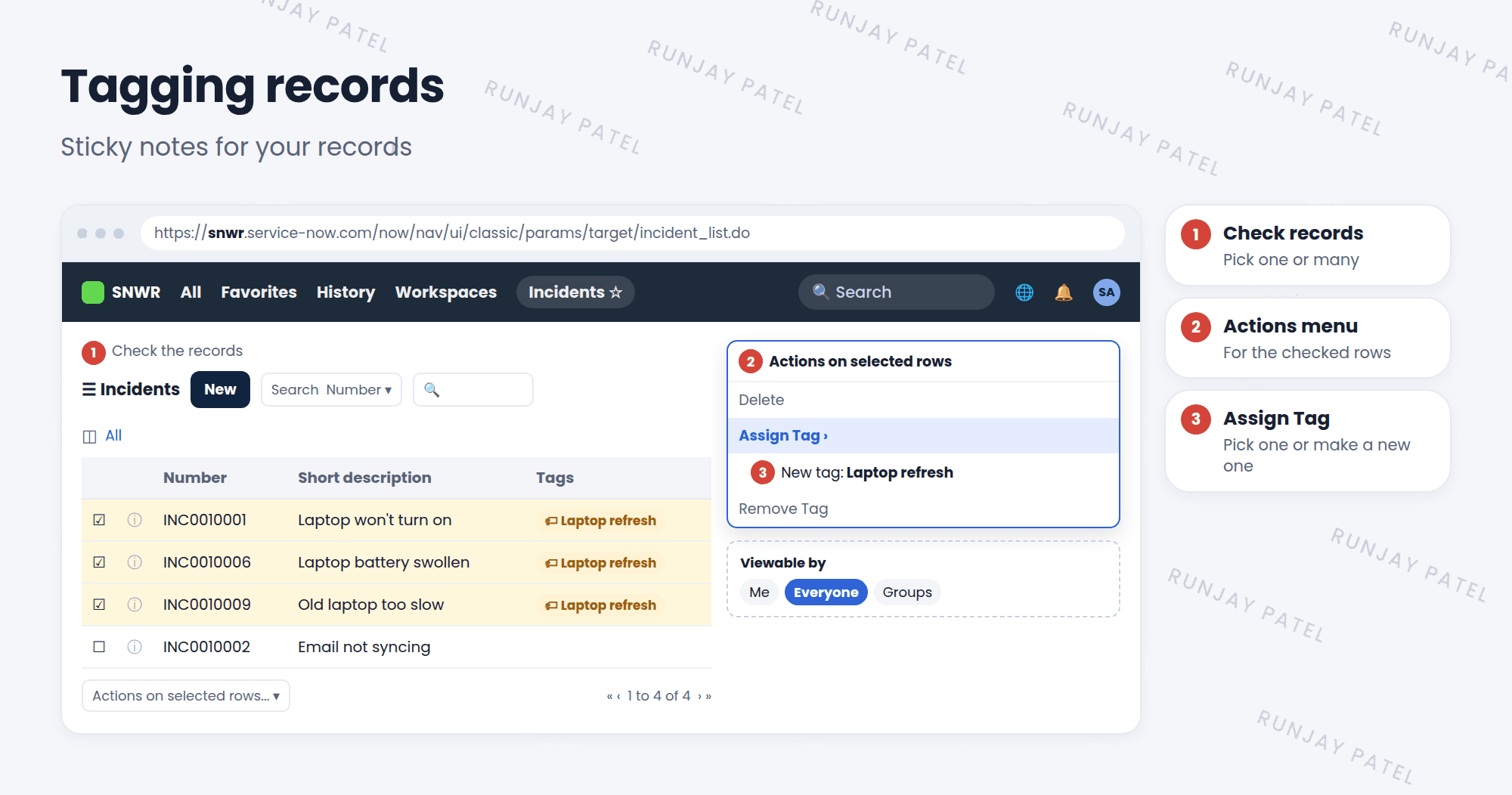
On many records (in a list):
- Check the boxes next to the records.
- Open Actions on selected rows.
- Choose Assign Tag, then pick a tag or create a new one.
On one record (in a form): open the record and look for Tags in the form’s more-options menu. Type a tag name and press Enter.
3 Find tagged records
- Add the Tags column to your list (Lesson 12.2) to see tags on each row.
- Click a tag name to see every record with that tag.
- Filter a list by tag with the condition builder.
4 Who can see a tag?
| Viewable by | Who sees it |
|---|---|
| Me | Only you. Great for personal reminders |
| Everyone | All users who can see those records |
| Groups and users | Only the people or groups you choose |
⚠️ Heads up: A tag doesn’t change the record or give anyone access. Someone who can’t see a record won’t see it just because it has a shared tag.
💡 Good to know: Tags are great for short-term groups, like a project or a clean-up task. If you need a grouping forever, ask whether a real field would be better.
5 Let’s try it: tag a project
- Open Incident > All. Check three incidents.
- Choose Actions on selected rows > Assign Tag. Create a tag called SNWR Follow up.
- Personalize the list to add the Tags column. Do you see your tag?
- Click the tag name. Do you see only those three incidents?
6 Quick recap
- A tag is a label that groups records your own way
- Add tags from a list with Assign Tag, or from a form
- Find tagged records with the Tags column or by clicking a tag
- Tags can be viewable by Me, Everyone, or chosen groups and users
- Tags don’t change records or access
7 Check yourself
Think of your answer first. Then tap to check.
1 How do you tag 5 records at once? Show answer
Check them in the list, then choose Actions on selected rows > Assign Tag.
2 Can one record have more than one tag? Show answer
Yes.
3 Does sharing a tag with Everyone let them see records they couldn’t see before? Show answer
No. Tags don’t give extra access.
Nice work! You finished this lesson. 🎉
Was this lesson helpful?
Please log in to share lesson feedback.
Have a question or doubt?
Ask here and get help from instructors and fellow learners.
Only logged-in learners can post.





