


Branding & Theme Builder
On this page
In this lesson, you will learn:
- What branding means in ServiceNow
- How Theme Builder creates a company theme for Next Experience
- Where the classic look gets its branding
- Good rules for colors and logos
1 Make it look like your company
Out of the box, every instance looks the same. Most companies want ServiceNow to show their logo and colors, so it feels like their own tool. This is called branding. 🎨
Key term: Branding
Changing the logo, colors, and look of ServiceNow to match your company.
Key term: Theme
A saved set of colors, logo, and styles for Next Experience. Users see it on every page.
2 Theme Builder
Theme Builder is a guided tool for creating a Next Experience theme. It walks you through the choices, step by step, with no code.
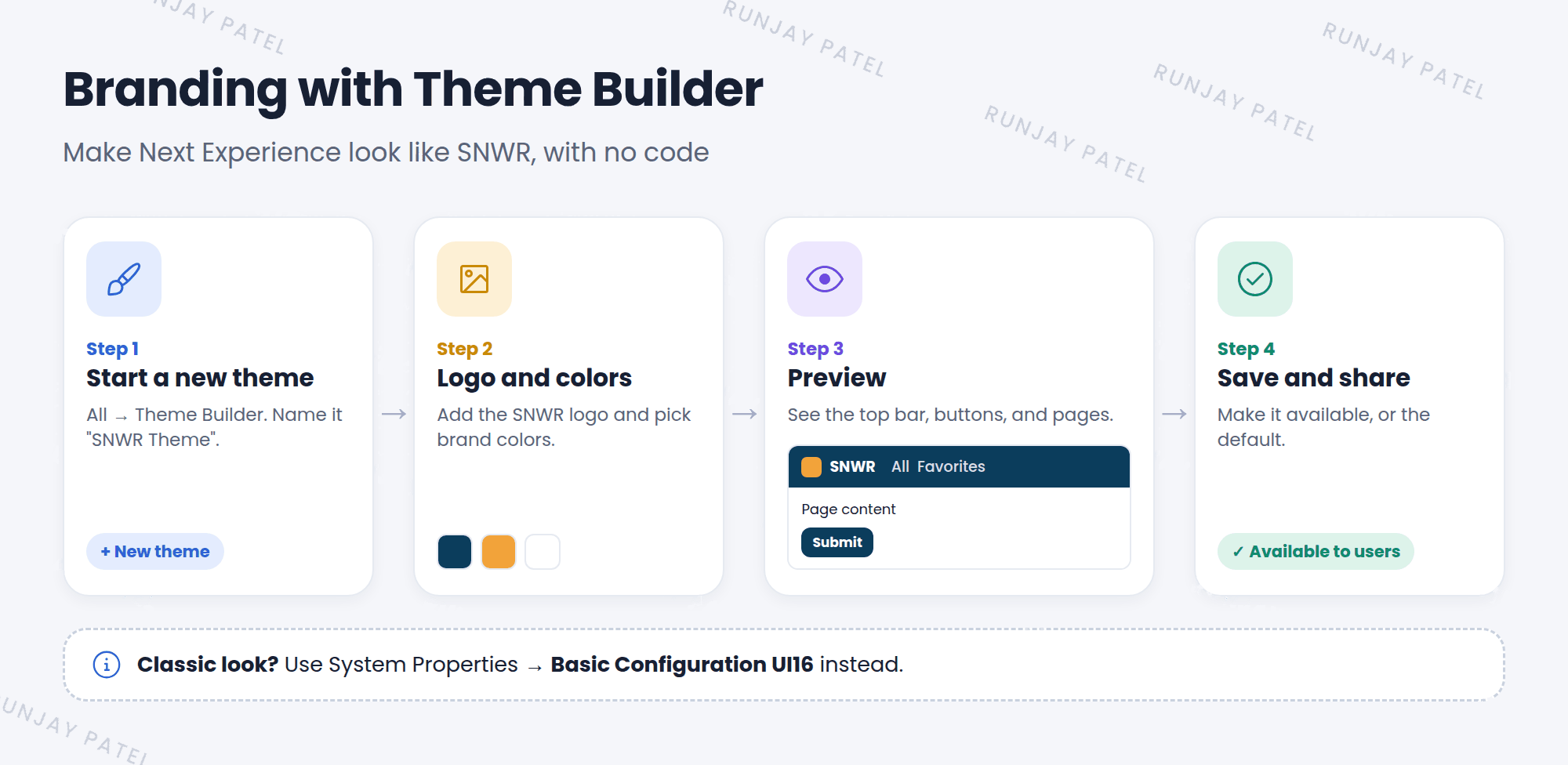
- Click All and type
theme builder. Open Theme Builder. - Start a new theme and give it a name, like “SNWR Theme”.
- Add your logo and pick your brand colors. You can also change things like fonts and corner shapes.
- Preview the theme to see how pages will look.
- Save it and make it available, so users can pick it (or it becomes the default).
📝 Note: Theme Builder is an app from the ServiceNow Store. If you can’t find it, install it first, like you learned in Lesson 7.2.
3 The classic look
The older Core UI (classic) look gets its branding from system properties. Admins change them on a property page:
- Type
basic configurationin the All menu. - Open the Basic Configuration UI16 page under System Properties.
- Change the banner image, header text, and colors, then save.
⭐ Remember: Next Experience → Theme Builder. Classic look → System Properties > Basic Configuration UI16.
4 Rules for good branding
- Contrast first. Text must be easy to read on your colors. Pretty but unreadable is bad design.
- Use the official logo. Ask your company’s design or marketing team for the right file.
- Keep it simple. One or two brand colors are enough.
- Test in sub-production before users see it.
- Use the tools. Don’t hack the look with code. Themes survive upgrades much better.
💡 Good to know: A different color for each instance can prevent mistakes. For example, make Dev purple and Prod blue, so admins always know where they are.
5 Let’s try it: brand your PDI
- Open Theme Builder (install it first if needed).
- Create a theme called SNWR Theme. Pick two colors you like.
- Preview it. Is all the text still easy to read?
- Save it and switch to it in Preferences > Themes.
- Don’t like it? Switch back to the default theme. 🙂
6 Quick recap
- Branding makes ServiceNow look like your company
- Theme Builder creates Next Experience themes with a logo and colors
- The classic look uses Basic Configuration UI16 properties
- Good branding is readable, simple, and tested first
7 Check yourself
Think of your answer first. Then tap to check.
1 Which tool creates a Next Experience theme? Show answer
Theme Builder.
2 Where does the classic look get its branding? Show answer
From system properties, on the Basic Configuration UI16 page.
3 Your new colors look great, but the menu text is hard to read. What’s wrong? Show answer
Not enough contrast. Pick colors that keep text easy to read.
Nice work! You finished this lesson. 🎉
Was this lesson helpful?
Please log in to share lesson feedback.
Have a question or doubt?
Ask here and get help from instructors and fellow learners.
Only logged-in learners can post.





