


Assignment Rules & Data Lookup
On this page
In this lesson, you will learn:
- How assignment rules send tasks to the right team automatically
- How data lookup rules fill in fields, like Priority
- How the incident priority matrix works
1 Let ServiceNow do the sorting
In Lesson 1.1, a broken laptop ticket went to the right IT team “by itself”. How? One way is an assignment rule. Another tool, data lookup rules, fills in fields like Priority automatically. 🤖
2 Assignment rules
Key term: Assignment rule
A rule that sets the Assignment group (and sometimes Assigned to) on a task when its conditions match.
| Field | Example |
|---|---|
| Table | Incident |
| Conditions | Category is Hardware |
| Group | SNWR Hardware |
| Order | 100 (lower runs first) |
| Active | Checked |
- Find them in System Policy > Rules > Assignment.
- They only assign tasks that don’t already have an assignment.
- If several rules match, the one with the lowest order wins.
3 Data lookup rules
Key term: Data lookup rule
A table of “if these values, then set this value”. ServiceNow looks up the answer and fills in a field for you.
The most famous one is the incident priority lookup. You set Impact (how many people are affected) and Urgency (how fast it must be fixed). ServiceNow looks up the Priority.
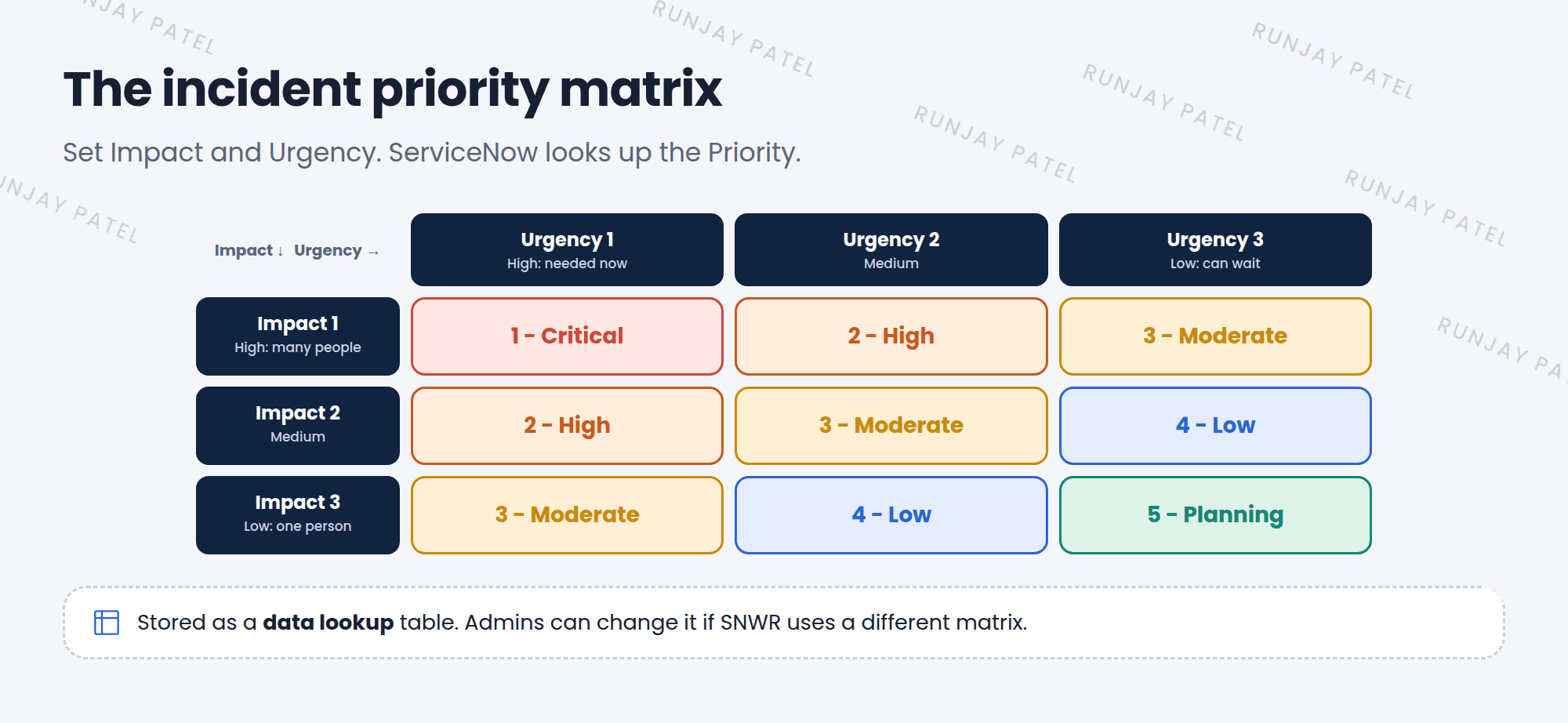
📝 Note: On a standard incident form, you can’t type Priority directly. You set Impact and Urgency, and Priority is calculated. Admins can change the lookup table if the company uses a different matrix.
4 Other ways to assign
- Flows in Workflow Studio can assign tasks with more complex logic (Chapter 28).
- AI, like Predictive Intelligence, can suggest a group based on the text (Lesson 1.2).
- Assignment rules are the simplest, no-code option.
⭐ Remember: Assignment rules = which team. Data lookup = fill in a field from a table, like Priority from Impact and Urgency.
5 Let’s try it: route and prioritize
- Go to System Policy > Rules > Assignment. Click New.
- Name: SNWR Hardware. Table: Incident. Conditions: Category is Hardware. Group: SNWR Service Desk. Submit.
- Create a new incident with Category Hardware and no assignment group. Save it. Was the group filled in?
- On the same incident, set Impact 1 – High and Urgency 2 – Medium. What Priority do you get?
6 Quick recap
- Assignment rules set the Assignment group when conditions match
- They only work on tasks that aren’t assigned yet. Lowest order wins
- Data lookup rules fill in fields from a lookup table
- Incident Priority = Impact + Urgency, using the priority matrix
7 Check yourself
Think of your answer first. Then tap to check.
1 Impact is 1 – High and Urgency is 1 – High. What’s the Priority? Show answer
1 – Critical.
2 An incident already has an Assignment group. Will an assignment rule change it? Show answer
No. Assignment rules only apply to tasks that aren’t assigned yet.
3 Two assignment rules match. Which one wins? Show answer
The one with the lowest order number.
Nice work! You finished this lesson. 🎉
Was this lesson helpful?
Please log in to share lesson feedback.
Have a question or doubt?
Ask here and get help from instructors and fellow learners.
Only logged-in learners can post.





