


Search Tips & Shortcuts
On this page
In this lesson, you will learn:
- Simple tips to get better search results
- How to search inside one list instead of the whole instance
- What to do when search can’t find something
1 Search smarter, not harder
You now know how to search and read results. These tips help you find the right record faster, with less scrolling. 🎯
2 The top tips
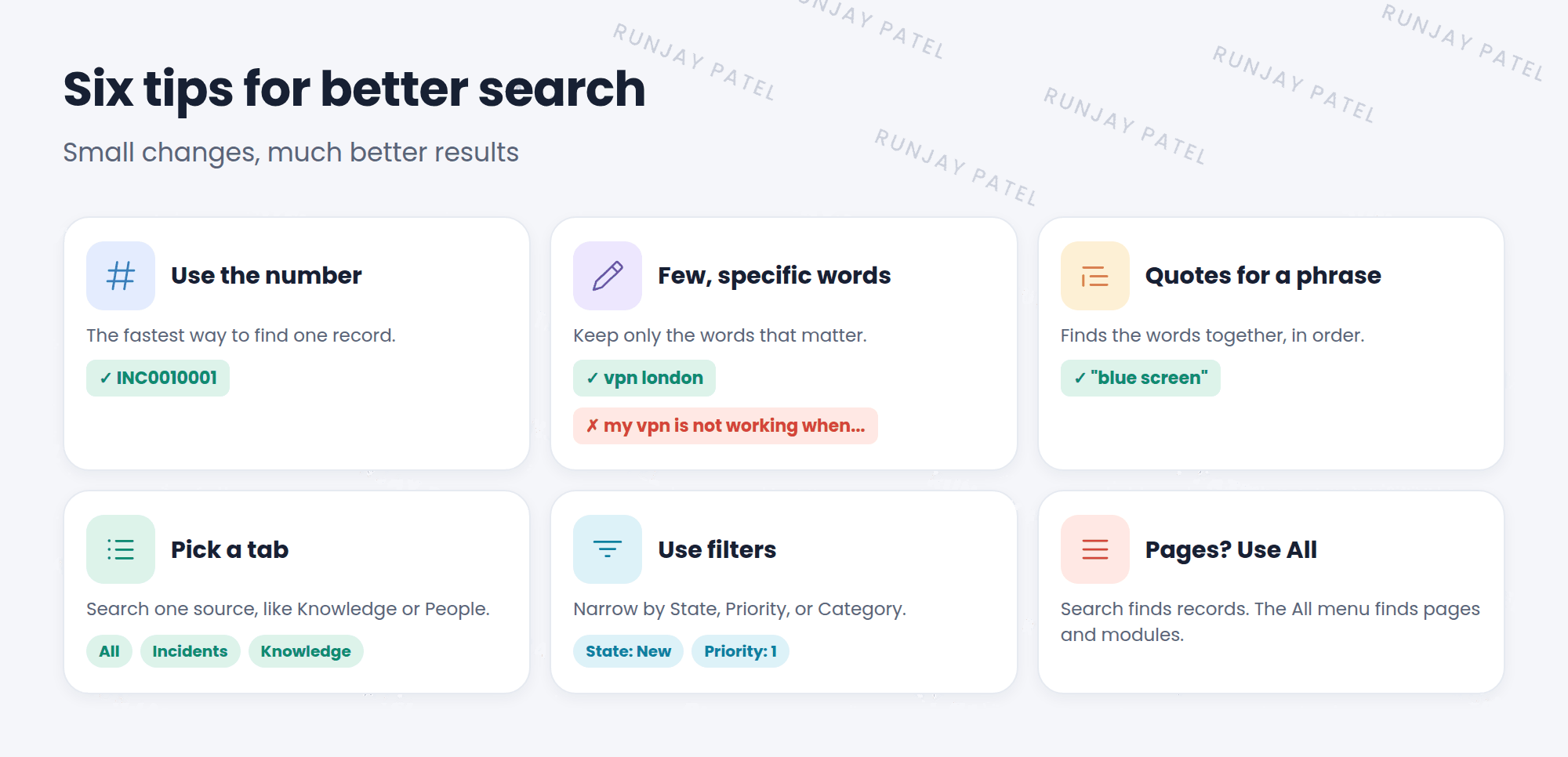
- Use the number if you have it. Typing
INC0010001finds that exact record. Nothing is faster. - Use a few specific words.
vpn londonworks better than “my vpn is not working when I am in London”. - Use quotes for a phrase.
"blue screen"looks for those words together, in that order. - Pick a tab. If you want an article, click Knowledge instead of scrolling through All.
- Use filters. Narrow by State, Priority, or Category to cut the list down.
💡 Good to know: Search ignores very common words like “the”, “is”, and “my”. Focus on the words that make your search different.
3 Searching inside a list
Global search looks at the whole instance. But sometimes you’re already in a list, like the Incident list, and just want to search there.
- Open a list, like Incident > All.
- At the top of the list, find the Search box and the menu next to it.
- Pick a field, like Short description, or pick for text to search all fields.
- Type your word and press Enter. Only this list is searched.
📝 Note: You’ll learn much more about lists and filters in Chapter 11.
4 When search can’t find it
Sometimes a search comes back empty. Here’s what to check:
| Possible reason | What to try |
|---|---|
| Typo | Check the spelling, or try a shorter word |
| Too many words | Remove words and keep only the key ones |
| You’re looking for a page | Use the All menu filter instead |
| No access | You may not be allowed to see it. Ask someone with access |
| Not a search source | That table may not be set up for search. Ask an admin |
⭐ Remember: An empty search doesn’t always mean the record doesn’t exist. It may mean you can’t see it, or that search doesn’t look in that table.
5 Let’s try it: practice the tips
- Search for
password reset. Then search for"password reset"with quotes. Do the results change? - Search for
emailand click the Knowledge tab. Open the first article. - Open Incident > All. Use the list’s Search box with Short description to find incidents about email.
- Try searching for
users. Do you get the Users module? (No! Use the All menu for that.)
6 Quick recap
- Use record numbers and a few specific words
- Put phrases in quotes to keep words together
- Use tabs and filters to narrow results
- Use a list’s own Search box to search just that list
- An empty search might mean no access, or a table that isn’t searched
7 Check yourself
Think of your answer first. Then tap to check.
1 Which search is better: printer 3rd floor jam or “the printer on the 3rd floor keeps getting a paper jam”? Show answer
The short one, printer 3rd floor jam. A few specific words work best.
2 You’re in the Incident list and want to search only there. What do you use? Show answer
The Search box at the top of the list.
3 Your search is empty, but a teammate says the record exists. Give one reason why. Show answer
You may not have access to it, or that table isn’t a search source.
Nice work! You finished this lesson. 🎉
Was this lesson helpful?
Please log in to share lesson feedback.
Have a question or doubt?
Ask here and get help from instructors and fellow learners.
Only logged-in learners can post.





