


Form Sections & Annotations
On this page
In this lesson, you will learn:
- How to plan good form sections
- What annotations are and when to use them
- How to add an annotation with Form Designer
1 Organize long forms
A form with 40 fields in one long list is hard to use. Sections split it into groups that make sense, like chapters in a book. 📚
- Put the most used fields in the top section.
- Group fields that belong together, like all the “Resolution” fields.
- Give each section a short, clear name.
- Don’t create a section with only one or two fields.
📝 Note: You can add sections with Form Layout (Lesson 14.1) or Form Designer (Lesson 14.2).
2 What is an annotation?
Key term: Annotation
A piece of help text you place on a form, like a sign on the wall. It’s not a field, and it doesn’t store any data.
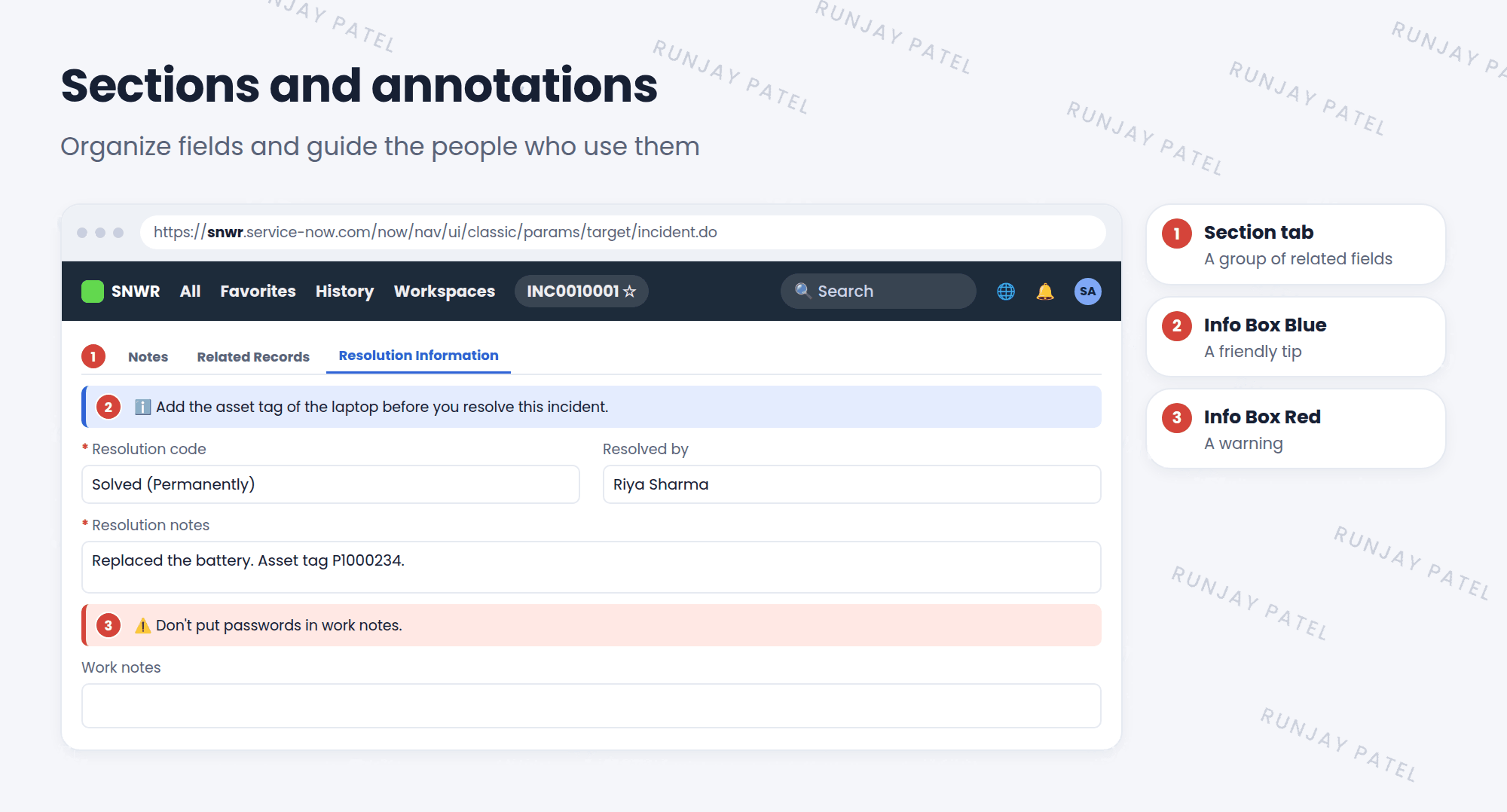
Annotations guide people as they fill in the form. For example: “Please add the laptop’s asset tag before you resolve.”
3 Types of annotations
| Type | Looks like | Use it for |
|---|---|---|
| Info Box Blue | A blue box | Friendly tips and instructions |
| Info Box Red | A red box | Warnings |
| Plain Text | Normal text | Short notes |
| Line Separator | A line | Splitting a section visually |
4 Add an annotation
- Open the form and choose ☰ > Configure > Form Design.
- Open the Formatting tab in the field navigator.
- Drag Annotation onto the form, where you want the note.
- Click the annotation to open its settings. Pick a type and type your text.
- Click Save. ✅
💡 Good to know: Keep annotations short. If people have to scroll past long text every day, they’ll stop reading it. One sentence is best.
⭐ Remember: Sections = organize fields. Annotations = guide people. Neither one stores data.
5 Let’s try it: guide your users
- Open any incident and choose Configure > Form Design.
- Drag an Annotation to the top of the form. Choose Info Box Blue.
- Type: “SNWR tip: always choose a Category first.”
- Save, and look at the incident form.
- Remove the annotation when you’re done, and save again.
6 Quick recap
- Sections split long forms into clear groups
- Put the most-used fields at the top
- Annotations add help text to a form. They don’t store data
- Types include Info Box Blue, Info Box Red, Plain Text, and Line Separator
- Add annotations from the Formatting tab in Form Designer
7 Check yourself
Think of your answer first. Then tap to check.
1 Does an annotation store data in the record? Show answer
No. It’s only help text on the form.
2 Which annotation type is best for a warning? Show answer
Info Box Red.
3 Where are the most-used fields best placed? Show answer
In the top section of the form.
Nice work! You finished this lesson. 🎉
Was this lesson helpful?
Please log in to share lesson feedback.
Have a question or doubt?
Ask here and get help from instructors and fellow learners.
Only logged-in learners can post.





