


Inline List Editing
On this page
In this lesson, you will learn:
- How to change a record right in the list, without opening it
- How to change many records at once
- Why some cells can’t be edited
1 Edit without opening
Opening each record just to change one field is slow. With inline list editing, you change a value right in the list, like in a spreadsheet. ✏️
Key term: Inline editing
Changing a field’s value directly in a list cell, without opening the record’s form.
2 Edit one cell
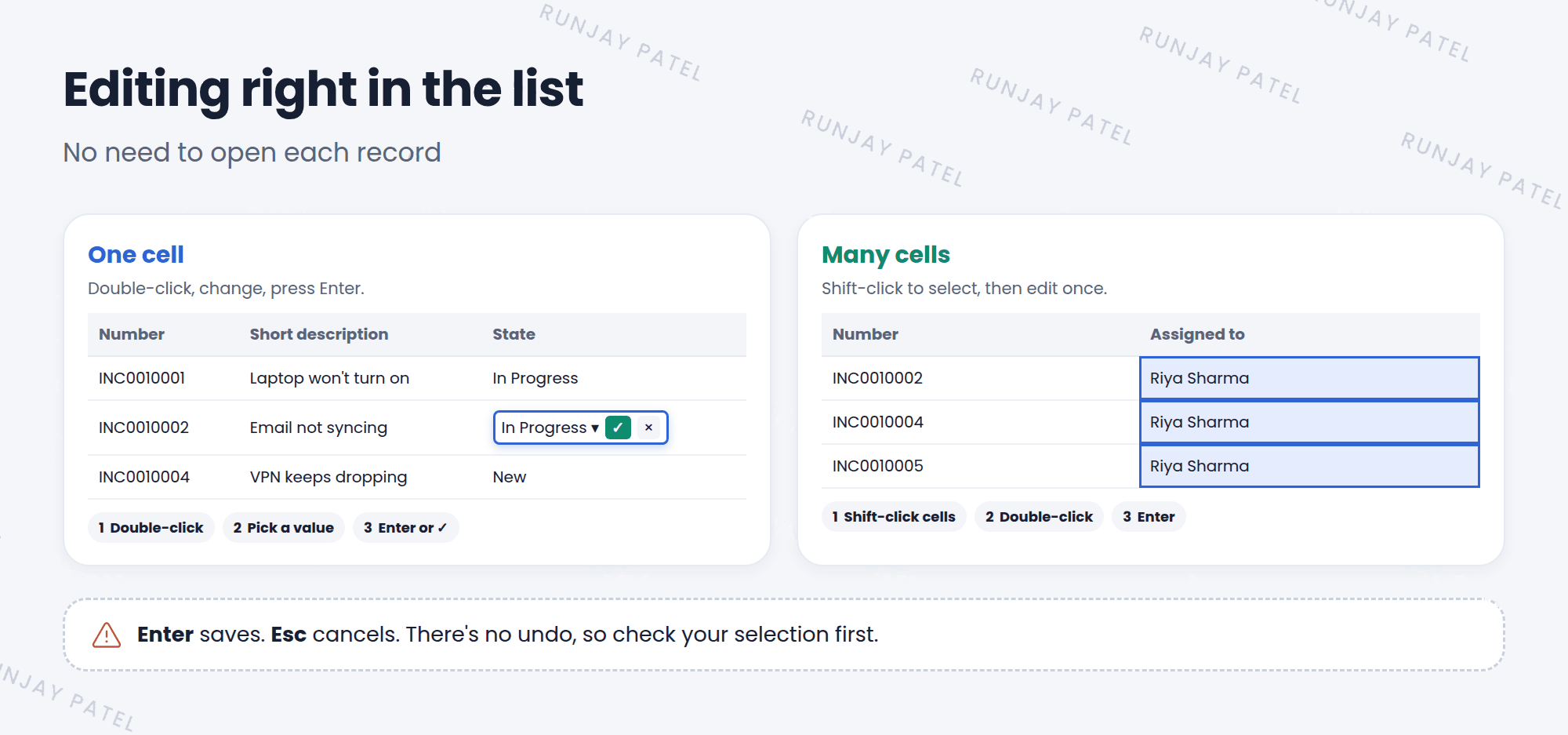
- Double-click the cell you want to change.
- An edit box opens right in the cell.
- Type or pick the new value.
- Press Enter (or click the green ✔) to save. Press Esc to cancel.
3 Edit many cells at once
Need to give 5 incidents to the same person? Change them together:
- Click the first cell in the Assigned to column.
- Hold Shift and click the last cell. (Or hold Ctrl and click cells one by one.)
- Double-click one of the selected cells.
- Set the new value and press Enter. All selected cells change. 🎉
⚠️ Heads up: Changing many records at once is powerful. Check your selection before you press Enter. There’s no undo button!
4 Why can’t I edit that cell?
Sometimes a double-click does nothing, or the cell is greyed out. That’s on purpose. Common reasons:
| Reason | Example |
|---|---|
| Read-only field | The Number field can’t be changed |
| No access | Your roles don’t allow you to change that field |
| List editing turned off | An admin turned off list editing for that list |
| Rules on the form | Some fields only make sense to change on the form, where other rules run |
📝 Note: Some rules only run on the form, not in lists. For fields with extra rules, it’s safer to open the record and edit it there.
⭐ Remember: Double-click = edit. Enter = save. Esc = cancel.
5 Let’s try it: quick edits
- Open Incident > Open.
- Double-click the State cell of any incident. Change it to In Progress and press Enter.
- Select the Assignment group cells of three incidents with Shift-click.
- Double-click one and set them all to SNWR Service Desk.
- Try to double-click a Number cell. What happens?
6 Quick recap
- Double-click a cell to edit it in the list
- Enter saves, Esc cancels
- Select several cells with Shift or Ctrl to edit them together
- Some cells can’t be edited because of read-only fields, access, or list settings
7 Check yourself
Think of your answer first. Then tap to check.
1 How do you start editing a cell in a list? Show answer
Double-click it.
2 You changed a value but want to cancel. Which key do you press? Show answer
Esc.
3 A user can’t edit the Priority cell in a list. Name one possible reason. Show answer
Any of: it’s read-only, their roles don’t allow it, or list editing is turned off for that list.
Nice work! You finished this lesson. 🎉
Was this lesson helpful?
Please log in to share lesson feedback.
Have a question or doubt?
Ask here and get help from instructors and fellow learners.
Only logged-in learners can post.





