


Notification Preferences
On this page
In this lesson, you will learn:
- The different ways ServiceNow can notify you
- How to turn notifications on or off for yourself
- Why some notifications can’t be turned off
1 Too many alerts?
ServiceNow sends messages when things happen: a ticket is assigned to you, an approval is waiting, or your request is done. These are called notifications. 🔔
Helpful! But if you get too many, you start ignoring all of them. Notification preferences let each person choose what they get and how.
2 Ways to be notified
ServiceNow can reach you through different channels:
- 📧 Emailto your inbox
- 🔔 In the appthe bell in the top bar
- 📱 Mobile pushon the ServiceNow app
Key term: Notification
A message ServiceNow sends automatically when something happens, like “An incident was assigned to you”.
Key term: Channel
The way a notification reaches you, like email, the bell in the app, or a mobile push message.
3 Changing your notification preferences
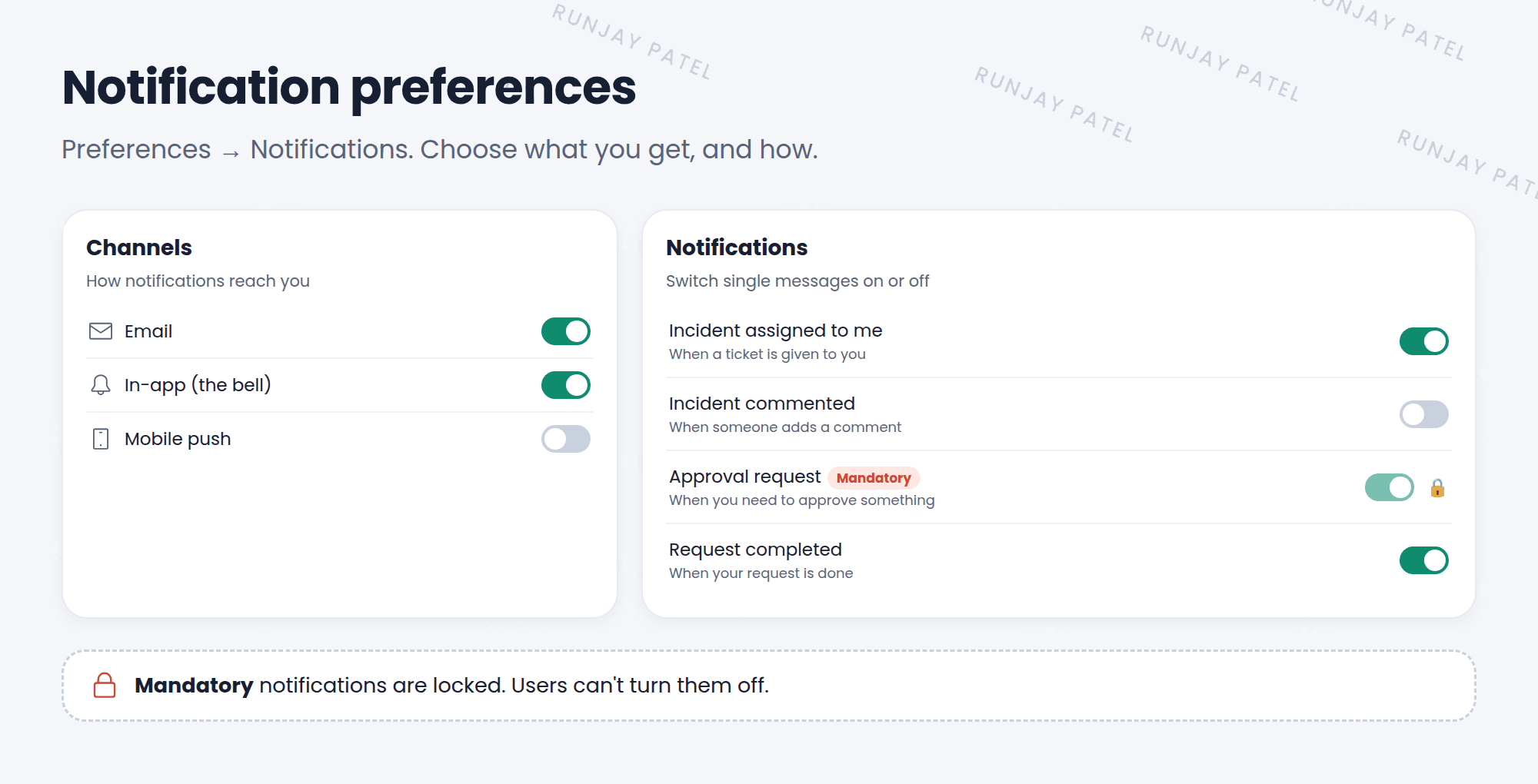
- Click your picture (top right) and choose Preferences.
- Open Notifications.
- Turn whole channels on or off, like email.
- Scroll down to find single notifications, and switch them on or off.
- Your changes save automatically for your user only.
4 Why can’t I turn some off?
Some notifications are too important to miss, like an approval request or a security alert. Admins can mark these as mandatory. 🔒
- A mandatory notification can’t be turned off by users.
- It usually shows a lock or is greyed out.
- Admins decide which ones are mandatory when they build the notification (Chapter 24).
⚠️ Heads up: If you turn off a notification, you won’t get that message anymore, even if it’s about something urgent. Think before you switch off things like “Incident assigned to me”.
5 The admin’s view
As an admin, you’ll help users who say “I didn’t get an email!” Here’s a simple checklist:
| Check | Why |
|---|---|
| Email address on the user record | A typo sends mail nowhere |
| The user’s notification preferences | They may have turned it off |
| The notification is active | An inactive notification never sends |
| Email sending is on for the instance | Many test instances don’t send real email |
📝 Note: PDIs and many test instances don’t send real emails to the outside world. That’s on purpose, so test messages don’t reach real people. You’ll learn to check email logs in Lesson 24.3.
6 Let’s try it: tune your alerts
- Open Preferences and click Notifications.
- Look at the channels. Which ones are on?
- Find a notification in the list and switch it off. Then switch it back on.
- Is there any notification you can’t switch off? That one is mandatory.
- Click the 🔔 bell in the top bar to see your in-app notifications.
7 Quick recap
- Notifications are automatic messages about things that happen
- Channels include email, in-app (the bell), and mobile push
- Change them in Preferences > Notifications, for yourself only
- Mandatory notifications can’t be turned off
- “No email” problems: check email address, preferences, the notification, and email sending
8 Check yourself
Think of your answer first. Then tap to check.
1 Name two notification channels. Show answer
Any two of: email, in-app (the bell), and mobile push.
2 A user can’t switch off the “Approval request” notification. Why? Show answer
It’s marked as mandatory by an admin.
3 A user says they never get emails. Name one thing to check. Show answer
Their email address, their notification preferences, whether the notification is active, or whether the instance sends email.
Nice work! You finished this lesson. 🎉
Was this lesson helpful?
Please log in to share lesson feedback.
Have a question or doubt?
Ask here and get help from instructors and fellow learners.
Only logged-in learners can post.





