


Defined Relationships
On this page
In this lesson, you will learn:
- When a normal related list isn’t enough
- What a defined relationship is
- The parts of a relationship record
- How to add it to a form
1 When there’s no direct link
In Lesson 16.1, related lists worked through a reference field: every incident’s Caller points to a user. But sometimes records are connected in a way that no field shows directly.
Example: on an incident, SNWR’s agents want to see other incidents from the same caller. No field on an incident points to other incidents like that. 🤔
The answer is a defined relationship.
Key term: Defined relationship
A custom connection between tables, written by an admin, that creates a related list even when no reference field links the records.
2 The parts of a relationship
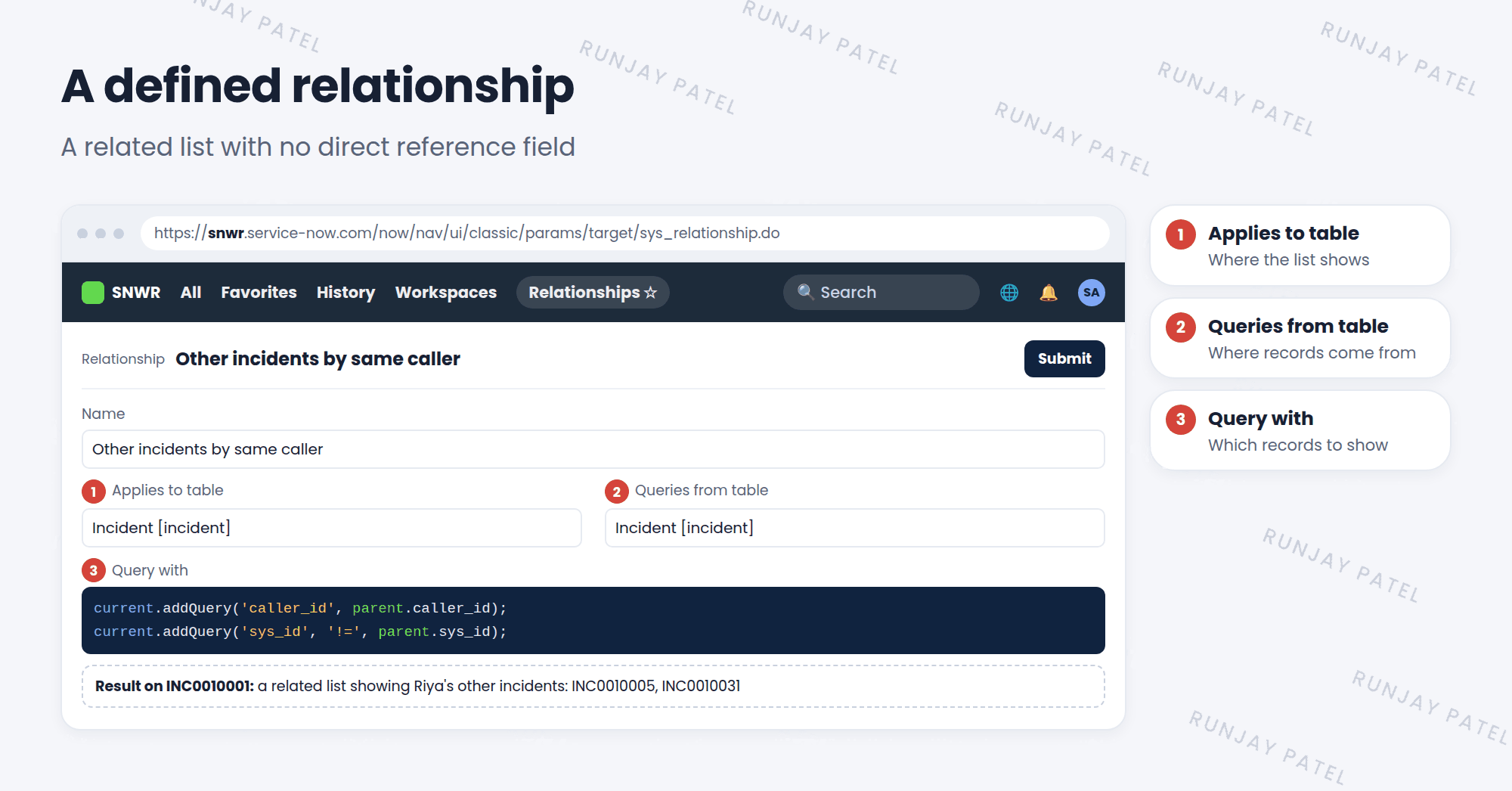
| Field | What it means |
|---|---|
| Name | The related list’s title, like “Other incidents by same caller” |
| Applies to table | The form where the related list shows |
| Queries from table | The table the listed records come from |
| Query with | A short script that says which records to show |
3 The script, in plain words
The script uses two special words:
parent= the record whose form you’re looking at (this incident).current= the list of records you’re searching (other incidents).
So current.addQuery('caller_id', parent.caller_id); means: “show incidents whose caller is the same as this incident’s caller.”
📝 Note: This is a tiny bit of JavaScript. Don’t worry if it feels new. You’ll learn scripting properly in the Advanced track. For now, just understand what it does.
4 Create and use it
- Go to System Definition > Relationships and click New.
- Fill in the Name, Applies to table, and Queries from table.
- Write the Query with script, then Submit.
- Open a record of the Applies to table, and choose Configure > Related Lists.
- Your new relationship is in the Available list. Add it and save. ✅
⭐ Remember: Reference field link? Use a normal related list. No direct link? Use a defined relationship.
5 Let’s try it: same caller, other incidents
- Go to System Definition > Relationships. Click New.
- Name: SNWR Other incidents by caller. Applies to table: Incident. Queries from table: Incident.
- Query with:
current.addQuery('caller_id', parent.caller_id);Submit. - Open any incident and add the new related list with Configure > Related Lists.
- Scroll down. Do you see the caller’s incidents?
6 Quick recap
- A defined relationship makes a related list with no direct reference field
- Key fields: Applies to table, Queries from table, Query with
parent= this record.current= the records being searched- Create them in System Definition > Relationships
- Add them to forms with Configure > Related Lists
7 Check yourself
Think of your answer first. Then tap to check.
1 When do you need a defined relationship? Show answer
When records are connected, but no reference field links them directly.
2 Which field decides which form shows the related list? Show answer
Applies to table.
3 In the script, what does parent mean? Show answer
The record whose form you’re looking at.
Nice work! You finished this lesson. 🎉
Was this lesson helpful?
Please log in to share lesson feedback.
Have a question or doubt?
Ask here and get help from instructors and fellow learners.
Only logged-in learners can post.





