


Subflows & Testing Flows
On this page
In this lesson, you will learn:
- How to build a subflow with inputs and outputs
- How to call a subflow from a flow
- How to test a flow and read its execution details
1 Reuse with subflows
Five of SNWR’s flows all need to “notify the manager and wait for a reply”. Building those steps five times is slow, and changing them later means five edits. Build it once as a subflow. ♻️
Key term: Inputs
Data the subflow needs to start, like “Which user?”
Key term: Outputs
Data the subflow gives back when it’s done, like “Did the manager reply?”
- In Workflow Studio, create a new Subflow. Name it “SNWR Notify manager”.
- Add an input:
user(a reference to User). - Add steps: Look Up the user’s manager, then Send Email.
- Add an output, like
email_sent(true/false), and set it at the end. - Save and publish it.
- In any flow, add a step: Subflow > SNWR Notify manager, and drag a data pill into its input. ✅
⭐ Remember: A subflow has inputs and outputs, but no trigger. Flows call it.
2 Test before you trust
Workflow Studio has a Test button. It runs the flow with a record you choose, even before you activate it. 🧪
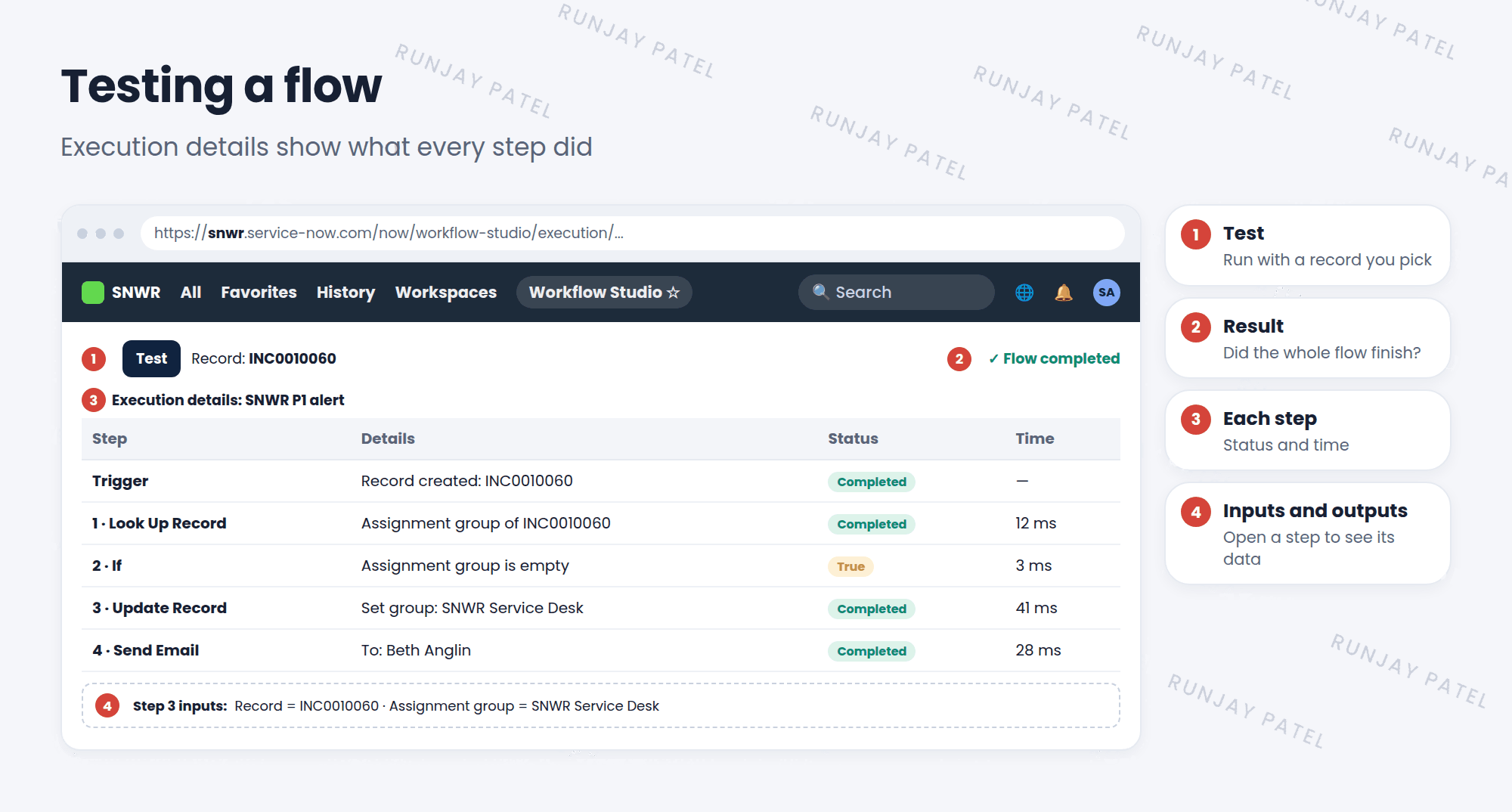
- Open your flow and click Test.
- Pick a record for the trigger, like a P1 incident. Click Run Test.
- Open the execution details link.
- Check each step: did it complete? Open a step to see its inputs and outputs.
⚠️ Heads up: A test runs for real: it can create records and send emails. Test in a sub-production instance, never in Prod.
💡 Good to know: When an active flow misbehaves, open Executions in Workflow Studio. Every run is saved, so you can see exactly where it went wrong.
3 Let’s try it: test your flow
- Open “SNWR P1 alert”. Click Test and choose a P1 incident.
- Open the execution details. Which steps ran? Was the If true or false?
- Open the Update Record step and look at its inputs.
4 Quick recap
- Subflows are reusable, with inputs and outputs, and no trigger
- Call a subflow as a step in any flow
- Use Test to run a flow with a chosen record
- Execution details show every step’s status, inputs, and outputs
- Tests are real, so test in sub-production
5 Check yourself
Think of your answer first. Then tap to check.
1 A subflow has no trigger. How does it get its data? Show answer
From its inputs, which the calling flow fills in, often with data pills.
2 An active flow didn’t send an email. Where do you look? Show answer
Its executions and execution details, to see which step failed.
3 Is it safe to test a flow in Prod? Show answer
No. Tests run for real, so test in a sub-production instance.
Nice work! You finished this lesson. 🎉
Was this lesson helpful?
Please log in to share lesson feedback.
Have a question or doubt?
Ask here and get help from instructors and fellow learners.
Only logged-in learners can post.





