


Core UI (Classic)
On this page
In this lesson, you will learn:
- What Core UI (the classic look) is
- The three parts of the Core UI screen
- How Core UI compares to Next Experience
- Why admins still need to know it
1 Meet the classic look
Before Next Experience, ServiceNow used a look called Core UI. You’ll also hear it called UI16 or the classic UI. Many companies used it for years, and some still do. 🏛️
Key term: Core UI (UI16)
The older, classic ServiceNow interface. Its menu sits on the left side of the screen.
2 The three parts
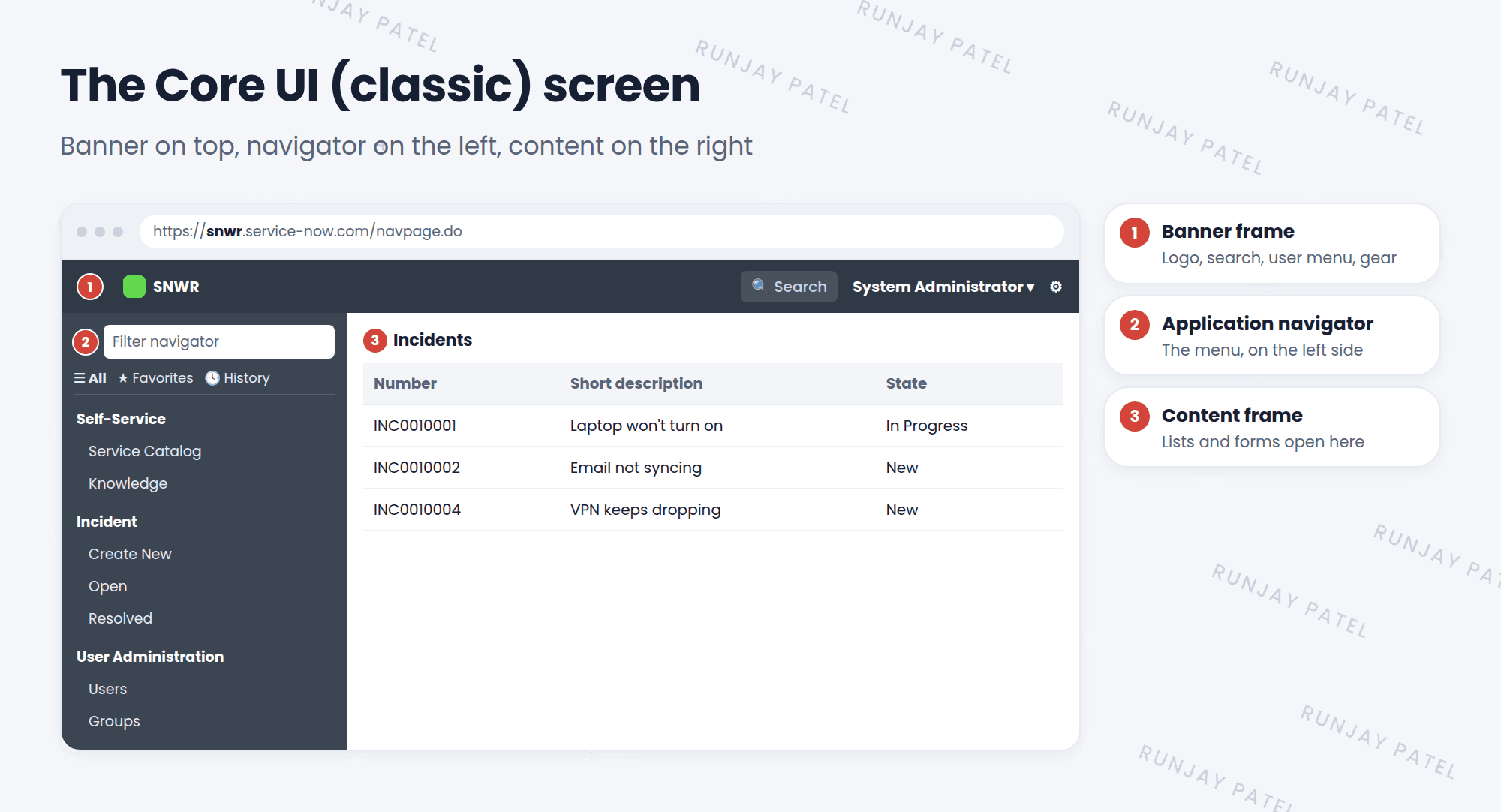
| # | Part | What’s in it |
|---|---|---|
| 1 | Banner frame | Logo, global search, user menu, and a settings gear |
| 2 | Application navigator | The menu on the left, with a filter box, Favorites, and History |
| 3 | Content frame | Where lists, forms, and pages open |
💡 Good to know: The application navigator works just like the All menu in Next Experience. Same application menus, same modules, same filter box. It just lives on the left side.
3 Core UI vs Next Experience
| Core UI (classic) | Next Experience | |
|---|---|---|
| Main menu | Left side (application navigator) | Top bar (All menu) |
| Look | Older, framed layout | Modern, clean layout |
| Workspaces | Opened separately | Built into the menu |
| Data | Exactly the same. Only the look is different | |
⭐ Remember: Core UI and Next Experience show the same data. Switching the look doesn’t change any records.
4 Why admins still need Core UI
- Many admin pages, like list and form settings, still open in the classic style, even inside Next Experience.
- Some companies haven’t switched to Next Experience yet.
- Lots of older guides, videos, and community answers show the classic look.
📝 Note: Admins can turn Next Experience on or off for the whole instance with a system property. In most new instances, it’s on by default.
5 Let’s try it: peek at the classic look
- In your browser, go to
https://your-instance.service-now.com/navpage.do. - If your instance shows the classic look here, find the three parts: banner, navigator, and content frame.
- Type
incidentin the navigator’s filter box and open Open. Does it feel familiar? - Go back to your normal home page to return to Next Experience.
📝 Note: Depending on your instance’s settings, this page may still show Next Experience. That’s fine. Just look at the classic pages that open inside it, like incident_list.do.
6 Quick recap
- Core UI (UI16, classic) is the older ServiceNow look
- It has a banner frame, an application navigator, and a content frame
- The navigator works like the All menu, but on the left
- Both looks show the same data
- Many admin pages still use the classic style
7 Check yourself
Think of your answer first. Then tap to check.
1 What are the three parts of the Core UI screen? Show answer
Banner frame, application navigator, and content frame.
2 In Core UI, where is the main menu? Show answer
On the left side, in the application navigator.
3 A company switches from Core UI to Next Experience. Do their records change? Show answer
No. Only the look changes. The data stays the same.
Nice work! You finished this lesson. 🎉
Was this lesson helpful?
Please log in to share lesson feedback.
Have a question or doubt?
Ask here and get help from instructors and fellow learners.
Only logged-in learners can post.





