


User Profile & Menu
On this page
In this lesson, you will learn:
- What’s in the user menu and what each option does
- What your user profile is and what you can change in it
- Why a complete profile helps everyone
1 Your user menu
In the top-right corner of the screen is a small circle with your picture or your initials. Click it, and the user menu opens. 👤
This menu is all about you: who you are, how ServiceNow looks for you, and how you log out.
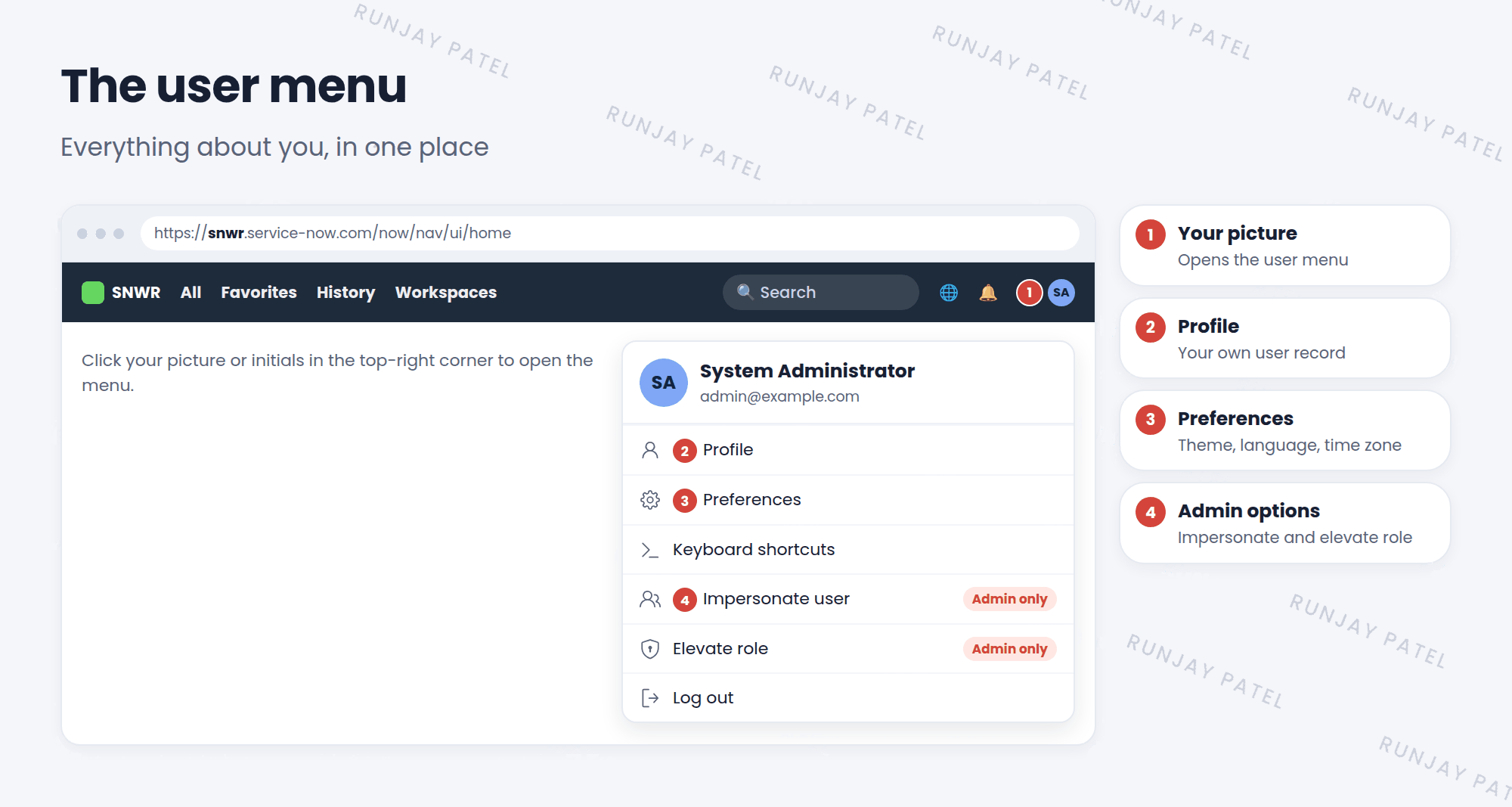
| Option | What it does | Who sees it |
|---|---|---|
| Profile | Opens your own user details | Everyone |
| Preferences | Change theme, language, time zone, notifications, and more | Everyone |
| Keyboard shortcuts | Shows the shortcut keys you can use | Everyone |
| Impersonate user | Lets you see ServiceNow as another user | Admins |
| Elevate role | Turns on an extra-powerful role for a short time | Admins |
| Log out | Ends your session safely | Everyone |
📝 Note: You’ll learn about Preferences in Lessons 5.2 and 5.3, and about Impersonate user in Lesson 6.4.
2 Your profile
Key term: User profile
Your own user record: your name, email, phone, title, photo, and more. It lives in the User table, just like everyone else’s.
Remember from Lesson 1.1: everything in ServiceNow is a record in a table. You are a record too! Your profile is simply your row in the User table (sys_user).
On your profile, you can usually:
- Add or change your photo. 📸
- Update your phone number.
- Check your email, title, and manager.
⚠️ Heads up: Some fields, like your name, department, or manager, may be locked. In many companies, those come from the HR system or the company directory, and only admins or that system can change them.
3 Why a good profile matters
Your profile isn’t just for you. Other people and ServiceNow itself use it every day:
- 📧 Emailwhere notifications go
- 👔 Managerwho approves your requests
- 📍 Locationwhich team helps you
⭐ Remember: If a user’s email or manager is wrong, their notifications and approvals go to the wrong place. As an admin, good user data is part of your job. You’ll learn to manage users in Chapter 6.
4 Let’s try it: explore your menu
- Click your picture or initials in the top-right corner.
- Read each option in the menu. Which ones are only there because you’re an admin?
- Click Profile. Look at the fields. Which ones can you change?
- Add a phone number to your profile, and save it.
- Open the user menu again and click Keyboard shortcuts. Find one shortcut you’d like to remember.
💡 Good to know: Always use Log out when you finish on a shared computer. Just closing the browser tab may leave you logged in.
5 Quick recap
- Click your picture (top right) to open the user menu
- It has Profile, Preferences, Keyboard shortcuts, and Log out
- Admins also see Impersonate user and Elevate role
- Your profile is your record in the User table (
sys_user) - Correct emails and managers keep notifications and approvals working
6 Check yourself
Think of your answer first. Then tap to check.
1 Which table holds your user profile? Show answer
The User table, sys_user.
2 A user can’t change their department on their profile. Is something broken? Show answer
Probably not. Some fields are locked because they come from HR or the company directory.
3 Why does a correct manager field matter? Show answer
Approvals often go to the user’s manager. A wrong manager sends approvals to the wrong person.
Nice work! You finished this lesson. 🎉
Was this lesson helpful?
Please log in to share lesson feedback.
Have a question or doubt?
Ask here and get help from instructors and fellow learners.
Only logged-in learners can post.





