


Reading Search Results
On this page
In this lesson, you will learn:
- The parts of the search results page
- How to use tabs and filters to narrow your results
- How to read a result card before you open it
1 The results page
In Lesson 4.1, you ran a search and pressed Enter. Now a results page is open. At first it can look busy, but it has just a few parts. Let’s go through them. 🔎
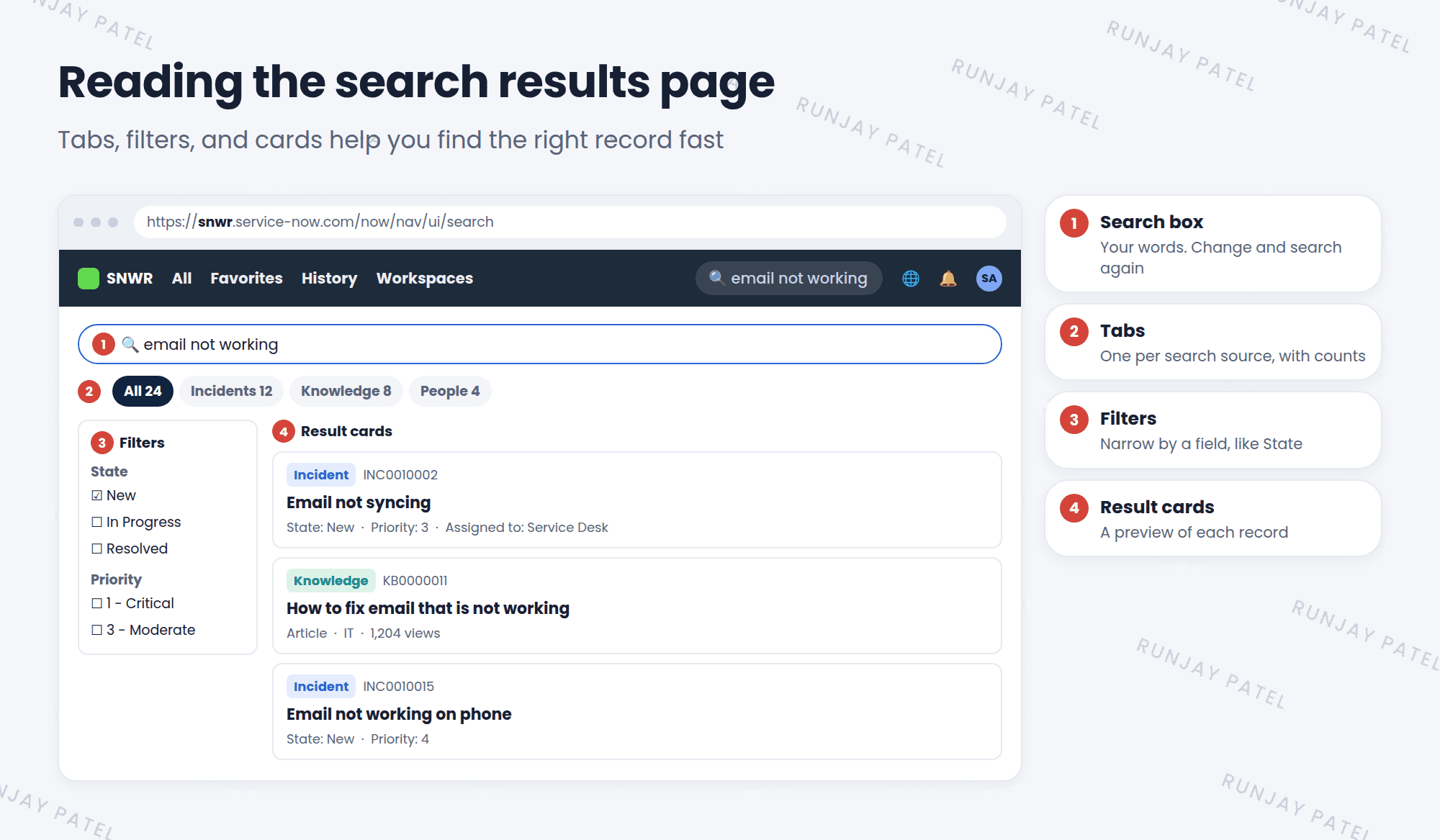
| # | Part | What it does |
|---|---|---|
| 1 | Search box | Shows your words. Change them and search again |
| 2 | Tabs | One tab per search source. All shows everything together |
| 3 | Filters | Narrow the results by a field, like State or Category |
| 4 | Result cards | A short preview of each record |
2 Tabs: pick where to look
The tabs across the top split your results by search source.
- All mixes results from every source, with the best matches first.
- Click a tab like Knowledge to see only help articles.
- The number on each tab tells you how many results it has.
💡 Good to know: Too many results? Click the tab for the kind of record you want first. It’s the quickest way to cut the list down.
3 Filters: narrow it down
After you pick a tab, a Filters list shows on the side. Filters use the fields of those records.
- Click the Incidents tab.
- In the Filters list, pick State: New.
- Now you only see new incidents that match your words.
- Pick more filters to narrow it even more, or clear them to start again.
4 Reading a result card
Each result is a small card. Before you click, you can already see a lot:
- Type: what kind of record it is, like Incident or Knowledge article.
- Number and title: for example, INC0010002 “Email not syncing”.
- Key fields: things like State, Priority, or who it’s assigned to.
- Exact match tag: if you searched for a record number, the record with that exact number gets this tag.
⭐ Remember: Read the card before you click. It often tells you if it’s the right record, which saves time.
📝 Note: With AI Search, you might sometimes see a special card at the top with a direct answer, like a help article or a catalog item you can order. These are called Genius Results. Not every instance has them turned on.
5 Let’s try it: read your results
- Search for
emailand press Enter. - Look at the tabs. Which tab has the most results?
- Click the Incidents tab (or Tasks). Use a filter to show only active or new ones.
- Read one result card. Can you tell its state and priority without opening it?
- Click the card to open the full record. Then use your browser’s back button to return to the results.
6 Quick recap
- The results page has: search box, tabs, filters, and result cards
- Search a record number to get an Exact match tag on that record
- Tabs split results by search source. All shows everything
- Filters narrow results by field values
- Result cards show the type, number, title, and key fields
7 Check yourself
Think of your answer first. Then tap to check.
1 You only want help articles in your results. What do you click? Show answer
The Knowledge tab.
2 You have 200 incident results. How can you see only the new ones? Show answer
Use the Filters list and pick State: New.
3 You search for INC0010002. What does the Exact match tag on a result mean? Show answer
That record’s number matches exactly what you typed.
Nice work! You finished this lesson. 🎉
Was this lesson helpful?
Please log in to share lesson feedback.
Have a question or doubt?
Ask here and get help from instructors and fellow learners.
Only logged-in learners can post.





