


Upgrades & Skipped Records
On this page
In this lesson, you will learn:
- What happens to your changes during an upgrade
- What a skipped record is and why it happens
- Where to find skipped records
- The choices you have for each one
1 What an upgrade does
In Lesson 2.3, you learned that companies upgrade to new releases once or twice a year. During an upgrade, ServiceNow replaces its base records (scripts, forms, rules, and more) with newer versions. 🔄
But what if you changed one of those base records? ServiceNow has to decide: overwrite your change, or keep it?
2 Skipped records
ServiceNow plays it safe. If you customized a base record, the upgrade does not overwrite it. It leaves your version alone and adds the record to a list. This is called a skipped record.
Key term: Skipped record
A base record the upgrade didn’t update, because someone at your company had changed it.
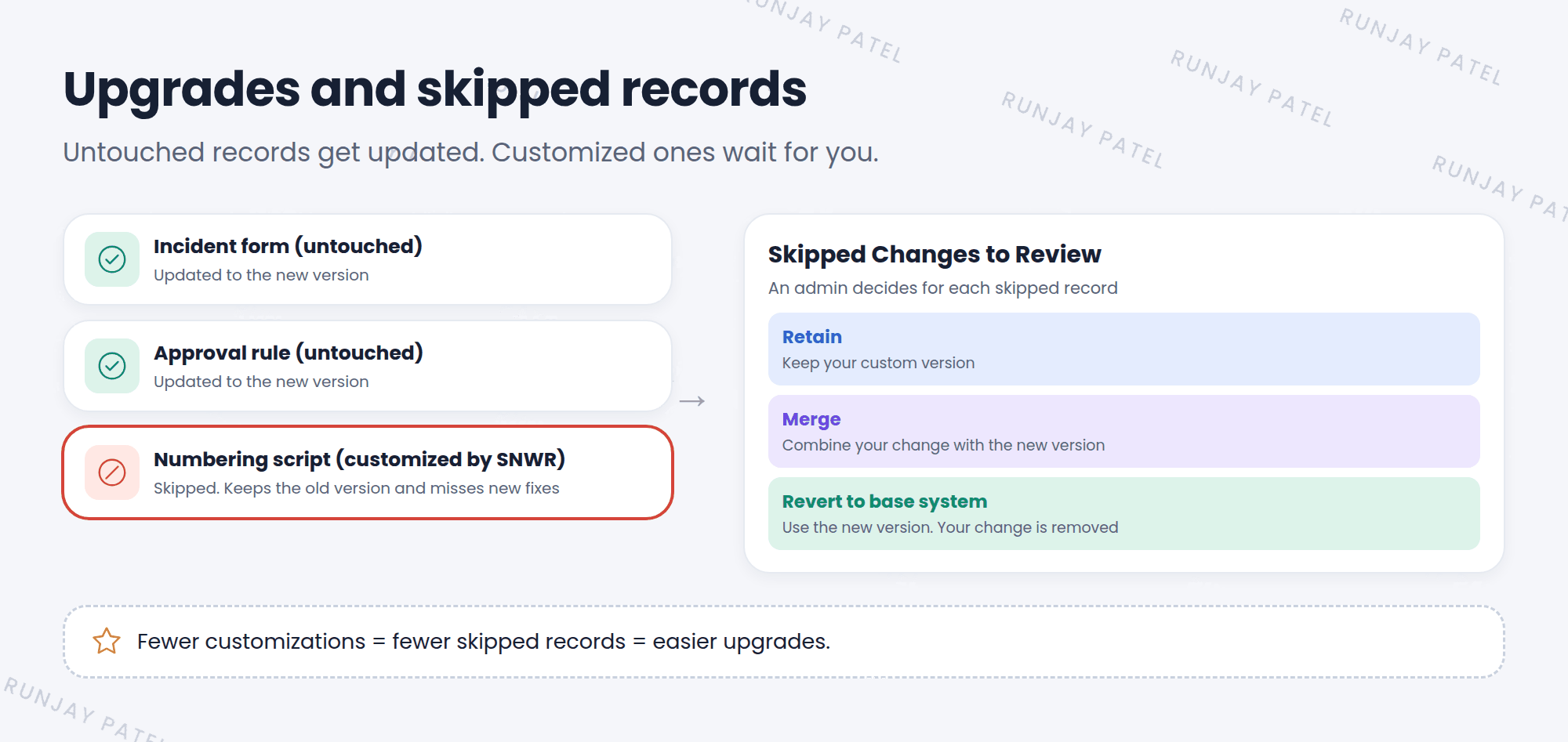
⚠️ Why this matters: A skipped record keeps your old version. It misses the new fixes and features from the upgrade. Sometimes it even stops working with the new release. That’s why every skipped record needs a review.
3 Finding skipped records
- After an upgrade, open System Diagnostics > Upgrade Monitor (or Upgrade History).
- Find the count of skipped records for the upgrade.
- Open the list called Skipped Changes to Review.
- Open each record to compare your version with the new base version, side by side.
4 Your choices
| Choice | What happens | When to use it |
|---|---|---|
| Retain | Keep your custom version | Your change is still needed and still works |
| Merge | Combine your change with the new version | You want both your change and the new fixes |
| Revert to base system | Throw away your change and use the new version | Your change isn’t needed anymore |
💡 Good to know: Every customization you revert is one less thing to review next time. Many teams use each upgrade as a chance to clean up old customizations.
⭐ Remember: Fewer customizations = fewer skipped records = easier upgrades. This is why admins configure before they customize (Lesson 9.1).
5 Let’s try it: look around
- In your PDI, open All and type
upgrade. - Open Upgrade History. Do you see any upgrades listed? (A new PDI may have one or none.)
- If there is one, open it and look for skipped records.
- Open Upgrade Monitor and see what information it shows.
📝 Note: A fresh PDI has no customizations, so you probably won’t see skipped records. That’s great! In real companies, you’ll see many more.
6 Quick recap
- Upgrades update ServiceNow’s base records
- Customized base records are skipped to protect your changes
- Skipped records miss new fixes, so each one must be reviewed
- Find them in Skipped Changes to Review
- Choices: Retain, Merge, or Revert to base system
7 Check yourself
Think of your answer first. Then tap to check.
1 Why does an upgrade skip a record? Show answer
Because someone at the company customized that base record, and ServiceNow doesn’t want to overwrite the change.
2 Your customization isn’t needed anymore. Which choice do you pick? Show answer
Revert to base system.
3 What’s the best way to have fewer skipped records? Show answer
Customize less. Configure with built-in tools whenever you can.
Nice work! You finished this lesson. 🎉
Was this lesson helpful?
Please log in to share lesson feedback.
Have a question or doubt?
Ask here and get help from instructors and fellow learners.
Only logged-in learners can post.





