


Creating Templates
On this page
In this lesson, you will learn:
- What a form template is and why it saves time
- Two ways to create a template
- The main fields on a template record
1 Stop typing the same thing
SNWR’s service desk gets the same “password reset” call many times a day. Each time, an agent types the same category, subcategory, and short description. That’s slow, and it’s easy to make typos. 😩
A template fills in those fields with one click.
Key term: Template
A saved set of field values that ServiceNow can fill into a form for you. Stored in the sys_template table.
Think of a pre-filled form at the doctor’s office, where your name and address are already printed. You only add what’s new. 📝
2 Way 1: save a form as a template
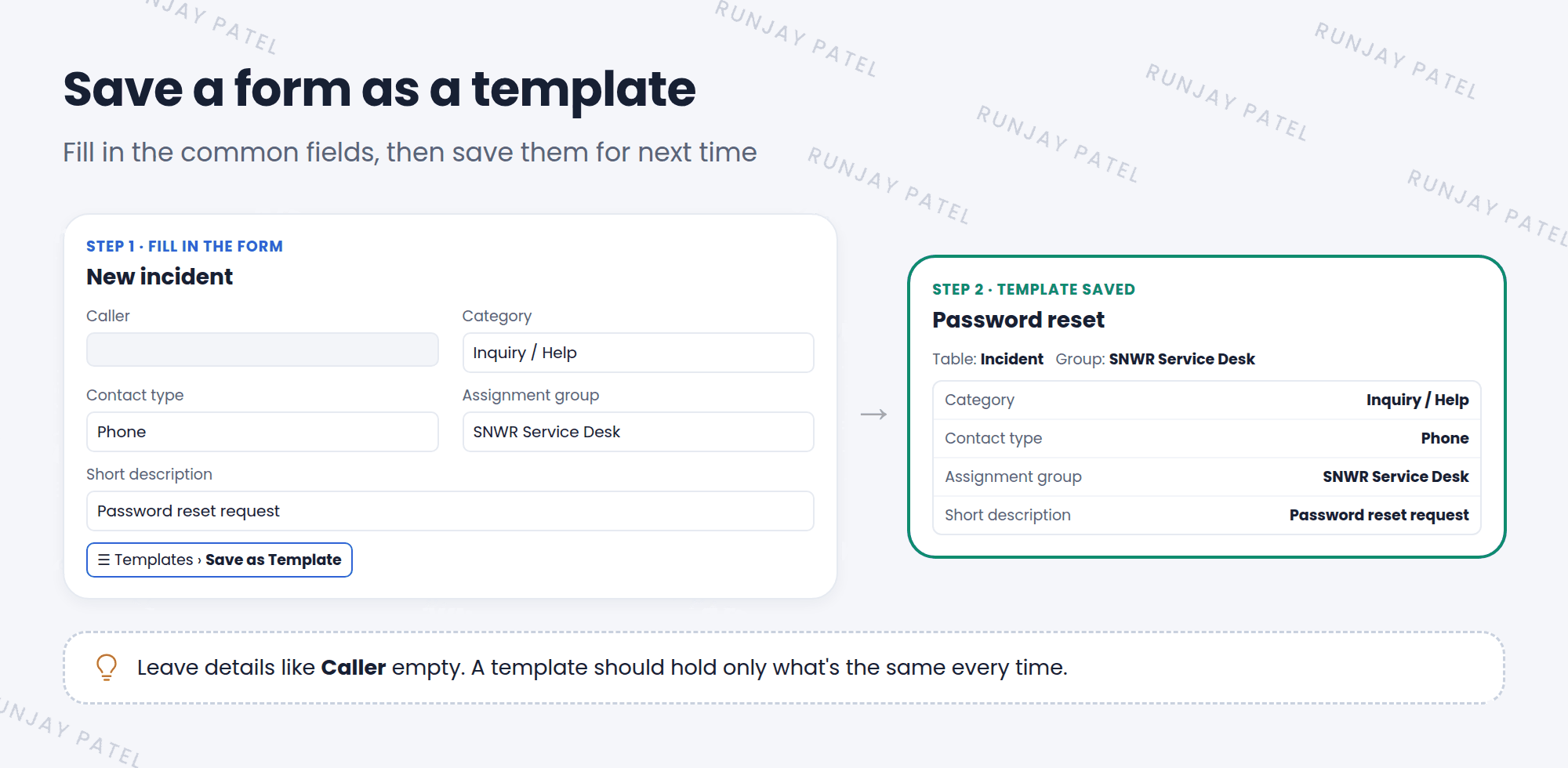
- Open a new form, like Incident > Create New.
- Fill in only the fields you want the template to set.
- Open the context menu (☰) and choose Templates > Save as Template.
- Give it a clear name, like “Password reset”, and choose who can use it.
- Click Submit. ✅
💡 Good to know: Leave fields like Caller empty before saving. You want the template to fill in the common parts, not details that change every time.
3 Way 2: create it from the Templates list
- Click All and type
templates. Open the Templates module under System Definition. - Click New.
- Fill in the Name and Table.
- In the Template field, add each field and its value.
- Click Submit.
| Field | What it means |
|---|---|
| Name | What people pick from the menu |
| Table | Which form it works on |
| User / Groups / Global | Who can use it (Lesson 17.2) |
| Template | The fields and values to fill in |
| Active | Turns it on or off |
⭐ Remember: A template fills in fields. It doesn’t save the record by itself. You still click Submit.
4 Let’s try it: a password reset template
- Open Incident > Create New.
- Set Category to Inquiry / Help, Short description to “Password reset request”, and Assignment group to SNWR Service Desk.
- Choose ☰ > Templates > Save as Template. Name it SNWR Password reset. Submit.
- Leave the form without saving the incident.
- Find your template in the Templates list. Open it and look at the saved values.
5 Quick recap
- A template fills in a form’s fields for you
- Create one from a form: ☰ > Templates > Save as Template
- Or create one in the Templates list
- Save only the common fields, not details that change
- Templates are stored in
sys_template
6 Check yourself
Think of your answer first. Then tap to check.
1 What does a template do? Show answer
It fills in a form’s fields with saved values.
2 Should you save the Caller field in a password reset template? Show answer
No. The caller changes every time. Save only the common fields.
3 Does applying a template save the record? Show answer
No. It only fills in fields. You still click Submit or Update.
Nice work! You finished this lesson. 🎉
Was this lesson helpful?
Please log in to share lesson feedback.
Have a question or doubt?
Ask here and get help from instructors and fellow learners.
Only logged-in learners can post.





