


Activity Stream & Work Notes
On this page
In this lesson, you will learn:
- What the activity stream shows
- The difference between work notes and additional comments
- How to use @mentions
- How to filter the activity stream
1 The story of a task
Every task has a story: who opened it, who changed it, and what people said about it. ServiceNow shows this story in the activity stream, near the bottom of the form. 📜
Key term: Activity stream
A timeline on a form that shows comments, work notes, emails, and field changes, newest first.
2 Work notes vs additional comments
This is one of the most important things to get right! There are two kinds of notes:
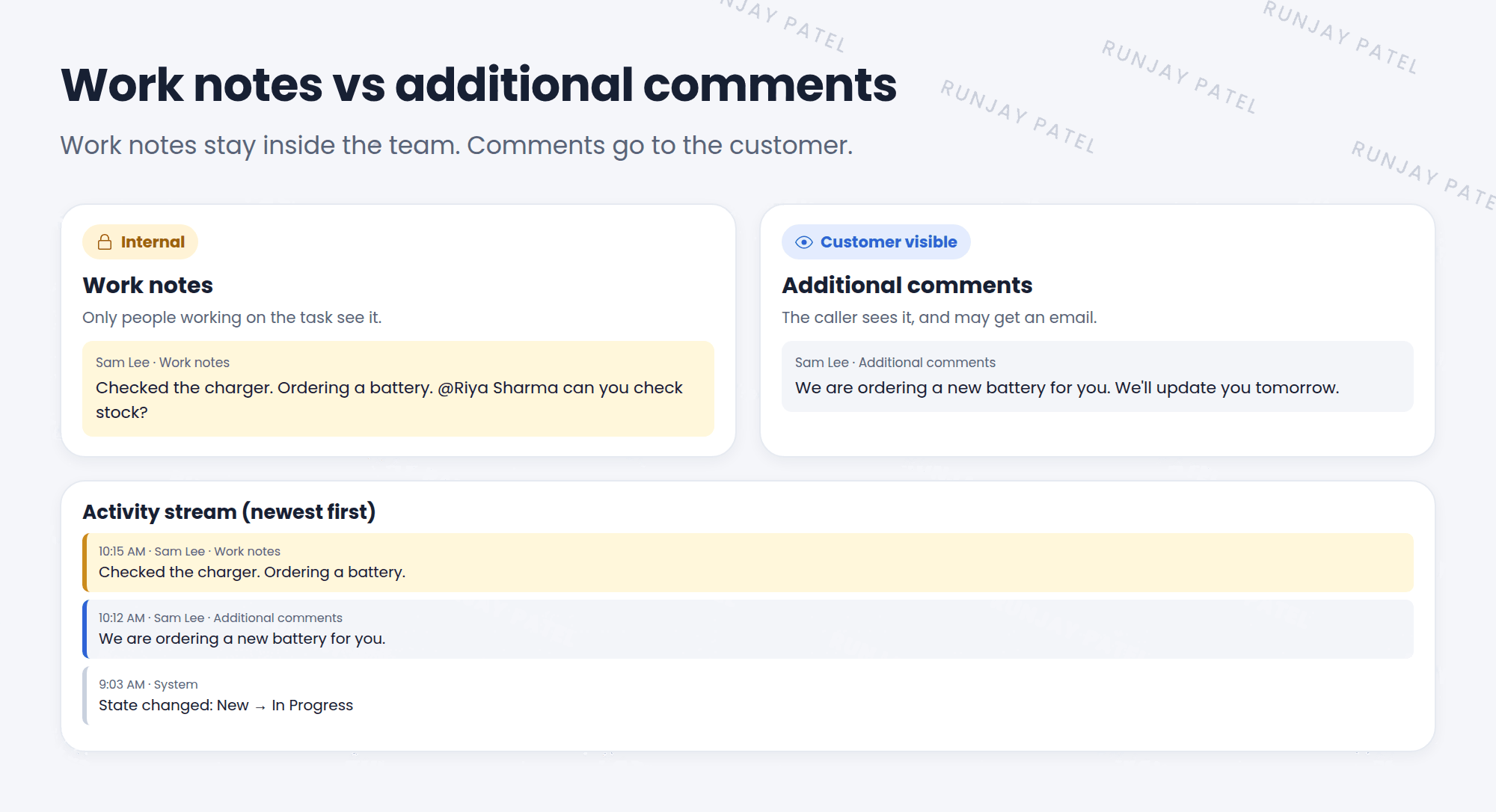
| Work notes | Additional comments | |
|---|---|---|
| Who sees it | Only people working on the task | The customer (caller) too |
| Use it for | Technical details, team updates | Messages to the customer |
| Example | “Checked the charger. Ordering a battery.” | “We’re ordering a new battery for you.” |
⚠️ Think before you post! If you put internal notes in Additional comments by mistake, the customer can see them, and may even get an email. Double-check which box you’re typing in.
📝 Note: Both are journal fields (Lesson 13.2). Each entry is saved with the author and time, and entries can’t be edited later.
3 @mentions
Need a teammate’s help? Type @ and their name in a work note, like @Sam Lee. Sam gets a notification and a link to the task. 🔔
4 Filtering the stream
On busy tasks, the activity stream gets long. Use the filter icon above it to show only some things, like only work notes, or only field changes.
⭐ Remember: Work notes = inside the team. Additional comments = to the customer.
5 Let’s try it: write the right note
- Open any incident.
- In Work notes, type: “Checked the logs. Looks like a network issue.” Click Post.
- In Additional comments, type: “We’re looking into this for you.” Click Post.
- Look at the activity stream. How are the two entries shown differently?
- Impersonate the incident’s caller and open the incident in the portal. Which note can they see?
6 Quick recap
- The activity stream shows a task’s history: notes, emails, and changes
- Work notes are internal. Additional comments are customer visible
- Both are journal fields and can’t be edited later
- Use @mentions to bring in a teammate
- Filter the stream to find what you need
7 Check yourself
Think of your answer first. Then tap to check.
1 You want to tell the caller their laptop is ready. Which field? Show answer
Additional comments.
2 You want to note a technical detail for your team only. Which field? Show answer
Work notes.
3 How do you get a teammate’s attention on a task? Show answer
@mention them in a work note.
Nice work! You finished this lesson. 🎉
Was this lesson helpful?
Please log in to share lesson feedback.
Have a question or doubt?
Ask here and get help from instructors and fellow learners.
Only logged-in learners can post.





