


Form Header & Context Menu
On this page
In this lesson, you will learn:
- What a form is and how it’s different from a list
- The parts of the form header
- What’s in the form context menu
1 Lists vs forms
A list shows many records. A form shows one record, with all its fields. Click a record’s number in a list, and its form opens. 📄
Key term: Form
A page that shows the fields of one record, so you can read or change it.
2 The form header
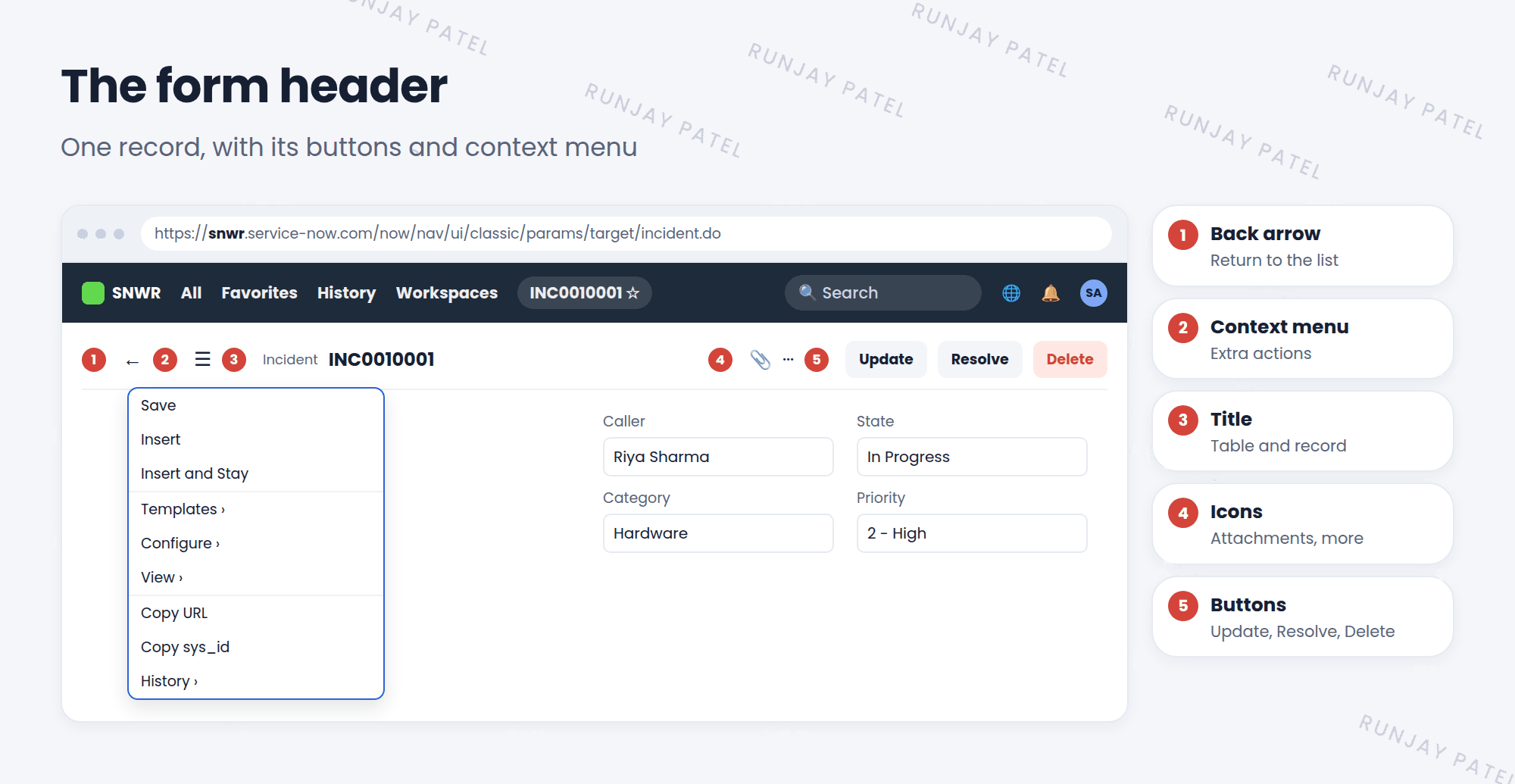
| # | Part | What it does |
|---|---|---|
| 1 | Back arrow | Returns to the list you came from |
| 2 | Context menu (☰) | Opens a menu of extra actions (see below) |
| 3 | Title | The table and the record, like “Incident INC0010001” |
| 4 | Icons | Attachments 📎, and more options like tags |
| 5 | Buttons | Actions like Update, Resolve, or Delete |
📝 Note: The buttons change from table to table and from state to state. A new incident shows Submit. An open one shows Update and Resolve. These buttons are called UI actions. You’ll build them in the Advanced track.
3 The context menu
Click the ☰ icon, or right-click the form header, to open the context menu. It has lots of useful options:
| Option | What it does |
|---|---|
| Save | Saves and stays on the form |
| Insert / Insert and Stay | Makes a copy as a new record (Lesson 17.3) |
| Templates | Apply or save a template (Chapter 17) |
| Configure | Change the form layout and more (admins) |
| View | Switch to another view of the form (Chapter 15) |
| Copy URL / Copy sys_id | Copy the link or the unique ID |
| History | See every change made to this record |
💡 Good to know: History is great for answering “Who changed this, and when?” It shows each field’s old and new values.
⭐ Remember: Can’t find an option on a form? Open the ☰ context menu. That’s where most extra actions live.
4 Let’s try it: explore a form
- Open Incident > All and click an incident’s number.
- Find the 5 parts of the header from the figure.
- Right-click the header. Look at every option in the context menu.
- Choose History > List (or History). Who last changed this record?
- Use Copy sys_id. Paste it into a note. It’s 32 characters long!
5 Quick recap
- A form shows one record
- The header has a back arrow, context menu, title, icons, and buttons
- Buttons (UI actions) change by table and state
- The ☰ context menu has Save, Insert, Templates, Configure, View, Copy URL, and History
6 Check yourself
Think of your answer first. Then tap to check.
1 How do you open the form context menu? Show answer
Click the ☰ icon in the header, or right-click the header.
2 Where can you see who changed a field and when? Show answer
In History, from the context menu.
3 Why does a new incident show Submit but an old one shows Update? Show answer
Form buttons (UI actions) change depending on the record and its state.
Nice work! You finished this lesson. 🎉
Was this lesson helpful?
Please log in to share lesson feedback.
Have a question or doubt?
Ask here and get help from instructors and fellow learners.
Only logged-in learners can post.





