


Configuring List Layout
On this page
In this lesson, you will learn:
- How admins set the default columns for everyone
- The difference between personalizing and configuring a list
- What List Control can turn on and off
1 Setting the default for everyone
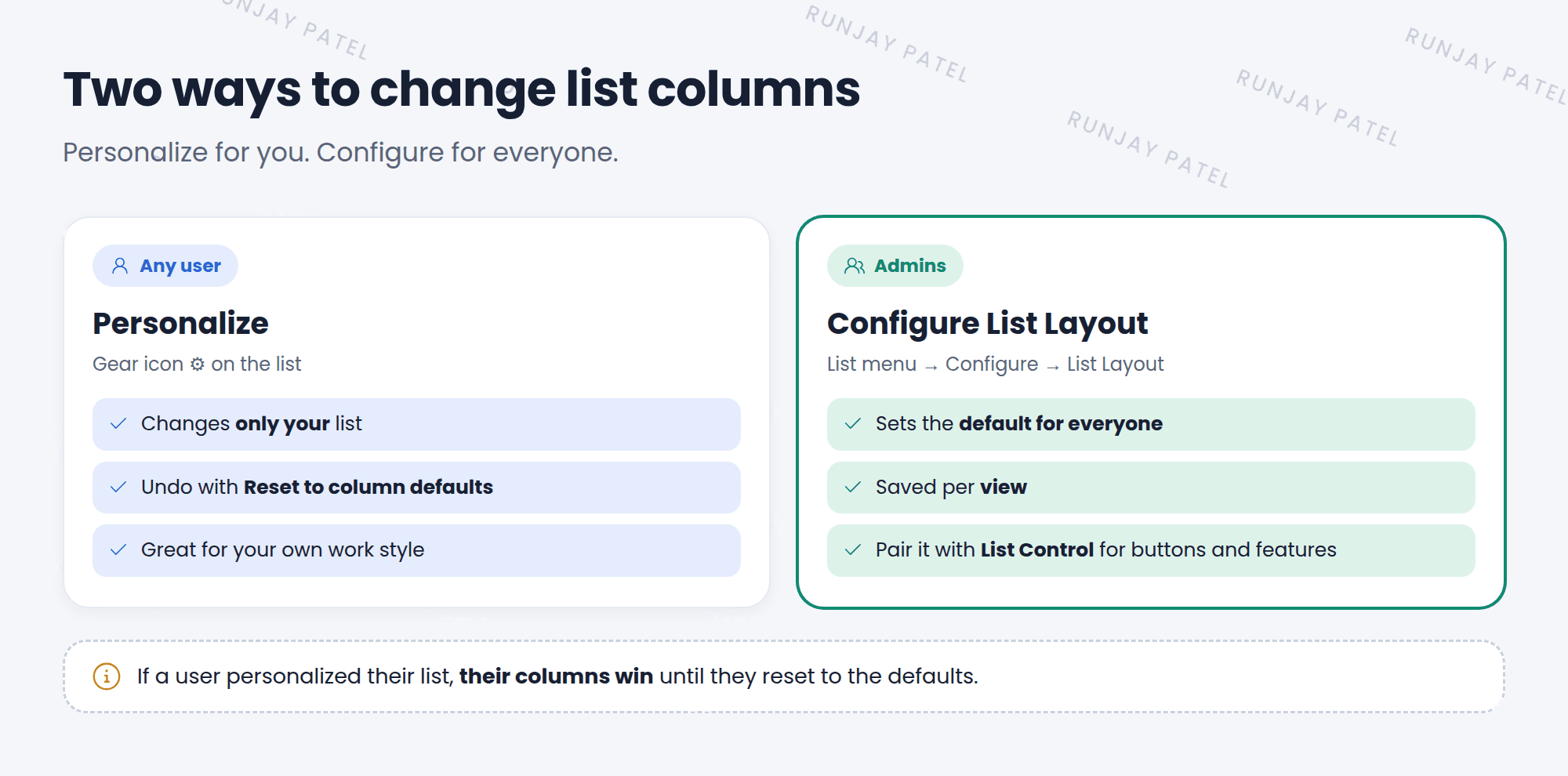
In Lesson 12.2, you changed columns for yourself. Admins can also set the default columns that everyone sees. This is called configuring the list layout. 🛠️
| Personalize | Configure List Layout | |
|---|---|---|
| Who | Any user | Admins |
| Affects | Only you | Everyone (who hasn’t personalized) |
| Where | Gear icon ⚙️ | List menu → Configure → List Layout |
2 Configure the list layout
- Open the list, like Incident > All.
- Right-click any column header (or open the list title ☰ menu).
- Choose Configure > List Layout.
- Move columns between Available and Selected, and set the order.
- Click Save. Everyone now sees these columns by default. ✅
⚠️ Heads up: If a user has already personalized their list, they keep their own columns. They won’t see your new default until they click Reset to column defaults.
📝 Note: List layouts are saved per view. You’ll learn about views in Chapter 15.
3 List Control
List Control is another admin setting. It turns list features on and off. Open it from Configure > List Control.
| Option | What it does |
|---|---|
| Omit new button | Hides the New button on the list |
| Disable list editing | Stops inline editing on this list (Lesson 12.1) |
| Omit count | Hides the record count, which helps very big lists load faster |
⭐ Remember: List Layout = which columns. List Control = which features and buttons.
4 Let’s try it: set a default
- Open Incident > All. Right-click a column header and choose Configure > List Layout.
- Add Caller to Selected, right after Number. Click Save.
- Impersonate Riya and open the same list. Does she see Caller? End impersonation.
- Open Configure > List Control. Look at the options, but don’t change them.
5 Quick recap
- Configure > List Layout sets the default columns for everyone
- Users who personalized keep their own columns until they reset
- List Control turns list features on and off, like New and list editing
- Layouts are saved per view
6 Check yourself
Think of your answer first. Then tap to check.
1 You want everyone to see a Caller column by default. What do you use? Show answer
Configure > List Layout.
2 You changed the default, but Sam still sees his old columns. Why? Show answer
Sam personalized his list. He needs to reset to column defaults.
3 How do you stop people from editing a list inline? Show answer
In List Control, turn on Disable list editing.
Nice work! You finished this lesson. 🎉
Was this lesson helpful?
Please log in to share lesson feedback.
Have a question or doubt?
Ask here and get help from instructors and fellow learners.
Only logged-in learners can post.





