


Groups & Group Members
On this page
In this lesson, you will learn:
- What a group is and why ServiceNow uses them
- How to create a group and add members
- The key fields on a group record
1 What is a group?
A group is a set of users who do the same kind of work. For example, SNWR might have a Service Desk group, a Network group, and an HR group.
Think of a school. 🏫 Students are put into classes. The teacher gives homework to the whole class, not to each student one by one. Groups work the same way.
Key term: Group
A set of users who work together. Stored in the Group table, sys_user_group.
Key term: Group member
A user who belongs to a group. One user can be in many groups.
2 Why groups matter
Groups are used all over ServiceNow:
- 🎫 Assignmenttickets go to a group
- ✅ Approvalsa group can approve
- 🔑 Rolesmembers get the group’s roles
- 🔔 Notificationsemail the whole team
- 📊 Reportswork per team
- 👔 Managerone person leads it
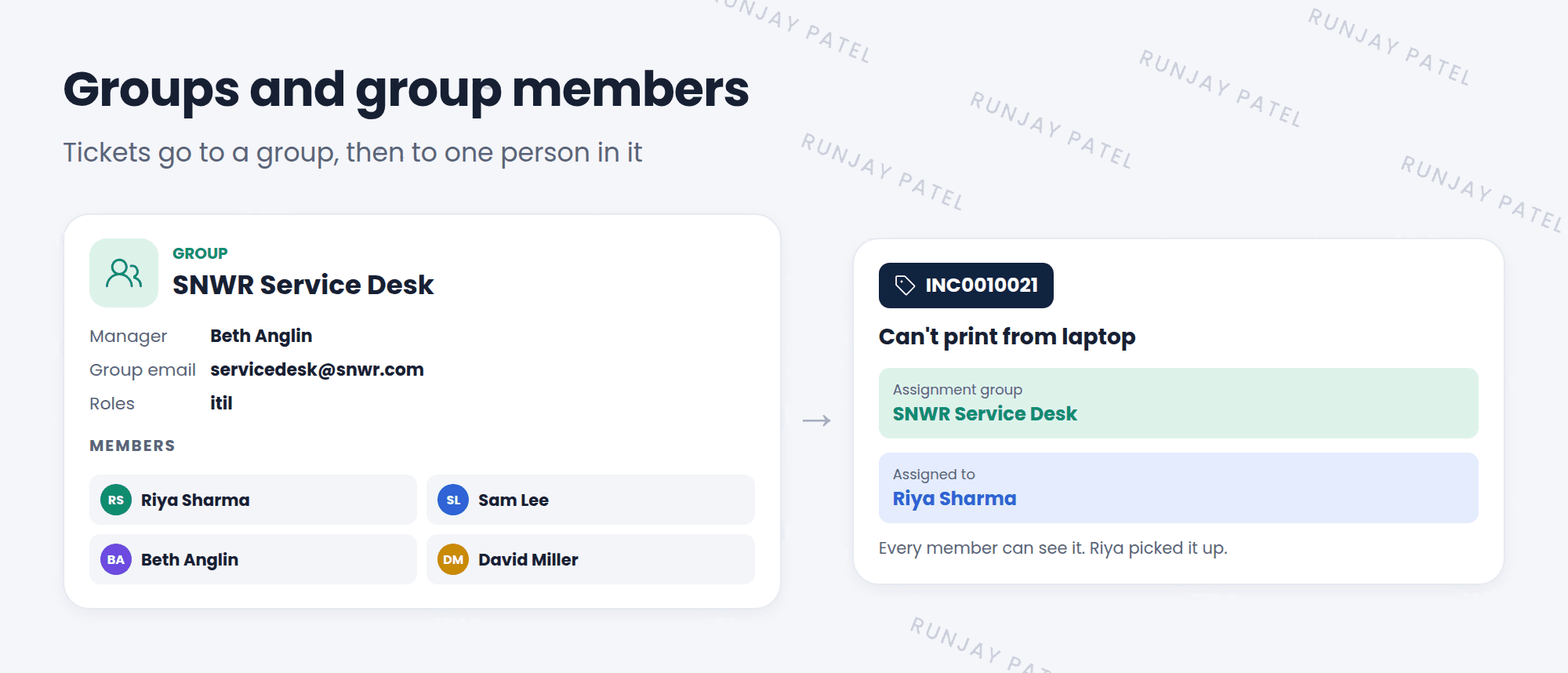
⭐ Remember: Tickets are usually assigned to a group first (the Assignment group), and then to a person in that group (the Assigned to field).
3 Create a group and add members
- Click All, type
groups, and under User Administration click Groups. - Click New.
- Fill in the Name (like “SNWR Service Desk”), the Manager, and the Group email.
- Right-click the form header and choose Save, so the form stays open.
- Scroll down to the Group Members tab and click Edit.
- Move the users you want from the left list to the right list, then click Save. 👥
| Field | What it’s for |
|---|---|
| Name | What people see, like “SNWR Service Desk” |
| Manager | The team lead. Often used for approvals |
| Group email | One email address for the whole team |
| Parent | A bigger group this one belongs to, like “IT” |
| Roles tab | Roles that every member gets (Lesson 6.3) |
💡 Good to know: Members are saved in a separate table called sys_user_grmember. Each row links one user to one group. That’s how one user can be in many groups.
⚠️ Heads up: Don’t create a group for every single task. Too many groups make assignment confusing. Build groups around real teams.
4 Let’s try it: build a team
- Go to User Administration > Groups and click New.
- Name it SNWR Service Desk. Set the Manager to Beth Anglin. Save it.
- In the Group Members tab, click Edit and add Riya Sharma (from Lesson 6.1) and two demo users.
- Open Riya’s user record. Scroll down to the Groups tab. Is SNWR Service Desk there?
5 Quick recap
- A group is a set of users who work together (
sys_user_group) - Groups are used for assignment, approvals, roles, and notifications
- Create them in User Administration > Groups
- Add members in the Group Members tab
- One user can be in many groups
6 Check yourself
Think of your answer first. Then tap to check.
1 Which table stores groups? Show answer
sys_user_group.
2 Can Riya be in the Service Desk group and the Network group at the same time? Show answer
Yes. One user can be in many groups.
3 An incident’s Assignment group is Service Desk. Who can pick it up? Show answer
Any member of the Service Desk group. Then that person is set in the Assigned to field.
Nice work! You finished this lesson. 🎉
Was this lesson helpful?
Please log in to share lesson feedback.
Have a question or doubt?
Ask here and get help from instructors and fellow learners.
Only logged-in learners can post.





