


Saving & Sharing Filters
On this page
In this lesson, you will learn:
- How to save a filter so you can use it again
- How to share a saved filter with your team or everyone
- How to load a saved filter
- Other ways to reuse a filter
1 Don’t build it twice
You built a great filter: “Critical, unassigned incidents for my team”. Tomorrow you’ll need it again. Instead of building it every day, save it. 💾
Key term: Saved filter
A filter you store with a name, so you (or others) can load it with one click.
2 Save a filter
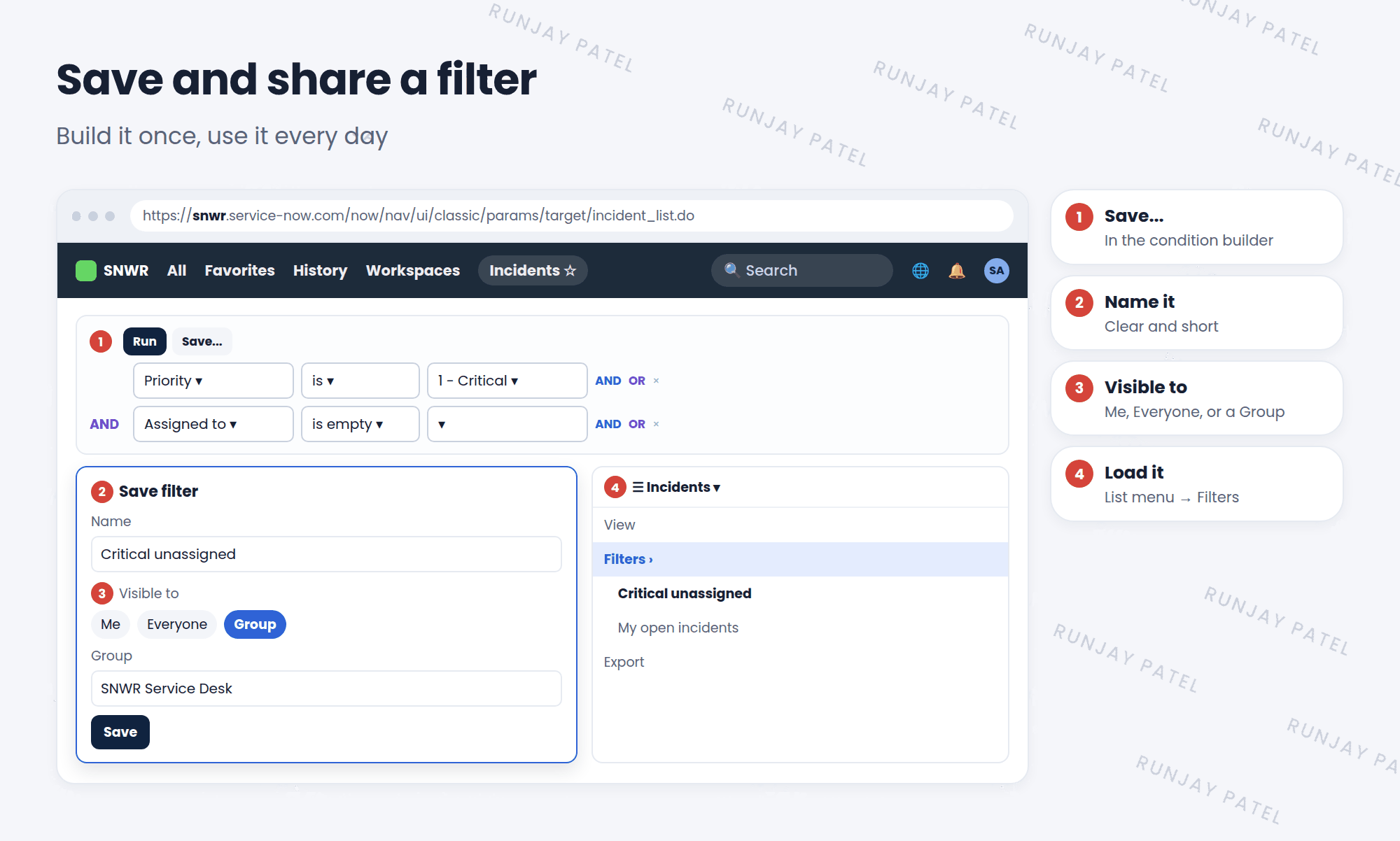
- Build and Run your filter in the condition builder.
- Click Save… in the condition builder.
- Type a clear name, like “Critical unassigned”.
- Choose who can see it: Me, Everyone, or a Group.
- Click Save. ✅
| Visible to | Who sees it |
|---|---|
| Me | Only you |
| Group | Everyone in the group you pick |
| Everyone | All users who can see that list |
⚠️ Heads up: Only share with Everyone if it’s really useful to everyone. Too many shared filters make the Filters menu long and confusing.
3 Load a saved filter
- Open the list (for example, Incident > All).
- Click the ☰ menu next to the list title.
- Choose Filters.
- Pick your filter by name. The list updates right away.
4 Other ways to reuse a filter
- Favorites: run the filter, then star the page with the app pill (Lesson 3.3).
- Copy the URL: the filter is part of the list’s web address (Lesson 3.4).
- Copy the query: right-click a breadcrumb and copy the query to use somewhere else, like in a report.
- A module: admins can build a menu link with a built-in filter (Chapter 18).
💡 Good to know: Use is (dynamic) Me in shared filters. Then one filter shows each person their own records.
5 Let’s try it: save and share
- Open Incident > All. Build: Active is true AND Assigned to is empty. Run it.
- Click Save…. Name it SNWR Unassigned. Share it with the SNWR Service Desk group.
- Click All in the breadcrumbs to clear the filter.
- Open the ☰ menu > Filters and load SNWR Unassigned.
- Impersonate Riya. Can she see the filter too?
6 Quick recap
- Save a filter with Save… in the condition builder
- Share it with Me, a Group, or Everyone
- Load it from the list’s ☰ menu > Filters
- You can also reuse filters with Favorites, URLs, and copied queries
7 Check yourself
Think of your answer first. Then tap to check.
1 Where do you load a saved filter? Show answer
From the ☰ menu next to the list title, under Filters.
2 You want only your team to see a filter. Which option do you choose? Show answer
Group, and pick your team’s group.
3 Name one other way to reuse a filter. Show answer
Any of: add it to Favorites, copy the URL, copy the query from a breadcrumb, or make a module.
Nice work! You finished this lesson. 🎉
Was this lesson helpful?
Please log in to share lesson feedback.
Have a question or doubt?
Ask here and get help from instructors and fellow learners.
Only logged-in learners can post.





