


Restricting Views by Role
On this page
In this lesson, you will learn:
- How to limit a view to users with certain roles
- What role limits on views can and can’t do
- Why views are never a replacement for security
1 Not every view is for everyone
SNWR created a “Manager” view in Lesson 15.2. It’s only useful for managers. Other people shouldn’t see it in their View menu, because it might confuse them. You can limit a view by role. 🔑
2 Add roles to a view
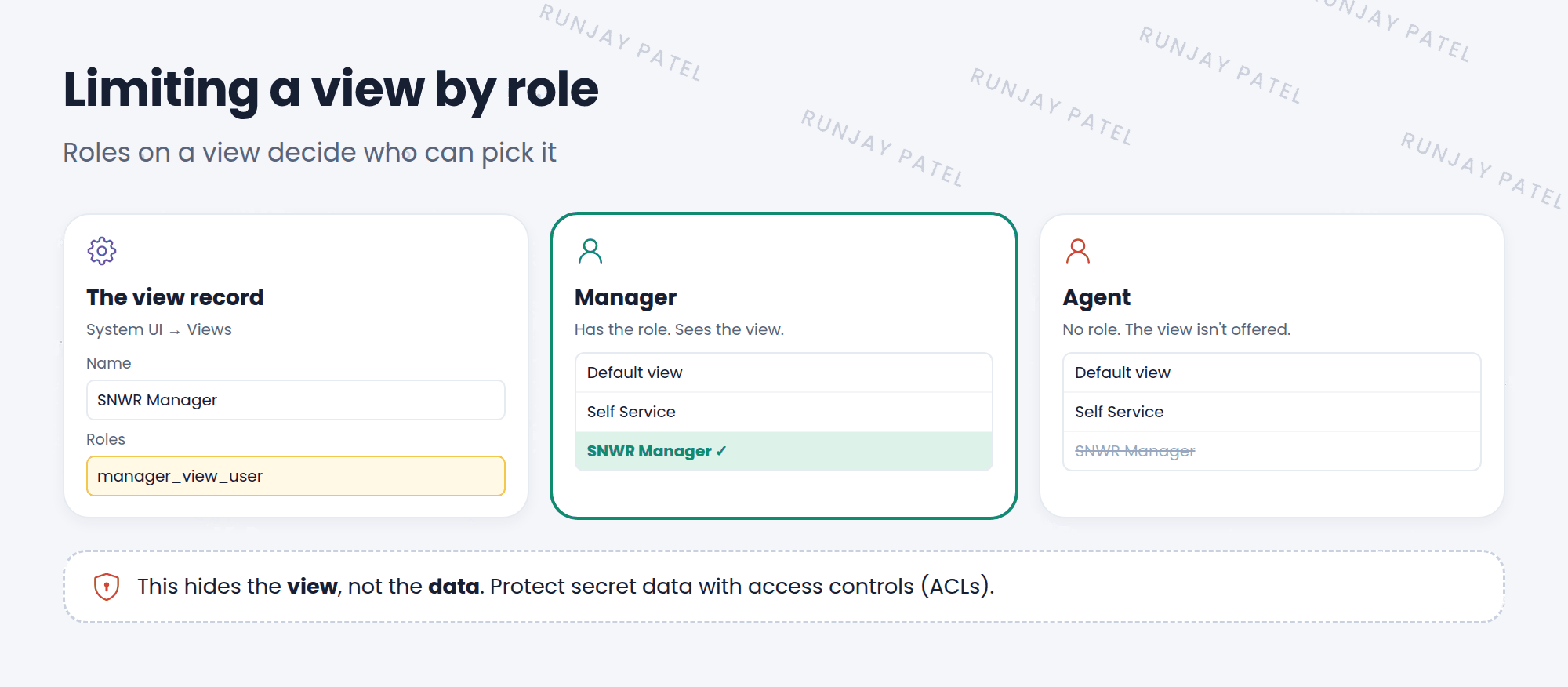
- Click All and go to System UI > Views.
- Open the view you want to limit, like SNWR Manager.
- In the Roles field, add the role (or roles) that should see it.
- Click Update.
- Now only users with that role can use the view. ✅
💡 Good to know: Roles on a view work with roles, not groups. If you want a team to use it, give the team’s group the role (Lesson 6.3).
3 What this does and doesn’t do
| ✅ It does | ❌ It doesn’t |
|---|---|
| Limit who can use the view | Hide the data in the fields |
| Keep the View menu tidy | Stop people from seeing fields in lists or reports |
| Help the right people find the right layout | Replace access controls |
⚠️ Remember the rule: Views are about layout. Security is about access. If a field holds secret data, protect it with access controls (ACLs), which you’ll learn in Chapter 42.
4 Putting views together
- Views (15.1): different layouts of the same record.
- Switching and creating (15.2): users pick; admins build.
- View rules (15.3): ServiceNow picks automatically.
- Roles on views (15.4): only some users can use a view.
⭐ Remember: Roles on a view = who can pick it. ACLs = who can see the data.
5 Let’s try it: lock the Manager view
- Go to System UI > Views and open SNWR Manager.
- Add the
adminrole in the Roles field. Update. - Impersonate Riya (she has
itil, notadmin). Open an incident and check the View menu. Is SNWR Manager there? - End impersonation. Remove the role from the view when you’re done.
6 Quick recap
- Add roles to a view in System UI > Views
- Only users with those roles can use the view
- It works with roles, not groups
- It limits the layout, not the data
- Protect data with access controls
7 Check yourself
Think of your answer first. Then tap to check.
1 Where do you add roles to a view? Show answer
In System UI > Views, on the view record’s Roles field.
2 Does limiting a view by role hide the data in its fields? Show answer
No. It only limits who can use the view. Use access controls to protect data.
3 You want only the SNWR Service Desk team to use a view. What do you do? Show answer
Add a role to the view, and give that role to the SNWR Service Desk group.
Nice work! You finished this lesson. 🎉
Was this lesson helpful?
Please log in to share lesson feedback.
Have a question or doubt?
Ask here and get help from instructors and fellow learners.
Only logged-in learners can post.





