


Mobile Apps
On this page
In this lesson, you will learn:
- The main ServiceNow mobile apps and who uses each one
- What people can do from their phones
- How admins set up mobile apps
1 ServiceNow in your pocket
People don’t always sit at a desk. A manager might approve a request on the train. A technician might fix a printer in a warehouse. So ServiceNow has mobile apps for phones and tablets. 📱
You download them from the Apple App Store or Google Play, then log in to your company’s instance.
2 The main apps
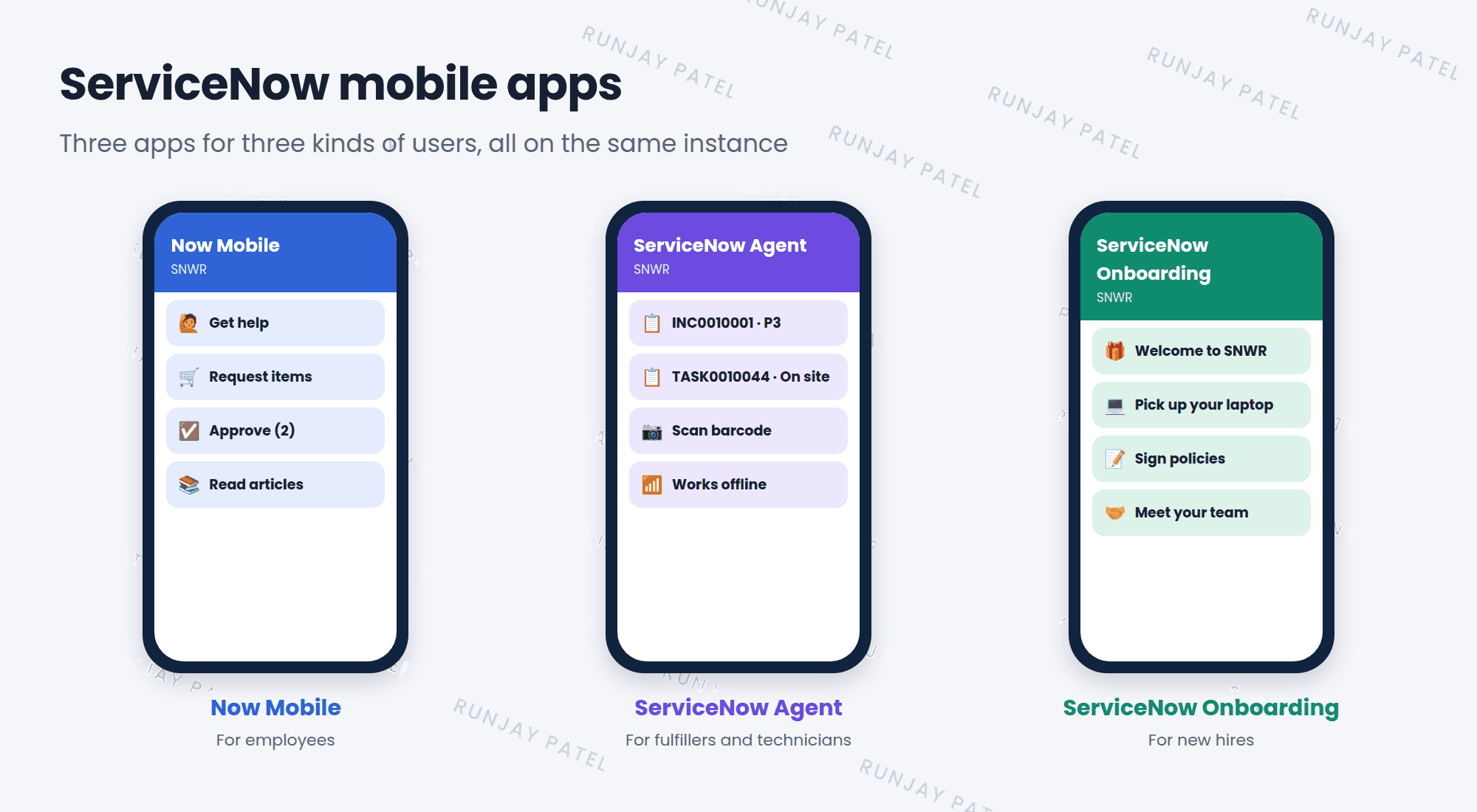
| App | Who uses it | What they do |
|---|---|---|
| Now Mobile | Employees (requesters) | Get help, order items, approve requests, read articles |
| ServiceNow Agent | Fulfillers and field technicians | Work on assigned tasks, update records, scan barcodes, work offline |
| ServiceNow Onboarding | New hires | See and finish their first-day and first-week tasks |
⭐ Remember: Now Mobile = for employees. ServiceNow Agent = for people who do the work.
3 What makes mobile special
- Push notifications: alerts pop up on the phone, like “You have an approval waiting”.
- Quick approvals: approve or reject with one tap.
- Camera and barcode scanning: scan a laptop’s barcode to find its record.
- Offline mode (Agent app): keep working with no signal, then sync later.
📝 Note: Remember push notifications from Lesson 5.3? This is where they show up!
4 The admin’s side
Mobile apps show what admins set up. Admins decide which lists, forms, and actions appear on the phone.
- Admins use Mobile App Builder to change what the apps show.
- Security still applies. Users only see what their roles allow, just like on a computer.
- Test mobile changes on a real phone before users see them.
💡 Good to know: Mobile screens are small. Show only what people really need on the go, like approvals and their own tasks.
5 Let’s try it: go mobile
- On your phone, download Now Mobile from your app store.
- When asked for your instance, type your PDI address, like
dev12345.service-now.com. - Log in as admin (or as Riya, if you set her password).
- Look around. Can you find the catalog and knowledge articles?
- If you can’t install apps right now, open Mobile App Builder from the All menu instead and look at its sections.
6 Quick recap
- Now Mobile is for employees who need help or approvals
- ServiceNow Agent is for fulfillers and technicians, and works offline
- ServiceNow Onboarding helps new hires with their first tasks
- Mobile brings push notifications, one-tap approvals, and barcode scanning
- Admins set up mobile with Mobile App Builder
7 Check yourself
Think of your answer first. Then tap to check.
1 A field technician needs to update tasks with no signal. Which app? Show answer
ServiceNow Agent. It works offline.
2 A manager wants to approve requests on their phone. Which app? Show answer
Now Mobile.
3 Can a user see more records on mobile than on a computer? Show answer
No. The same roles and security apply everywhere.
Nice work! You finished this lesson. 🎉
Was this lesson helpful?
Please log in to share lesson feedback.
Have a question or doubt?
Ask here and get help from instructors and fellow learners.
Only logged-in learners can post.





