


Notification Basics (When, Who, What)
On this page
In this lesson, you will learn:
- What an email notification is
- The three questions every notification answers: when, who, and what
- How to create a notification step by step
1 Automatic emails
In Lesson 5.3, you changed which notifications you get. Now, as an admin, you’ll build them. 📧
Key term: Email notification
A rule that sends an email automatically when something happens to a record. Stored in the sysevent_email_action table.
2 When, who, what
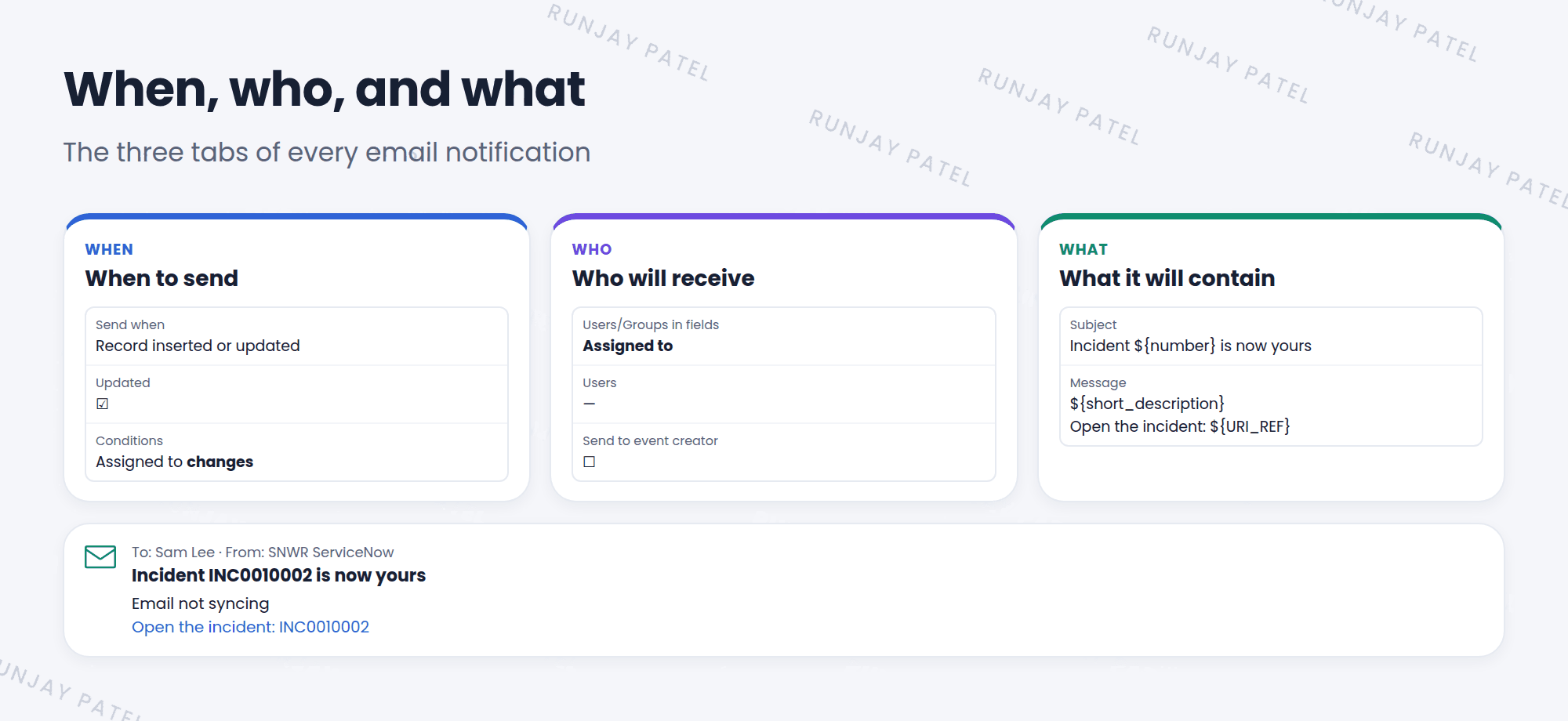
Every notification form has three tabs. Each one answers one question:
| Tab | Key fields |
|---|---|
| When to send | Send when (record inserted or updated, or an event), Inserted, Updated, Conditions, Weight |
| Who will receive | Users, Groups, Users/Groups in fields (like Assigned to or Caller), Send to event creator |
| What it will contain | Subject, Message, Email template |
💡 Good to know: Use Users/Groups in fields instead of naming people. “Assigned to” always sends to whoever is assigned, so the notification works for every record.
3 Create a notification
- Go to System Notification > Email > Notifications and click New.
- Name it and pick the Table, like Incident.
- When to send: choose Record inserted or updated, tick Updated, and add a condition, like Assigned to changes.
- Who will receive: in Users/Groups in fields, add Assigned to.
- What it will contain: write a subject and message. Use variables like
${number}to include field values. - Click Submit. Use Preview Notification to check it. ✅
⚠️ Heads up: A notification with a weak condition can send far too many emails, like one every time any field changes. Always use a clear condition.
📝 Note: “Send when: Event is fired” is used with events, which you’ll learn in Chapter 41 (Advanced track).
⭐ Remember: Every notification answers When? Who? What?
4 Let’s try it: “assigned to you”
- Create a notification SNWR Incident assigned on Incident.
- When: inserted or updated, Updated ticked, condition Assigned to changes.
- Who: Users/Groups in fields = Assigned to.
- What: Subject
Incident ${number} is now yours. Message:${short_description}. - Submit, then click Preview Notification and pick an incident.
5 Quick recap
- Notifications send emails automatically when records change
- Three tabs: When to send, Who will receive, What it will contain
- Use Users/Groups in fields for dynamic recipients
- Use variables like
${number}in the subject and message - Use clear conditions to avoid too many emails
6 Check yourself
Think of your answer first. Then tap to check.
1 Which tab decides who gets the email? Show answer
Who will receive.
2 How do you send an email to whoever the incident’s caller is? Show answer
Add Caller in Users/Groups in fields.
3 What does ${number} do in a subject? Show answer
It puts the record’s number into the email, like INC0010001.
Nice work! You finished this lesson. 🎉
Was this lesson helpful?
Please log in to share lesson feedback.
Have a question or doubt?
Ask here and get help from instructors and fellow learners.
Only logged-in learners can post.





