


Impersonating Users
On this page
In this lesson, you will learn:
- What impersonation is and why admins use it
- How to start and end impersonating a user
- The safety rules for impersonation
1 Seeing through someone else’s eyes
A user calls you: “I can’t see the Change menu!” You’re an admin, so you can see it. How do you know what they see?
You impersonate them. 🎭 For a short time, ServiceNow shows you the instance exactly as that user sees it, with their roles and their access.
Key term: Impersonate
Use ServiceNow as another user, without knowing their password, to see and test what they can do.
2 Why admins impersonate
- 🔍 Troubleshoot“Why can’t I see this?”
- 🧪 Testcheck a new change works for users
- 🔐 Check accessmake sure people can’t see too much
3 How to impersonate
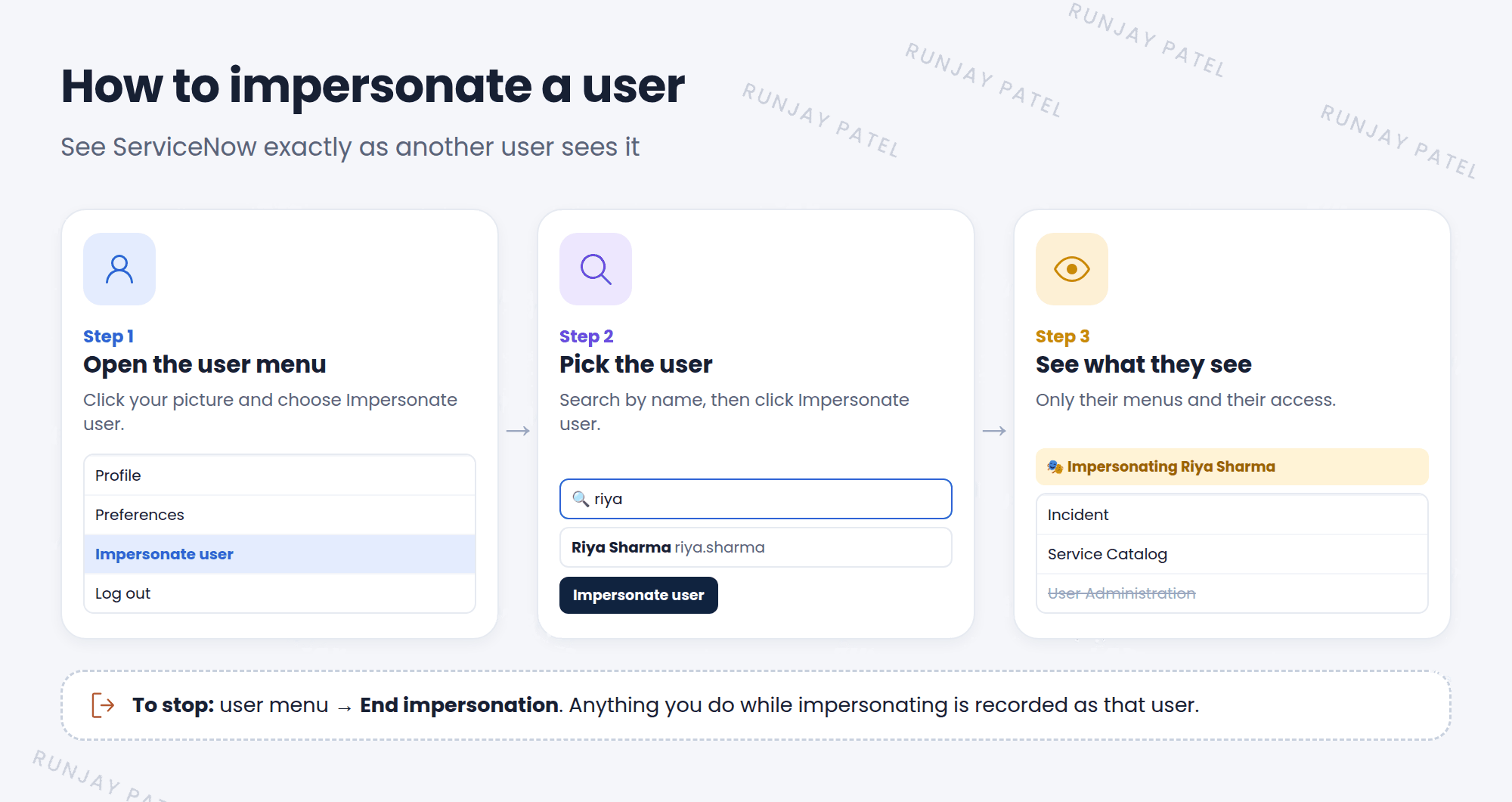
- Click your picture (top right) and choose Impersonate user.
- Type the person’s name, like Riya Sharma, and pick them from the list.
- Click Impersonate user. The page reloads.
- Now you see ServiceNow as Riya: her menus, her lists, her access.
- When you’re done, open the user menu again and choose End impersonation. You’re back to yourself. ✅
💡 Good to know: The Impersonate window remembers the users you impersonated recently, so you can switch back to them quickly.
4 Safety rules
⚠️ Everything you do counts as them. If you create or change a record while impersonating, ServiceNow records it as if that user did it. Look, test, and then end impersonation. Don’t do real work as someone else.
- Only people with the
adminorimpersonatorrole can impersonate. - ServiceNow keeps a log of who impersonated whom, and when.
- Always end impersonation when you finish, so you don’t forget whose account you’re using.
- Only impersonate for a real work reason, like fixing an access problem.
⭐ Remember: Impersonation is for looking and testing, not for doing someone else’s work.
5 Let’s try it: be Riya for a minute
- Impersonate Riya Sharma (from Lesson 6.1). She has the
itilrole from her group. - Open the All menu. Can she see Incident? Can she see User Administration?
- End impersonation.
- Now impersonate a demo user with no roles, like Abel Tuter. What does the All menu look like now?
- End impersonation again. Check that your name is back in the user menu.
📝 Note: Did Riya see Incident but not User Administration? That’s roles at work! She has itil, but not admin.
6 Quick recap
- Impersonation lets you see ServiceNow as another user
- Start: user menu → Impersonate user
- Stop: user menu → End impersonation
- Anything you do while impersonating is recorded as that user
- Only
adminorimpersonatorcan do it, and it’s logged
7 Check yourself
Think of your answer first. Then tap to check.
1 A user says a button is missing. What’s the fastest way to see what they see? Show answer
Impersonate them.
2 You update an incident while impersonating Riya. Who does the record say made the change? Show answer
Riya. That’s why you should only look and test while impersonating.
3 Which roles can impersonate users? Show answer
admin and impersonator.
Nice work! You finished this lesson. 🎉
Was this lesson helpful?
Please log in to share lesson feedback.
Have a question or doubt?
Ask here and get help from instructors and fellow learners.
Only logged-in learners can post.





