


Creating Articles
On this page
In this lesson, you will learn:
- How to create a knowledge article
- The key fields on an article
- How to create an article from a resolved incident
- Tips for writing articles people can use
1 Writing an article
You have the SNWR IT knowledge base from Lesson 25.1. Now let’s fill it with an article. ✍️
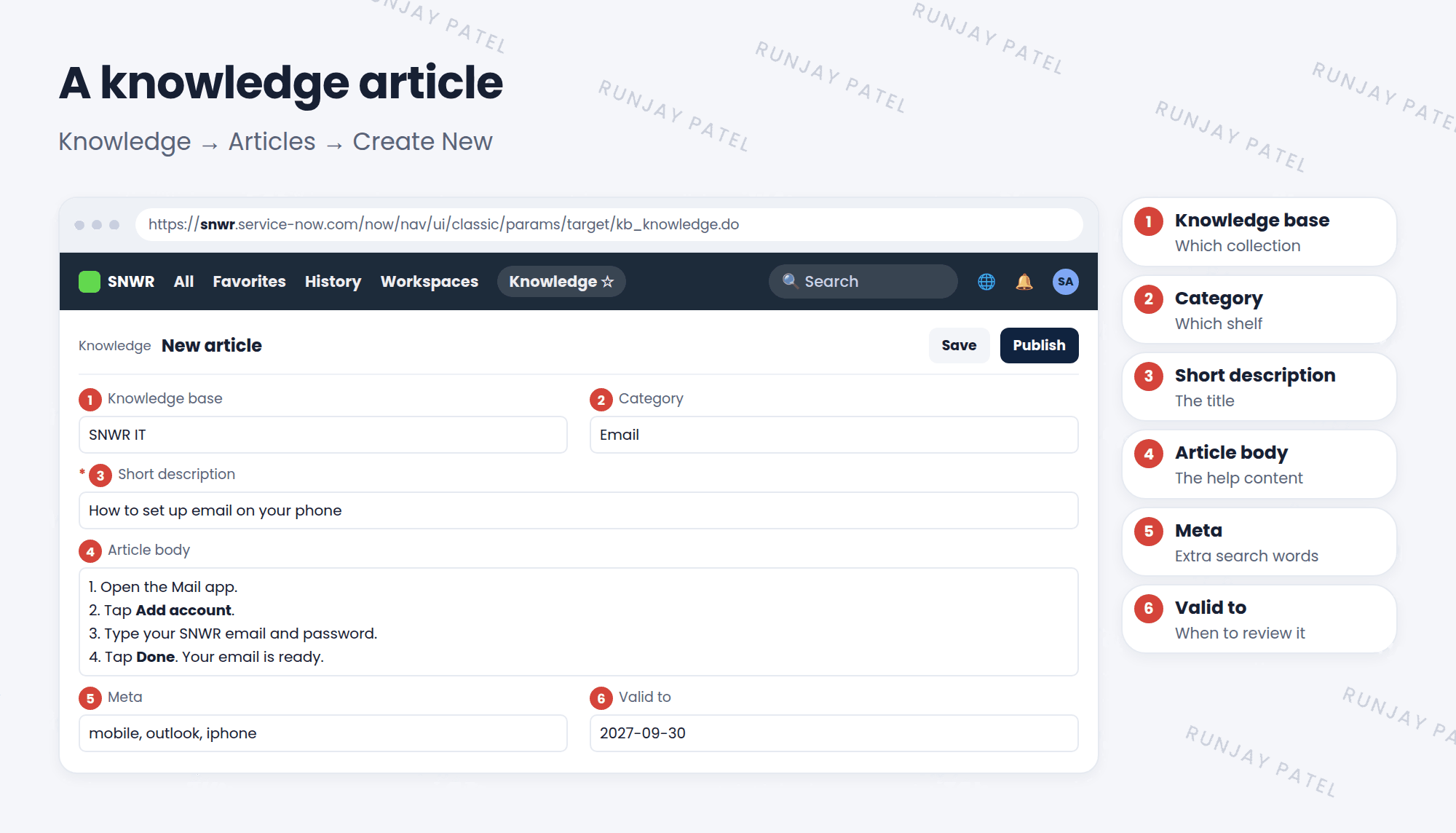
- Go to Knowledge > Articles > Create New.
- Pick the Knowledge base and Category.
- Type the Short description. This is the article’s title.
- Write the Article body: short steps, pictures if they help.
- Add Meta words to help search, like other names people use.
- Click Submit (it saves as a draft), then Publish when ready (Lesson 25.3).
| Field | What it does |
|---|---|
| Short description | The title people see in search results |
| Article body | The help content itself |
| Meta | Extra keywords for search. Not shown to readers |
| Valid to | The date when the article should be reviewed or retired |
2 From incident to article
The best articles come from real problems that were solved. When an agent resolves an incident, they can turn the fix into an article:
- On the incident, tick Knowledge before resolving. ServiceNow creates a draft article from the resolution notes.
- Or use the incident’s context menu to Create Knowledge (the exact name can differ by release).
💡 Good to know: Agents can also attach an article to an incident. It shows the caller the answer, and helps reports show which articles solve the most issues.
3 Writing tips
- Title = the problem. “Email not syncing on phone”, not “Mobile mail config v2”.
- Short steps. One action per step.
- Plain words. Write for the person who’s stuck.
- One topic per article. Split long articles.
- Keep it fresh. Set Valid to, and update old steps.
⭐ Remember: A good article answers one question, in short steps, with a clear title.
4 Let’s try it: your first article
- Create an article in SNWR IT > Email: “How to set up email on your phone”.
- Write 4 short steps. Add Meta words:
mobile, iphone, android. - Submit it. What workflow state is it in?
- Open a resolved incident and look for the Knowledge checkbox.
5 Quick recap
- Create articles in Knowledge > Articles > Create New
- Key fields: knowledge base, category, short description, body, meta, valid to
- Turn solved incidents into articles with the Knowledge checkbox
- Good articles have clear titles and short steps
6 Check yourself
Think of your answer first. Then tap to check.
1 Which field is the article’s title? Show answer
Short description.
2 People search “outlook” but your article says “email”. How can you help search find it? Show answer
Add “outlook” to the Meta field.
3 How can an agent turn a solved incident into an article? Show answer
Tick the Knowledge checkbox on the incident before resolving it.
Nice work! You finished this lesson. 🎉
Was this lesson helpful?
Please log in to share lesson feedback.
Have a question or doubt?
Ask here and get help from instructors and fellow learners.
Only logged-in learners can post.





