


Saving Options (Save, Update, Insert, Insert and Stay)
On this page
In this lesson, you will learn:
- The difference between Submit, Save, and Update
- How Insert and Insert and Stay make a copy of a record
- Which option to pick in each situation
1 Many ways to save
ServiceNow gives you several ways to save a form. They look alike, but they do different things. Picking the wrong one can create a copy you didn’t want, or send you back to the list too early. 💾
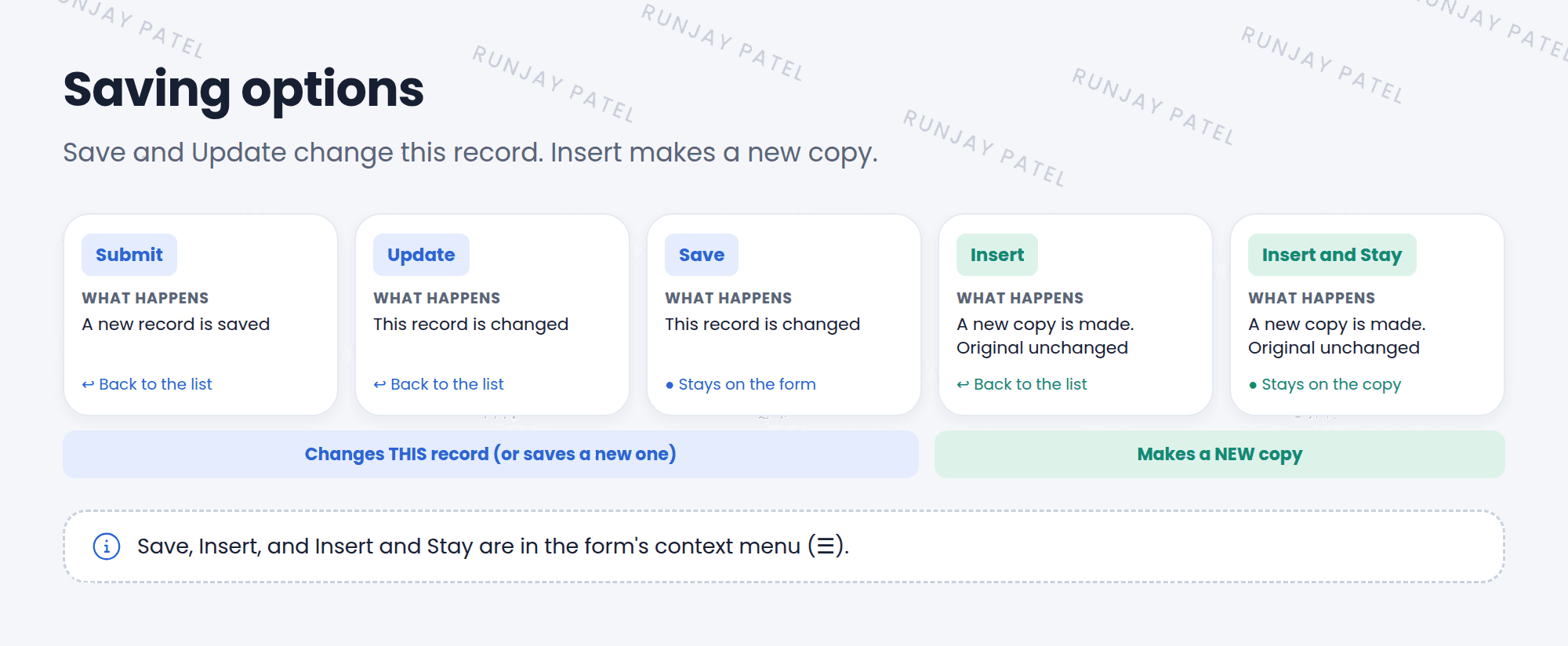
2 The options
| Option | What it does | Where you end up |
|---|---|---|
| Submit | Saves a new record | Back to the list |
| Update | Saves changes to this record | Back to the list |
| Save | Saves changes to this record | Stays on the form |
| Insert | Makes a new copy. The original doesn’t change | Back to the list |
| Insert and Stay | Makes a new copy. The original doesn’t change | Stays on the new copy |
📝 Note: Submit and Update are buttons on the form. Save, Insert, and Insert and Stay are in the form’s context menu (☰). Remember it from Lesson 13.1?
3 Insert: a quick way to copy
Insert is great when you need a record that’s almost the same as one you have.
- Open the record you want to copy, like a user record for Riya.
- Change the fields that should be different, like the User ID and name.
- Choose ☰ > Insert and Stay.
- A brand-new record is created with your changes. The original record stays exactly as it was. ✅
⚠️ Heads up: People often click Insert when they meant Update. Then they wonder why the original record didn’t change, and why there’s a new copy. Update changes this record. Insert makes a new one.
💡 Good to know: Use Save when you’re making several changes and want to keep working on the same form. It’s like pressing Ctrl+S in a document.
⭐ Remember: Save / Update = change this record. Insert / Insert and Stay = make a new copy.
4 Let’s try it: save vs insert
- Open any incident. Change the short description. Choose ☰ > Save. Are you still on the form?
- Change the short description again. Choose ☰ > Insert and Stay. Look at the Number field. Is it a new number?
- Go back to the original incident. Did its short description change the second time? (No!)
- Delete the copy you made, to keep your PDI clean. 🧹
5 Quick recap
- Submit saves a new record
- Update saves and goes back. Save saves and stays
- Insert makes a copy and goes back. Insert and Stay makes a copy and stays
- Insert never changes the original record
6 Check yourself
Think of your answer first. Then tap to check.
1 You want to save changes and keep working on the same form. Which option? Show answer
Save.
2 You need a new user almost the same as Riya. Which option helps? Show answer
Change the fields that differ, then use Insert (or Insert and Stay).
3 After using Insert, does the original record change? Show answer
No. Insert creates a new record and leaves the original as it was.
Nice work! You finished this lesson. 🎉
Was this lesson helpful?
Please log in to share lesson feedback.
Have a question or doubt?
Ask here and get help from instructors and fellow learners.
Only logged-in learners can post.





