


Sharing & Scheduling Reports
On this page
In this lesson, you will learn:
- How to share a report with people or groups
- How to send a report by email on a schedule
- Where to find the reports you created
1 Reports are for sharing
You built “SNWR Open incidents by group” in Lesson 22.2. Right now, only you can see it. Let’s share it with the team, and send it to the IT manager every Monday. 📬
2 Share a report
- Open your report.
- Click the Share option (often a share icon or menu next to Save).
- Choose who can see it: Me, Everyone, or Groups and users.
- Pick the groups or users, like SNWR Service Desk, and save.
| Visible to | Who sees it |
|---|---|
| Me | Only you (the default) |
| Groups and users | Only the people and groups you choose |
| Everyone | All users who can open reports |
⚠️ Heads up: Sharing a report doesn’t share its data. Each person only sees the records they’re allowed to see. Two people can open the same report and see different numbers.
3 Schedule a report
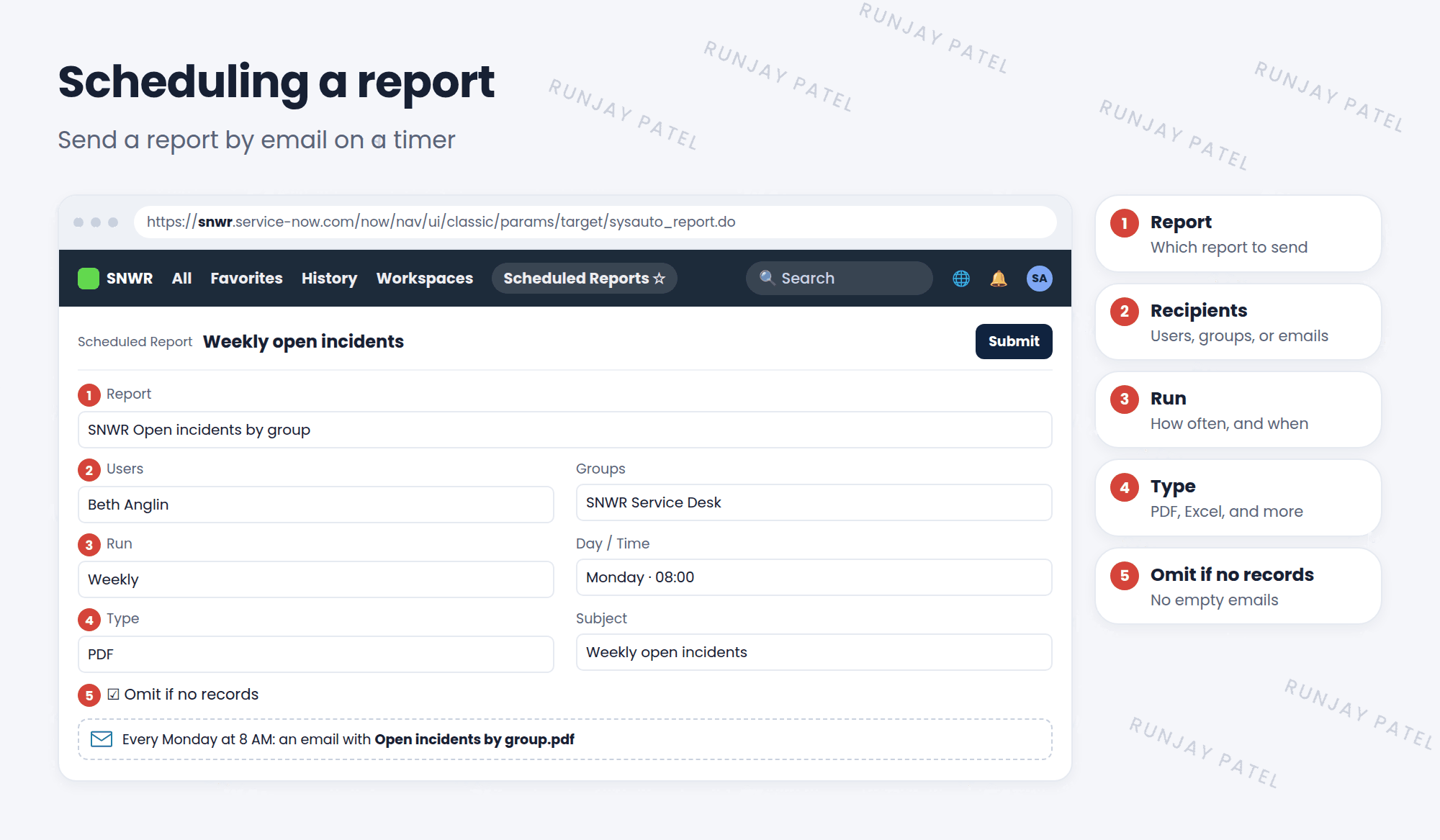
- Open your report and choose Schedule from its menu.
- Pick the users, groups, or email addresses to send it to.
- Set when to run: daily, weekly, monthly, and the time.
- Pick the type of file, like PDF or Excel.
- Add a subject and a short message. Submit. ✅
💡 Good to know: Tick Omit if no records so people don’t get empty emails. Nobody needs a report that says “0”.
4 Finding reports
- Reports > View / Run shows reports shared with you, grouped into tabs like “My reports” and “Group”.
- Scheduled reports are listed in Reports > Scheduled Reports.
⭐ Remember: Share = people can open it. Schedule = it arrives by email.
5 Let’s try it: share and schedule
- Open SNWR Open incidents by group. Share it with the SNWR Service Desk group.
- Schedule it: Weekly, Monday, 8:00 AM, as a PDF, to yourself.
- Open Reports > Scheduled Reports. Is it listed?
- Remember: your PDI may not send real email (Lesson 5.3).
6 Quick recap
- Share reports with Me, Groups and users, or Everyone
- Sharing a report doesn’t share extra data
- Schedule a report to email it daily, weekly, or monthly
- Use Omit if no records to skip empty emails
7 Check yourself
Think of your answer first. Then tap to check.
1 Your manager wants the report in their inbox every Monday. What do you do? Show answer
Schedule the report weekly on Monday, sent to the manager.
2 You share a report with everyone. Will everyone see the same numbers? Show answer
Not always. Each person only sees records they’re allowed to see.
3 Which option stops empty report emails? Show answer
Omit if no records.
Nice work! You finished this lesson. 🎉
Was this lesson helpful?
Please log in to share lesson feedback.
Have a question or doubt?
Ask here and get help from instructors and fellow learners.
Only logged-in learners can post.





