


Exporting List Data
On this page
In this lesson, you will learn:
- How to export a list to Excel, CSV, PDF, and more
- Which records and columns end up in the file
- What happens with very big exports
- How to export data safely
1 Taking data out
Sometimes people need list data outside ServiceNow, like a manager who wants a spreadsheet of last month’s incidents. You can export any list to a file. 📤
2 How to export
- Open the list and filter it to the records you want.
- Personalize the columns so only the ones you need are showing.
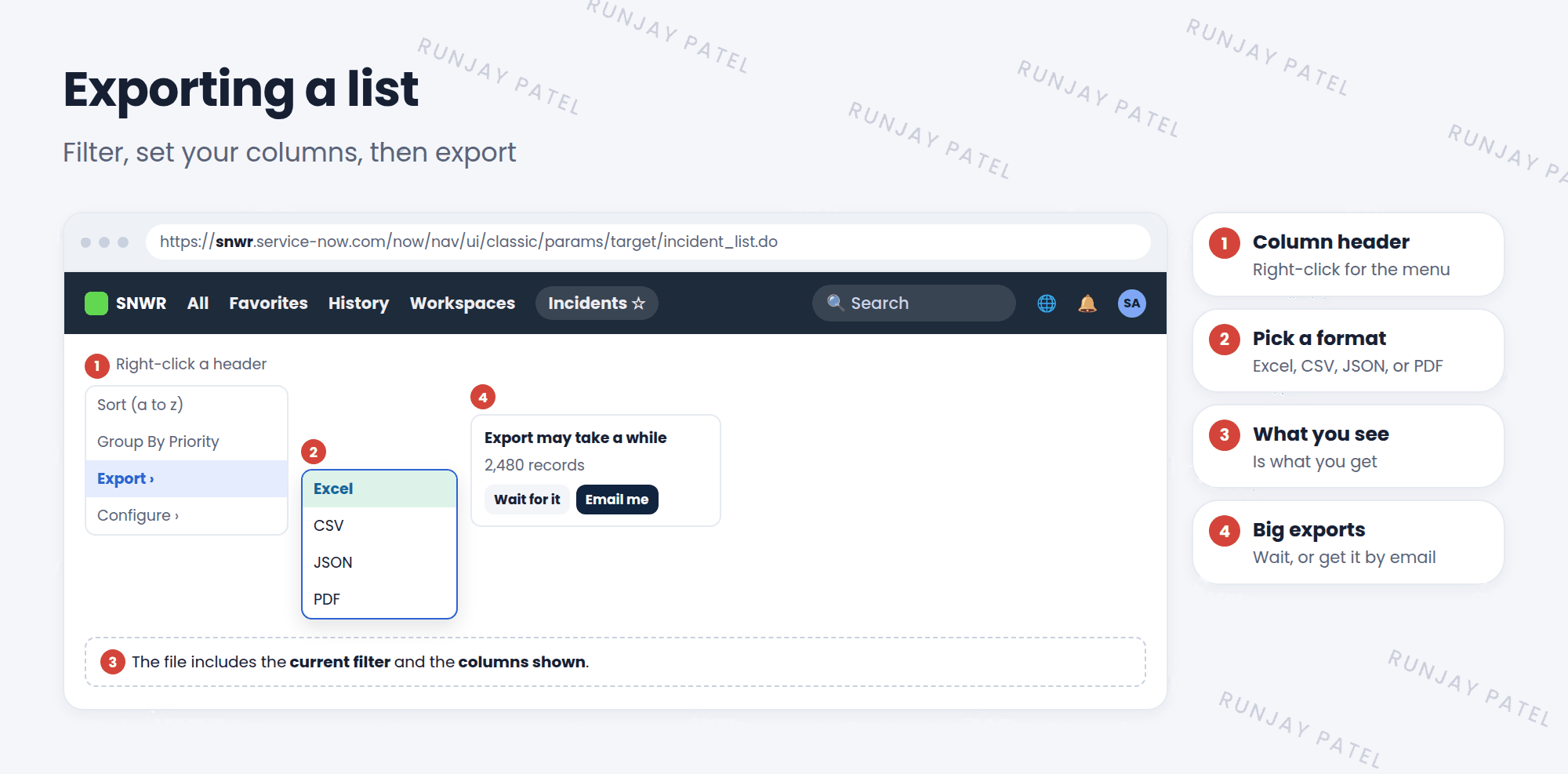
- Right-click any column header (or use the list title ☰ menu).
- Choose Export, then a format, like Excel.
- The file downloads to your computer. ✅
| Format | Best for |
|---|---|
| Excel | Spreadsheets for people to read and sort |
| CSV | Plain data to load into other tools |
| JSON | Data for developers and other systems |
| A printable, read-only copy |
3 What goes into the file?
- Rows: only the records that match the current filter.
- Columns: only the columns currently shown in the list (for Excel, CSV, and PDF).
- Access: only data you’re allowed to see. Security still applies.
⭐ Remember: Filter first, set your columns, then export. What you see is what you get.
4 Very big exports
Exporting thousands of records takes time. ServiceNow may ask you to choose:
- Wait for it: stay on the page until the file is ready.
- Email me: keep working, and get an email with the file when it’s done.
📝 Note: There are limits on how many rows one export can include. Admins control these limits with system properties. For huge or regular exports, admins use tools like Export Sets or reports instead.
⚠️ Protect the data: Once a file leaves ServiceNow, its security rules don’t follow it. Don’t export personal data you don’t need, and don’t email files with sensitive information to the wrong people.
5 Let’s try it: export a report
- Open Incident > All. Filter: Priority is 1 – Critical.
- Personalize the columns to show only Number, Short description, State, and Assigned to.
- Right-click a column header and choose Export > Excel.
- Open the file. Does it match exactly what you saw on screen?
- Try Export > PDF too, and compare.
6 Quick recap
- Export from a column header’s right-click menu: Export
- Formats include Excel, CSV, JSON, and PDF
- Files include the current filter and shown columns
- Big exports can be emailed to you
- Protect exported data. Security doesn’t follow the file
7 Check yourself
Think of your answer first. Then tap to check.
1 Your Excel file has columns you didn’t need. What should you do next time? Show answer
Personalize the list columns before exporting.
2 Which format is best for a printable, read-only copy? Show answer
PDF.
3 Can you export records you’re not allowed to see? Show answer
No. Exports only include data you have access to.
Nice work! You finished this lesson. 🎉
Was this lesson helpful?
Please log in to share lesson feedback.
Have a question or doubt?
Ask here and get help from instructors and fellow learners.
Only logged-in learners can post.





