


Working with Update Sets
On this page
In this lesson, you will learn:
- How to create an update set and make it current
- The states of an update set
- Good habits for working with update sets
1 Create one, make it current
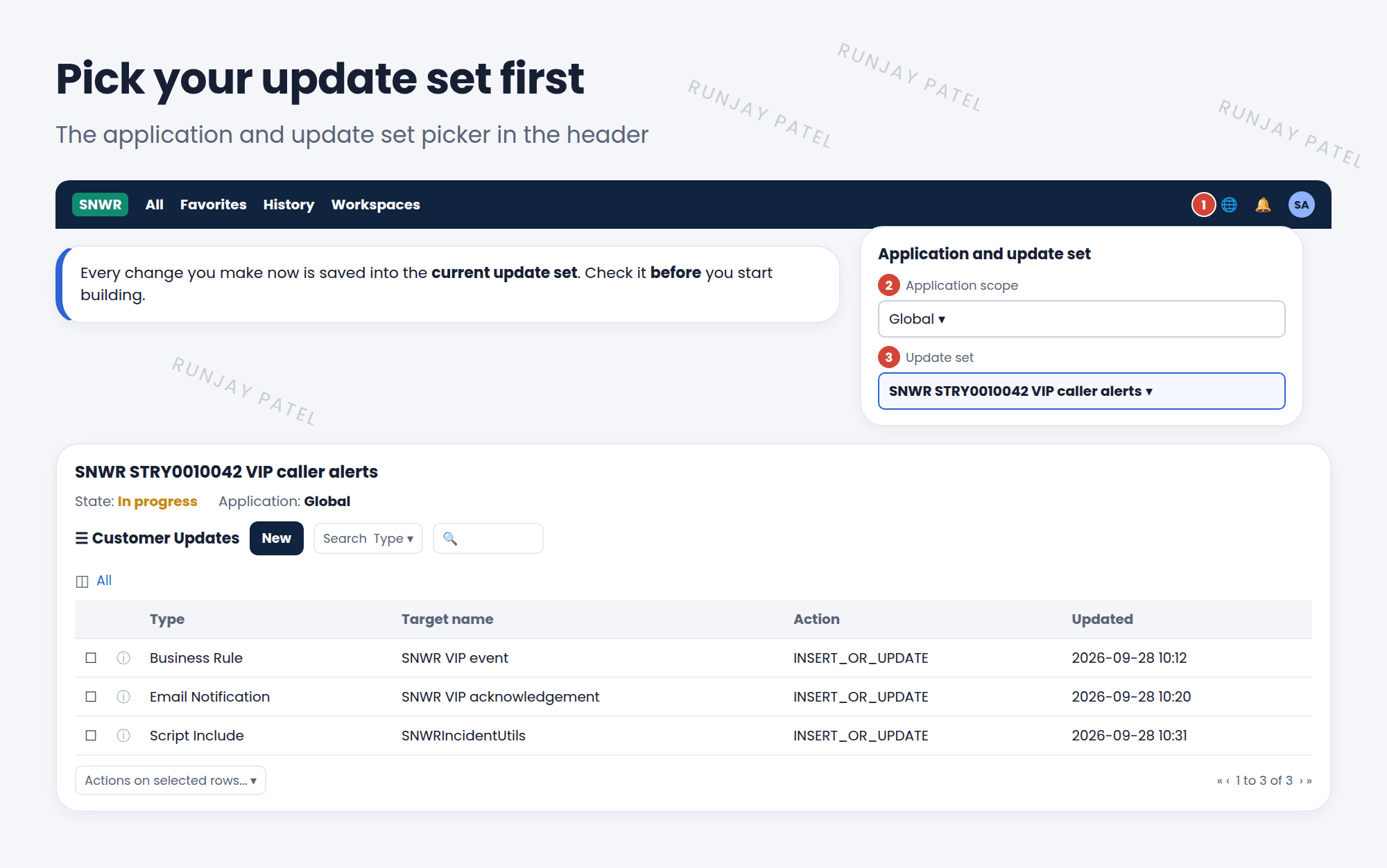
Changes go into your current update set. If you don’t pick one, they land in Default, mixed with everything else. So always start by creating your own. ✍️
- Go to System Update Sets > Local Update Sets and click New.
- Give it a clear Name, like SNWR STRY0010042 VIP caller alerts, and a description.
- Click Submit and Make Current.
- Check the update set picker in the header. It should show your update set.
2 Update set states
| State | Means |
|---|---|
| In progress | Still collecting changes |
| Complete | Finished and ready to move. Other instances can retrieve it |
| Ignore | Not used. It won’t be moved |
⚠️ Heads up: Once an update set is Complete, don’t add more changes to it. Make a new one instead. Changing a completed set causes confusion when it’s already been moved.
3 Good habits
- One story, one update set. Small sets are easier to test and move.
- Check the picker every time you start work. It’s easy to build in the wrong set.
- Match the scope. Scoped apps need update sets in their own scope (Chapter 46).
- Made a change in the wrong set? Open the Customer Update and change its Update set field.
- Many related sets? Group them with a parent update set, called a batch, so they move together.
📝 Note: Never move the Default update set. It collects everything done without a proper set, and often includes test changes.
⭐ Remember: Create → Make Current → build → check Customer Updates → set to Complete.
4 Let’s try it: a clean update set
- Create an update set named SNWR Room Booking tweaks and click Submit and Make Current.
- Add a new field, Catering needed (True/False), to the Room Booking form.
- Open your update set. Is the new field in Customer Updates?
- Set State to Complete. Switch your picker back to another set.
5 Quick recap
- Create an update set and click Submit and Make Current
- Changes go into the current set shown in the picker
- States: In progress, Complete, Ignore
- One story per set. Never move Default
6 Check yourself
Think of your answer first. Then tap to check.
1 Which button creates an update set and starts using it right away? Show answer
Submit and Make Current.
2 Which state means the update set is ready to be moved? Show answer
Complete.
3 You made a change in the wrong update set. What can you do? Show answer
Open that Customer Update and change its Update set field to the right update set.
Nice work! You finished this lesson. 🎉
Was this lesson helpful?
Please log in to share lesson feedback.
Have a question or doubt?
Ask here and get help from instructors and fellow learners.
Only logged-in learners can post.





