


Catalog UI Policies
On this page
In this lesson, you will learn:
- What a catalog UI policy is
- How it differs from a normal UI policy
- How to build one for a catalog item
1 UI policies for catalog forms
Normal UI policies work on table fields. But catalog items use variables (Lesson 26.3). To make variables mandatory, visible, or read only, you use a catalog UI policy. 🛒
Key term: Catalog UI policy
A no-code rule that changes variables on a catalog item or variable set when a condition is true.
2 What’s different from a UI policy
| UI policy | Catalog UI policy | |
|---|---|---|
| Works on | Table fields | Catalog variables |
| Applies to | A table | A catalog item or a variable set |
| Where it runs | Forms of that table | The item page, and optionally the RITM, catalog task, and target record (Lesson 37.3) |
| Found in | System UI > UI Policies | Service Catalog > Catalog Policy > Catalog UI Policies, or the item’s Catalog UI Policies related list |
📝 Note: The rest works just like a UI policy: conditions, actions (Mandatory, Visible, Read only, Clear value), On load, Reverse if false, and optional scripts.
💡 Good to know: Put a policy on a variable set and it works on every item that uses that set. Build it once, reuse it everywhere!
⭐ Remember: Variables need catalog UI policies. Normal UI policies can’t see them.
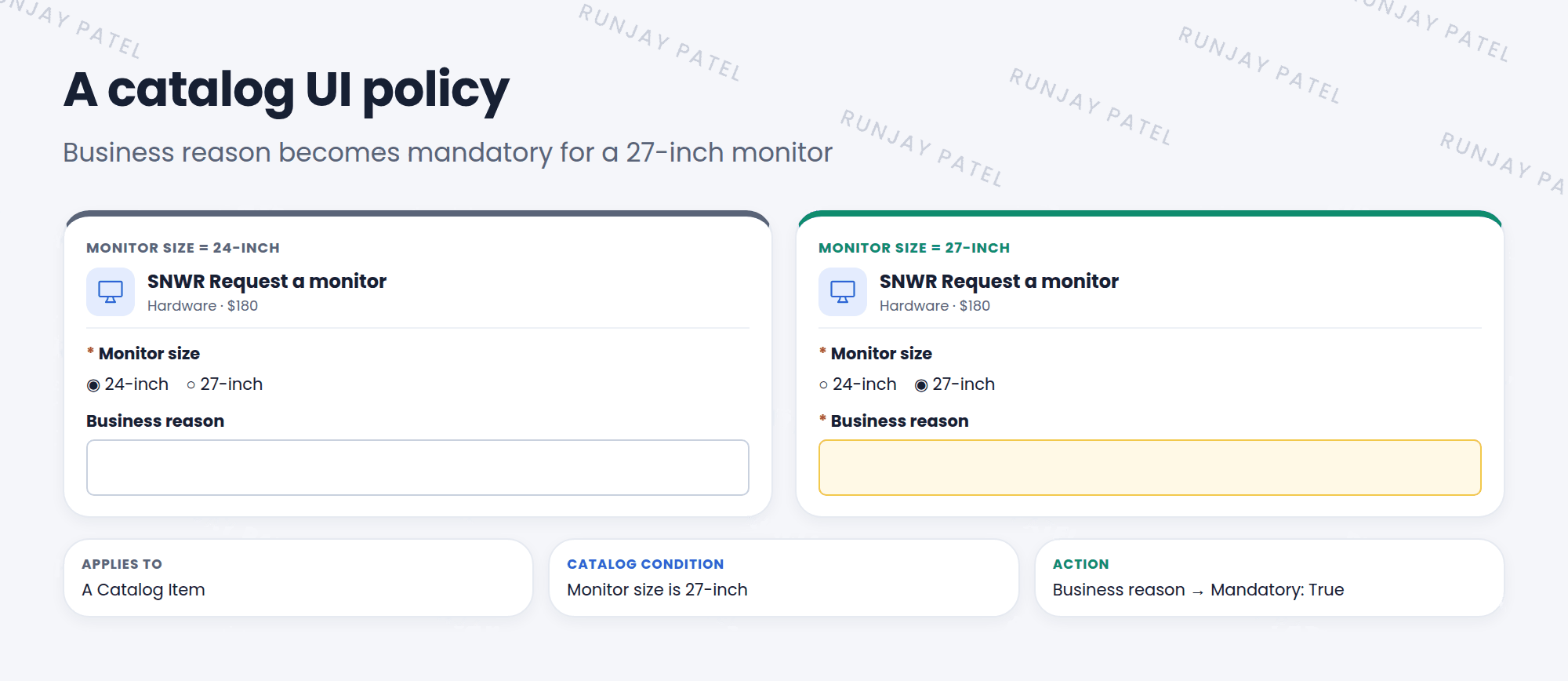
3 Let’s try it: 27-inch needs a reason
- Open your catalog item SNWR Request a monitor (Lesson 26.2).
- In the Catalog UI Policies related list, click New. Short description: 27-inch needs a reason.
- Catalog Conditions: Monitor size is 27-inch. Keep On load and Reverse if false checked. Save.
- In Catalog UI Policy Actions, click New. Variable name: Business reason. Mandatory: True. Save.
- Click Try It on the item. Pick 27-inch. Is Business reason now mandatory?
4 Quick recap
- A catalog UI policy changes catalog variables
- It applies to a catalog item or a variable set
- Actions: Mandatory, Visible, Read only, Clear value
- Build it from the item’s Catalog UI Policies related list
5 Check yourself
Think of your answer first. Then tap to check.
1 Can a normal UI policy make a catalog variable mandatory? Show answer
No. You need a catalog UI policy.
2 A policy should work on every item that uses the “Delivery details” variable set. Where do you build it? Show answer
On the variable set.
3 Which related list on a catalog item holds its catalog UI policies? Show answer
Catalog UI Policies.
Nice work! You finished this lesson. 🎉
Was this lesson helpful?
Please log in to share lesson feedback.
Have a question or doubt?
Ask here and get help from instructors and fellow learners.
Only logged-in learners can post.





