


Reference Qualifiers
On this page
In this lesson, you will learn:
- What a reference qualifier is
- The three types: simple, dynamic, and advanced
- How to add one to a reference field
1 Too many choices
When you search in the Caller field, you see every user, even people who left SNWR years ago. That’s how mistakes happen. A reference qualifier filters the list so people only see records that make sense. 🔎
Key term: Reference qualifier
A filter on a reference field. It limits which records show up when someone searches or uses the lookup.
2 Three types
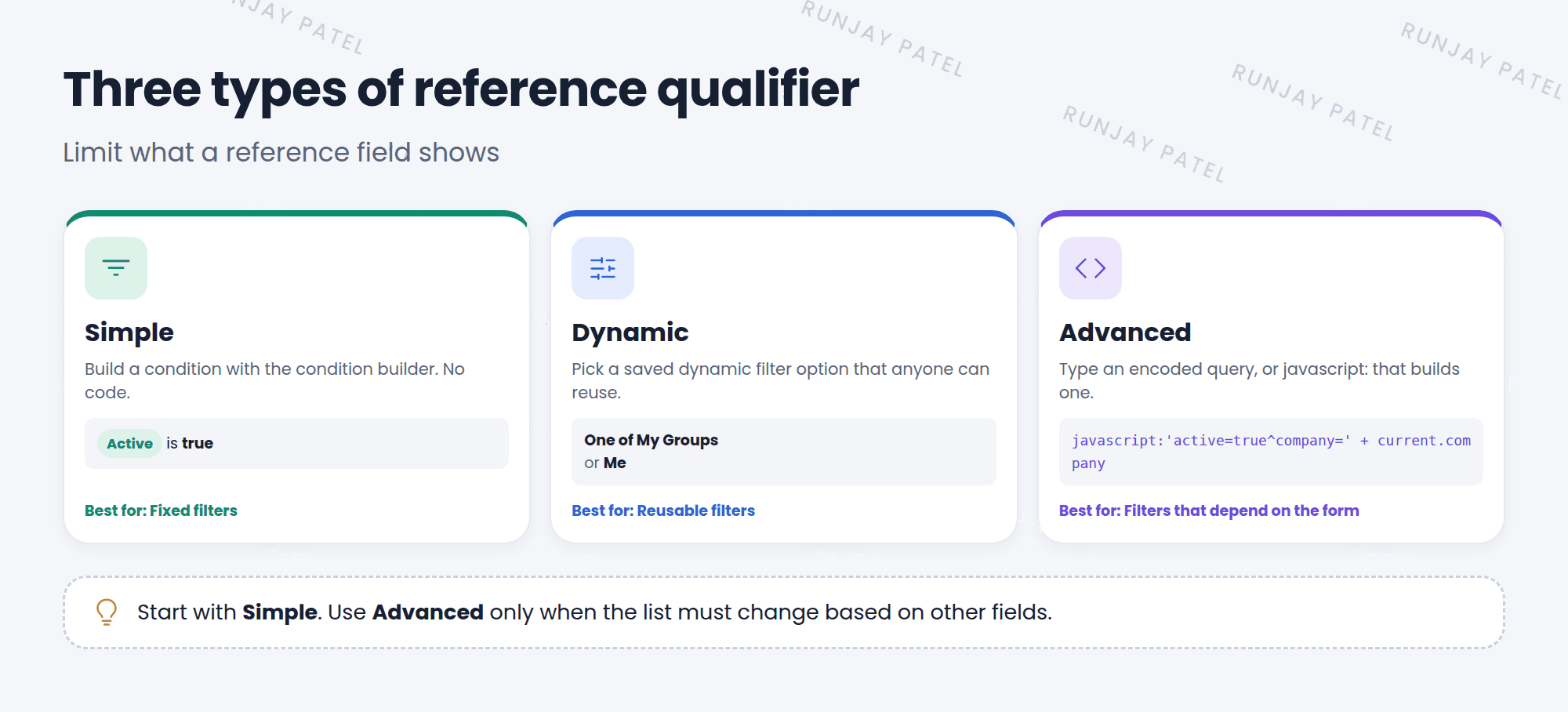
| Type | How it works | Example |
|---|---|---|
| Simple | Build a condition with the condition builder. No code | Active is true |
| Dynamic | Pick a saved dynamic filter option that others can reuse | One of My Groups |
| Advanced | Type an encoded query, or javascript: that builds one |
javascript:'active=true^company=' + current.company |
💡 Good to know: Advanced qualifiers can use current, the record on the form. That’s how the list can change based on another field, like the company.
3 Adding a reference qualifier
- Right-click the reference field label and choose Configure Dictionary.
- Find the Reference Specification tab (switch to Advanced view if you don’t see it).
- Set Use reference qualifier to Simple, Dynamic, or Advanced.
- Build the condition, pick the dynamic filter, or type the query. Click Update.
⚠️ Heads up: A qualifier on a Task field changes it for every child table. Need it on one table only? Use a dictionary override with Override reference qualifier (Lesson 30.3).
⭐ Remember: Simple = condition builder. Dynamic = saved filter. Advanced = query or script.
4 Let’s try it: only active users
- Open a Room Booking. Choose Configure > Form Builder and add a Reference field called Host that references User. Save.
- Back on the form, right-click Host and choose Configure Dictionary.
- In Reference Specification, set Use reference qualifier to Simple.
- Build the condition: Active is true. Update.
- Back on the form, use the lookup icon. Do inactive users still show up?
5 Quick recap
- A reference qualifier filters the records a reference field shows
- Three types: Simple, Dynamic, Advanced
- Set it in the dictionary’s Reference Specification tab
- Use a dictionary override to change it on one child table
6 Check yourself
Think of your answer first. Then tap to check.
1 You want the Caller list to show only active users, with no code. Which type? Show answer
Simple.
2 The list should change based on the Company field on the form. Which type? Show answer
Advanced, using current.company.
3 Where on the dictionary entry do you set a reference qualifier? Show answer
The Reference Specification tab.
Nice work! You finished this lesson. 🎉
Was this lesson helpful?
Please log in to share lesson feedback.
Have a question or doubt?
Ask here and get help from instructors and fellow learners.
Only logged-in learners can post.





