


Dot-Walking
On this page
In this lesson, you will learn:
- What dot-walking is
- How to dot-walk in lists, filters, and forms
- How dot-walking looks in scripts
1 Walking from record to record
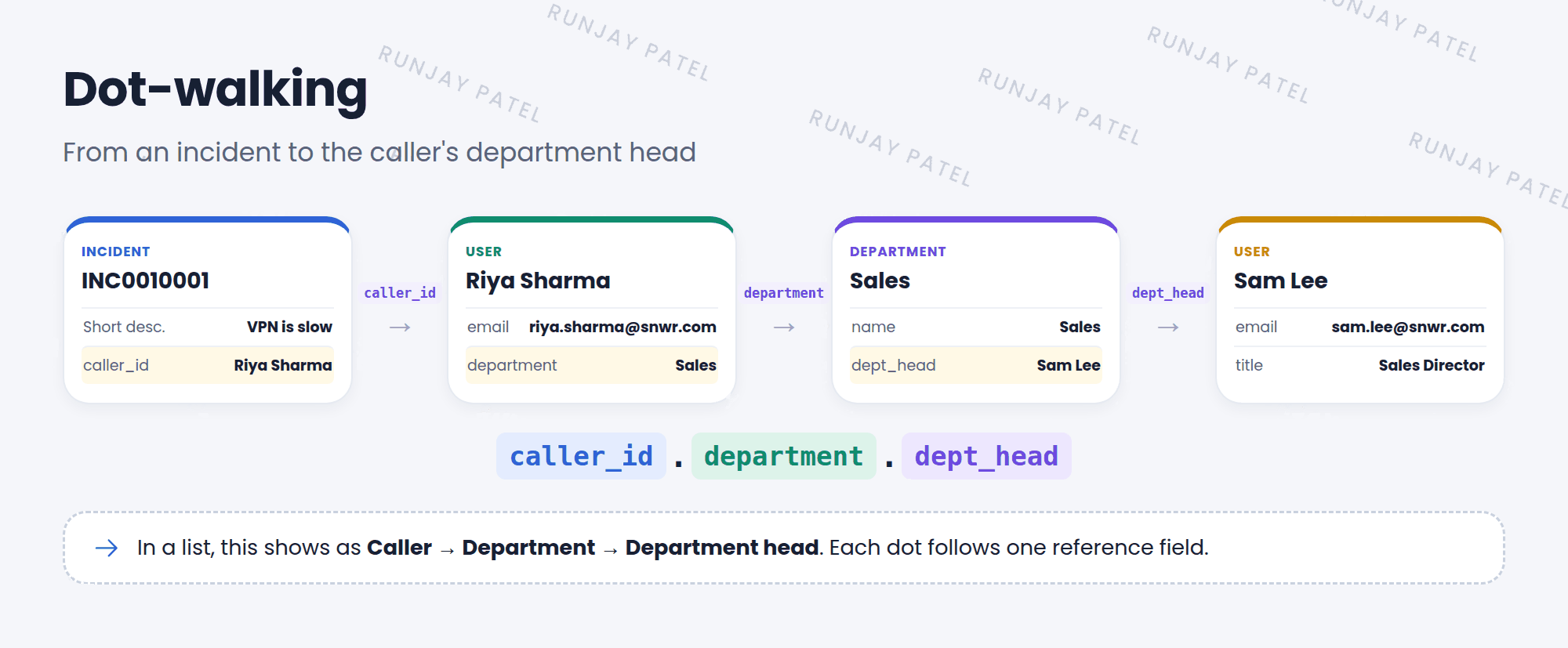
Say you’re looking at an incident, and you want the caller’s department. The incident doesn’t have a Department field. But Caller points to a user, and the user has a Department. So you can “walk” there! 🚶
Key term: Dot-walking
Following reference fields from one record to another to reach a field on a related record. Each step is joined with a dot, like caller_id.department.
2 Where you can dot-walk
| Where | How |
|---|---|
| Lists | In Configure > List Layout, select a reference field (shown in green with a +). Click the expand icon to see its fields |
| Filters | In the condition builder, choose Show Related Fields, then pick a field like Caller => User fields |
| Forms | In Configure > Form Layout, expand a reference field to add its fields to the form |
| Reports | Pick related fields when you group or add columns |
📝 Note: Dot-walked fields on a form show the related record’s data. If you edit one there, you change the related record, like the user’s department, not the incident.
3 Dot-walking in scripts
You’ll see dot-walking a lot in server-side scripts (Chapter 35 and later):
// The caller's email address
var email = current.caller_id.email;

// The caller's department name
var dept = current.caller_id.department.name;
💡 Good to know: Keep paths short. Each dot adds a lookup. Two or three levels is usually plenty.
⭐ Remember: Dot-walking only works through reference fields. Each dot = one hop to another record.
4 Let’s try it: show the caller’s department
- Open Incident > All. Click the list’s menu and choose Configure > List Layout.
- In Available, find Caller (it has a +). Select it and click the expand icon.
- Add Department to the Selected column. Save.
- Now filter: Show Related Fields, then Caller => User fields, then Department is Sales. Run it.
5 Quick recap
- Dot-walking follows reference fields to reach related data
- Each hop is joined with a dot:
caller_id.department.name - Works in lists, filters, forms, reports, and scripts
- Editing a dot-walked field changes the related record
6 Check yourself
Think of your answer first. Then tap to check.
1 Write the path from an incident to the caller’s email. Show answer
caller_id.email
2 In the filter builder, which option lets you pick fields from a related record? Show answer
Show Related Fields.
3 Can you dot-walk through a String field? Show answer
No. Dot-walking only works through reference fields.
Nice work! You finished this lesson. 🎉
Was this lesson helpful?
Please log in to share lesson feedback.
Have a question or doubt?
Ask here and get help from instructors and fellow learners.
Only logged-in learners can post.





