


Retrieve, Preview & Commit
On this page
In this lesson, you will learn:
- Two ways to get an update set into another instance
- Why you preview before you commit
- How to fix preview problems
1 Three steps on the target
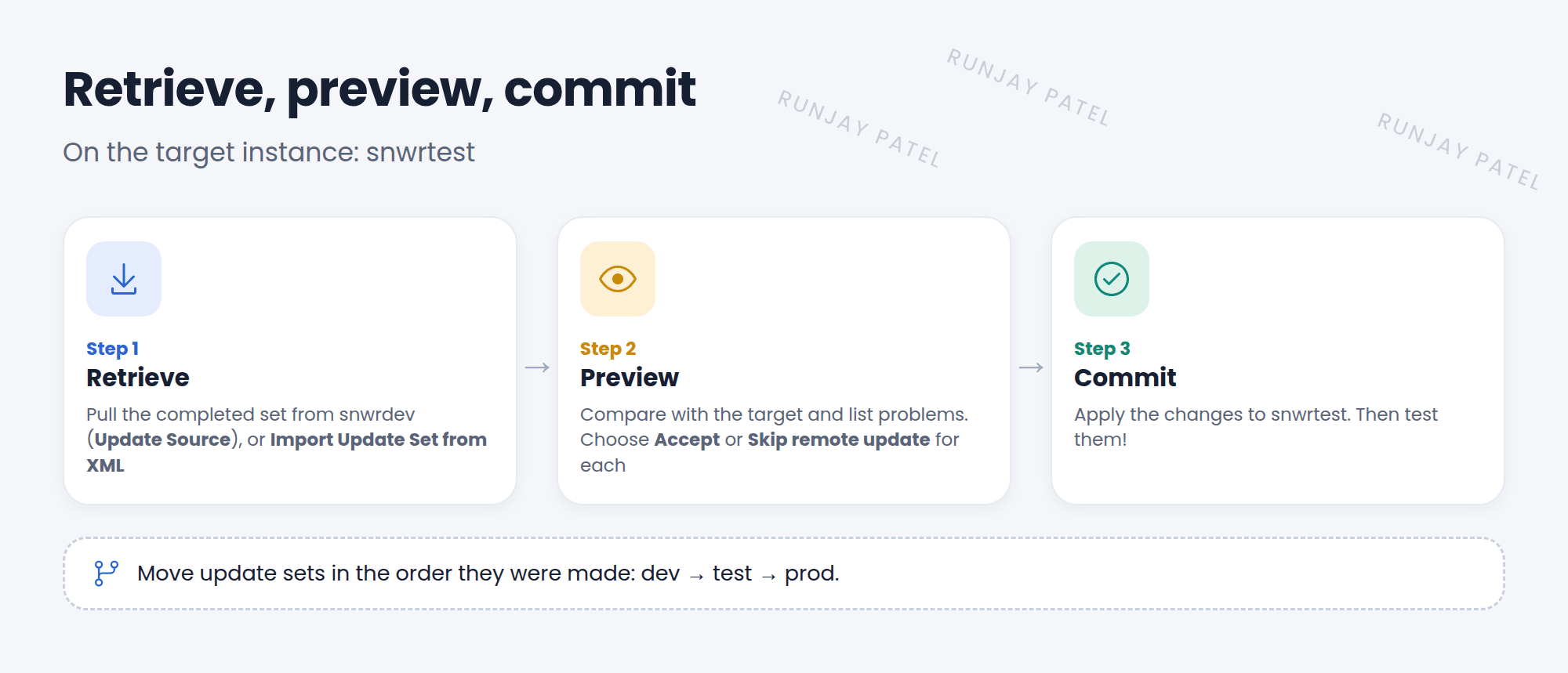
Your update set is Complete in snwrdev. Now you work on the target instance, snwrtest. There are three steps: retrieve, preview, commit. 🚚
2 Step 1: Retrieve
| Way | How |
|---|---|
| Update Source | On the target, go to System Update Sets > Update Sources. Add the source instance’s URL and a user. Click Retrieve Completed Update Sets |
| XML file | On the source, open the update set and click Export to XML. On the target, open Retrieved Update Sets and click Import Update Set from XML |
3 Step 2: Preview
Open the retrieved update set and click Preview Update Set. ServiceNow checks for problems, like:
- The target has a newer version of the same item.
- The update needs something that isn’t there, like a field or table from another update set.
- A record was deleted on the target.
For each problem, pick Accept remote update (use the incoming version) or Skip remote update (keep the target’s version).
💡 Good to know: “Missing field” errors often mean an earlier update set wasn’t moved yet. Commit that one first, then preview again.
4 Step 3: Commit
Once every problem is resolved, click Commit Update Set. The changes are applied to the target. Then test them!
⚠️ Heads up: Move update sets in the same order they were made, and through the same path every time: dev → test → prod. Skipping test is how bugs reach production.
⭐ Remember: On the target: Retrieve → Preview (fix problems) → Commit.
5 Let’s try it: the XML way
- Open your completed SNWR Room Booking tweaks update set. Click Export to XML and save the file.
- If you have a second PDI, open System Update Sets > Retrieved Update Sets there and click Import Update Set from XML.
- Open it and click Preview Update Set. Any problems? (The Room Booking table must exist there first!)
- Fix or skip problems, then click Commit Update Set.
6 Quick recap
- Retrieve with an Update Source or an XML file
- Preview finds problems before anything changes
- Fix each problem: Accept or Skip the remote update
- Commit applies the changes. Then test
7 Check yourself
Think of your answer first. Then tap to check.
1 Put these in order: commit, retrieve, preview. Show answer
Retrieve, preview, commit.
2 Preview says a field is missing. What’s the likely cause? Show answer
An earlier update set that created the field hasn’t been moved yet.
3 The target has a newer version of a script, and you want to keep it. Which option? Show answer
Skip remote update.
Nice work! You finished this lesson. 🎉
Was this lesson helpful?
Please log in to share lesson feedback.
Have a question or doubt?
Ask here and get help from instructors and fellow learners.
Only logged-in learners can post.





